
I am sure you all have faced a situation where Windows gets interrupted because of a power failure or battery issues. Maybe the upgrade process was interrupted because you accidentally restarted or signed out of your PC. In this situation, you will receive Windows Update or Upgrade error 0x80200056. If you receive such an error code, here is the fix.
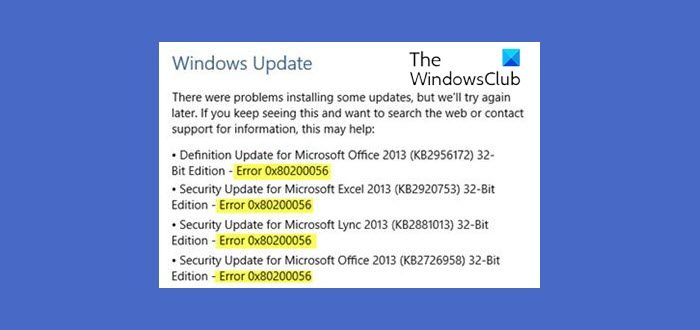
Fix Error 0x80200056 on Windows 11/10
This error happens because the upgrade process was interrupted. This could be the result of anything but the baseline is that the PC was accidentally restarted your PC or somebody signed out of your PC. We offer the following suggestions.
1] Try Upgrading Again
Log in to your account again, and restart the Windows Upgrade Process. Ensure that you have a stable internet connection in place.
2] Ensure that PC is plugged in, or Battery is full
It’s the best practice to always update your PC when you are certain that the power won’t fail. So make sure everything is plugged in if it’s a desktop PC. If this issue occurred on a laptop, ensure the battery was fully charged to 100% capacity. Even then, make sure to keep it plugged into power. Sometimes Windows update gets stuck for long hours, and if the device is always connected, it will help anytime.
Since the upgrade process was interrupted, there is a risk that it may cause additional problems. If these two options are not suitable, follow the steps below.
3] Run Windows Update Troubleshooter
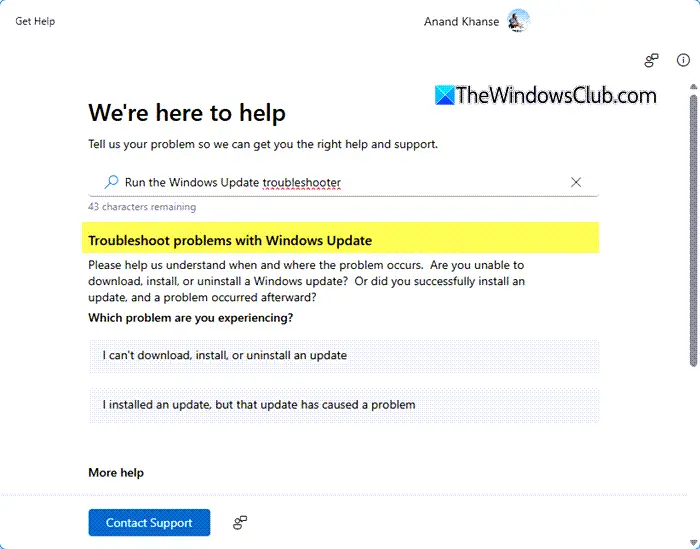
Run this inbuilt Windows Update Troubleshooter to fix the most common Update problems on Windows 11/10.
4] Check SoftwareDistribution folder
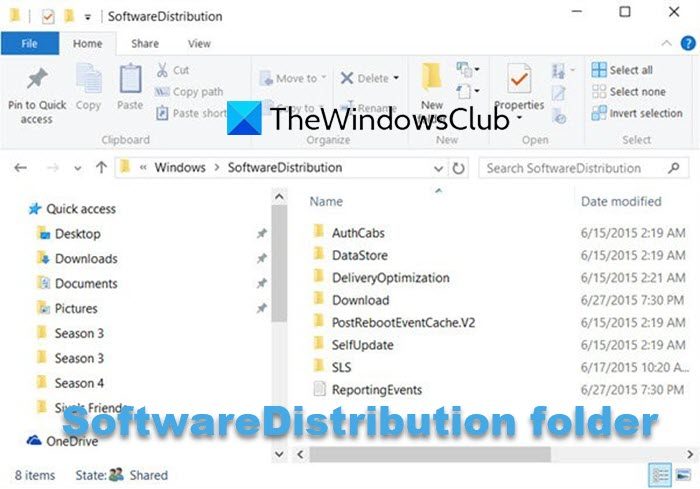
If Windows assumes that some half downloaded files are of the previous installation, it can further create problems. You can fix this by deleting the files in the SoftwareDistribution folder after pausing Windows Update Service. Then, try restarting the computer multiple times to see if the update process automatically starts.
5] Run System File Checker
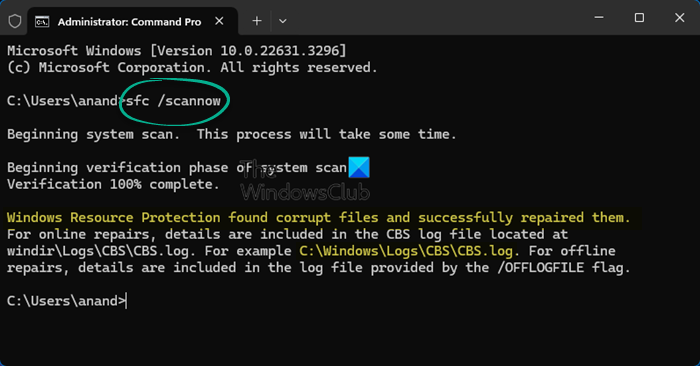
This will repair corrupted or damaged Windows files. You will need to run this command from elevated CMD, i.e., command prompt launched with admin privileges. It will fix the common issues so the update can continue.
6] Repair hard-disk errors
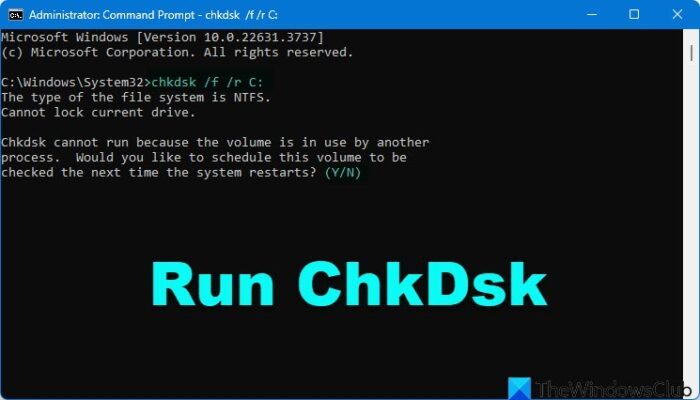
In the case of errors on the hard drive, the update will fail. Run chkdsk in the command prompt to resolve those issues.
7] Fix Broken Windows Update client
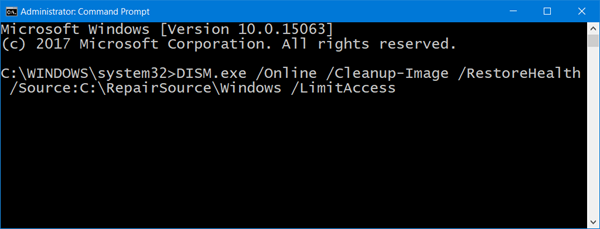
You can use the DISM tool to repair the Windows Update client. However, you will need another PC or use another Windows from a network share to fix it.
Please let us know if this guide helped you resolve the issue.
