
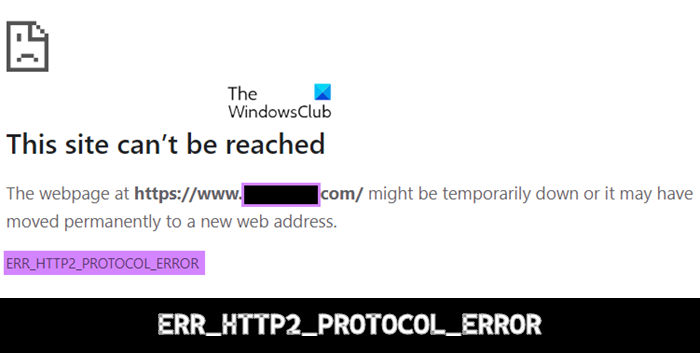
An HTTP2 Protocol Error is observed in several systems and primarily pertains to browser or network issues. As the name suggests, people encounter this issue when their HTTP/2 network connection is interrupted. This may be caused by a corrupt or incompatible extension, bad cookies, or other glitches. If you, too, are countering the ERR_HTTP2_PROTOCOL_ERROR on your Chrome browser, this article will help you resolve it.
Fix Error ERR_HTTP2_PROTOCOL_ERROR on Chrome
To fix error ERR_HTTP2_PROTOCOL_ERROR on Google Chrome on Windows 11/10, follow these suggestions:
- Hard Refresh the webpage
- Update your browser to its latest version
- Set the correct date and time on your device
- Disable or uninstall any conflicting browser extensions
- Disable the browser QUIC Protocol
1] Hard Refresh the webpage
The simplest trick in the book is the one you should try before any other. If you face a ERR_HTTP2_PROTOCOL_ERROR while loading a Chrome webpage, you can press the CTRL key and then refresh the page to check if the issue has been resolved or not.
2] Update your browser to its latest version
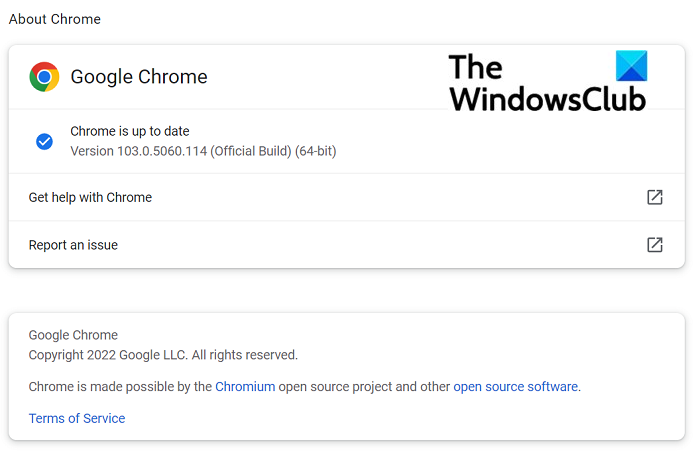
You’re more likely to run into this error if you’re using an outdated version of your web browser. Because of incompatible data packets, the website that you’re trying to run may refuse to accept the client’s request. Try updating your web browser and see if the error persists.
If you are using Google Chrome:
- Open Chrome on your PC and click on the ellipse’s icon at the top-right corner
- Here, select Help and further go to About Google Chrome
- Under the About Chrome section, you’ll see if there are any pending updates for your browser.
- If there are, click to initiate them and once it’s updated, relaunch the browser.
Users of Edge, Firefox, etc. can follow these steps to update the browser manually.
After relaunching the browser, check whether you still face the HTTP2 Protocol Error.
3] Set the correct date and time on your device
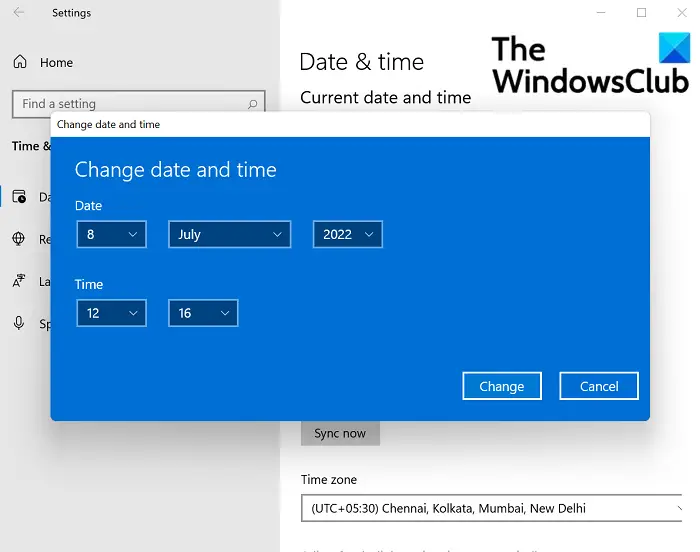
Another cause of ERR_HTTP2_PROTOCOL_ERROR can be an incorrect date and time set on your device. Correcting it to the current date and time in your time zone can help you get rid of this error.
- Check if the date and time on your computer are correct and if not, right-click on the clock on your computer’s system tray and further click on Adjust date/time
- Here, firstly, toggle off the Set time automatically option and under the Set time manually setting, click on Change
- Here, set the time as is correct and save the changes
Now, restart your system and relaunch the webpage to see if the issue is resolved.
4] Disable or uninstall any conflicting browser extensions
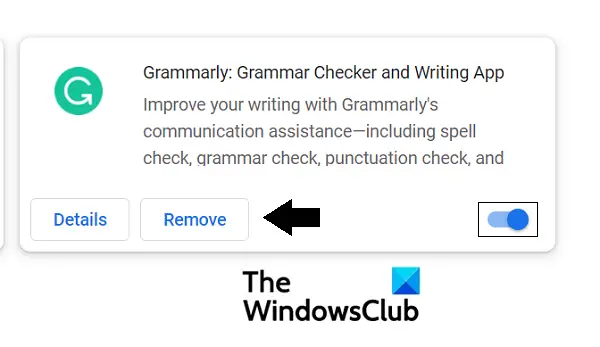
Getting rid of any browser extensions that are causing hindrances in the communications between your browser and a webpage can also do the trick for you.
- From the top-right corner of your browser homepage, click on the Extensions icon
- On the bottom of this action box, you’ll find a Manage Extensions option. Click on it
- This will take you to a separate page where you can find all the browser extensions that you currently have running on your computer
- Locate the conflicting one from the group. You can now disable it by toggling off the enable extension option, or click on Remove to uninstall it
Once you’ve removed the problematic extension, relaunch Chrome and check whether the webpage loads properly.
5] Disable the browser QUIC Protocol
- Launch Chrome on your PC and enter the following in the Address bar
chrome://flags/#enable-quic
- This will help you locate the relevant flag. Find the highlighted ‘Experimental QUIC Protocol’ and from the dropdown to the right, select Disabled
- In order to implement this change, relaunch the browser
If the problematic webpage now loads without hiccups, you’ll see the HTTP2 Protocol Error has been resolved.
How do I fix Insecure Chrome?

Sometimes, our browsing experience on the internet is restricted because some sites have unsafe content. If a site isn’t safe to visit, Chrome shows that the following connection/webpage is secure. In order to check whether a webpage is safe to visit or not, you can visit that site and check its security info from the left of its address bar. Below are the three indicators of a site’s security.
How do I change Google Chrome back to normal?
If Google Chrome on your computer feels unusually slow, it may be due to faulty extensions, excessive notifications, bad cookies, cache, etc. If you have tried everything, the best option is to reset Google Chrome or Reinstall it. Some users have also experienced slowdowns due to limited RAM. You can choose to open fewer Tabs or use an alternate browser.
We hope this post was helpful.
