
Windows allows you to install other operating systems on your computer and run them in parallel to the Windows OS using Virtualization technology. This technology enables you to run another operating system on Windows without making your system dual-bootable. To use virtualization technology on your system, you need to enable the Virtual Machine Platform in Windows. In this article, I will show you how to do this in Windows 11/10.
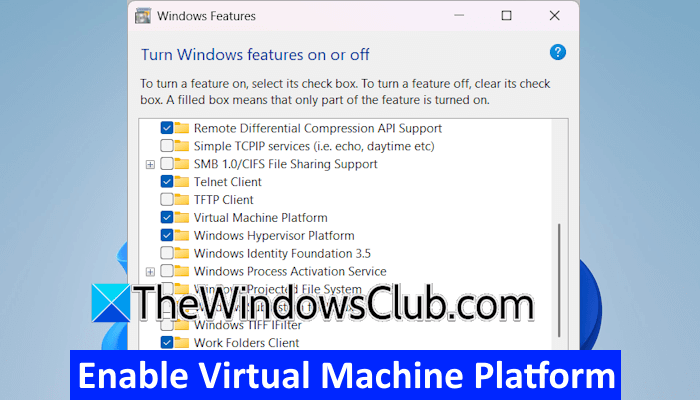
How to enable Virtualization Machine Platform in Windows 11/10
Your device should support hardware virtualization to enable Virtualization Machine Platform in Windows 11/10. All modern computers support hardware virtualization. However, if you have an old computer, you need to check this on the official website. Perform these steps:
- Enable hardware virtualization in BIOS or UEFI
- Enable Virtualization Machine Platform
Let’s start.
1] Enable hardware virtualization in BIOS or UEFI
The first step is to enable hardware virtualization in BIOS or UEFI. The steps to enable hardware virtualization vary by computer brand. Also, different brands use different terms for hardware virtualization. Therefore, you have to visit the official website of your computer manufacturer to know the steps to enable this technology in your system BIOS or UEFI.
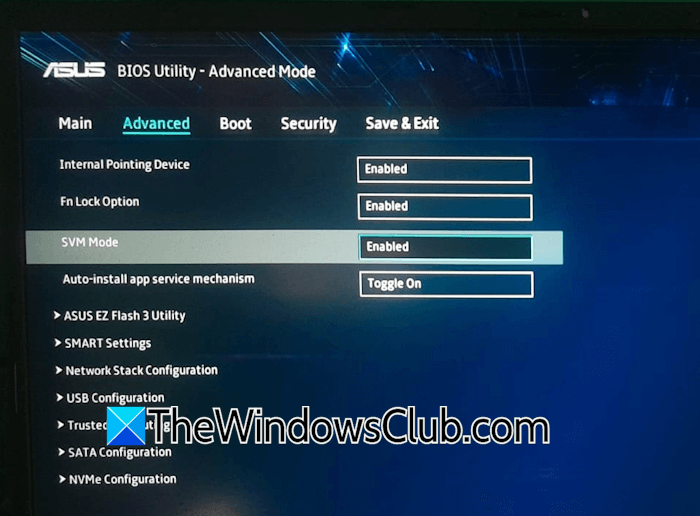
Since I have an ASUS laptop, I have explained the steps to enable hardware virtualization on ASUS laptops. ASUS laptop users with AMD processors need to follow the steps mentioned below:
- Turn off your computer.
- Once it shuts down completely, wait for a few seconds, then press and hold the F2 function key. Now, press the power key at once.
- Do not release the F2 key until you see the BIOS or UEFI screen. Once you are in BIOS or UEFI, release the F2 key.
- Now, switch to the Advanced Mode or press the F7 key.
- Go to the Advanced tab.
- Enable the SVM Mode.
2] Enable Virtualization Machine Platform
Once you enable hardware virtualization in the BIOS, you can turn on the Virtual Machine Platform on your Windows 11 computer.
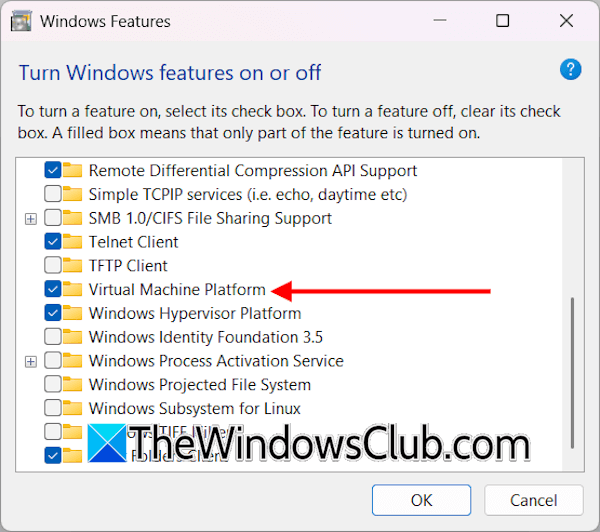
Follow these steps:
- Open the Control Panel.
- Select Programs > Programs and Features.
- Click the Turn Windows features on or off link on the left side.
- The Windows Features window will appear. Scroll down and select the Virtual Machine Platform checkbox.
Windows will take some time to enable the Virtual Machine Platform. If you are asked to restart your computer, restart it.
That’s it. I hope this helps.
How to set up a Virtual Machine on Windows 11?
You can set up a Virtual Machine on Windows 11 via the Hyper-V platform. However, it is not available on Windows 11 Home edition. If you have Windows 11 Home edition, you can use third-party software, like VirtualBox.
How to fix the Virtual Machine Platform not enabled?
If the Virtual Machine Platform is not enabled on your system, you first have to check if your system supports hardware virtualization technology. Refer to your computer’s user manual. If it supports this technology, enter the BIOS or UEFI and enable it. After that, you can enable the Virtual Machine Platform on your Windows 11 machine.
Read next: Enable 3D Acceleration grayed out in VirtualBox.
