
You may already be familiar with the Picture-in-Picture overlay. It shrinks your viewing window and allows it to hover over any tab that you are currently on. This feature is especially useful if you like to watch something while working on the side. Microsoft allows you to view a video in this PiP (Picture-in-Picture) mode. In this post, we are going to see how you can enable or disable Picture-in-Picture Overlay in Microsoft Edge.
How to enable picture-in-picture on Edge?
You can enable Picture-in-Picture on Edge using the MS Edge Settings or the Registry. If you are using a standalone computer, you should use the first method. However, if you are part of an organization, you can deploy this feature using the registry. We have mentioned both methods below for you to try.
Enable or Disable Picture-in-Picture Overlay in Microsoft Edge
If you want to enable or disable Picture-in-Picture Overlay in Microsoft Edge, you can follow any of the methods mentioned below.
- From Microsoft Edge Settings
- From Registry
Let us talk about them in detail.
1] From Microsoft Edge Settings

If you are on a standalone PC, there is no alternative method available to you. Here, we will use a simple method to enable the Picture-in-Picture overlay using Microsoft Edge Settings. To enable PiP, follow the steps outlined below.
- Open Microsoft Edge.
- Click on the three dots and select Settings.
- Now, you need to click on Privacy, search, and services.
- Scroll down, look for Automatic Picture-in-Picture, and click on it.
- Enable the toggle for Show Picture in picture control inside video frame.
This way, PiP will be enabled on your computer.

To access the Picture-in-Picture mode, go to the video and click on the Picture in picture button.
The video window will shrink and remain on your screen as you navigate through tabs. To send it back to its original source, click the Back button, and you will be returned to the previous page.
2] From Registry
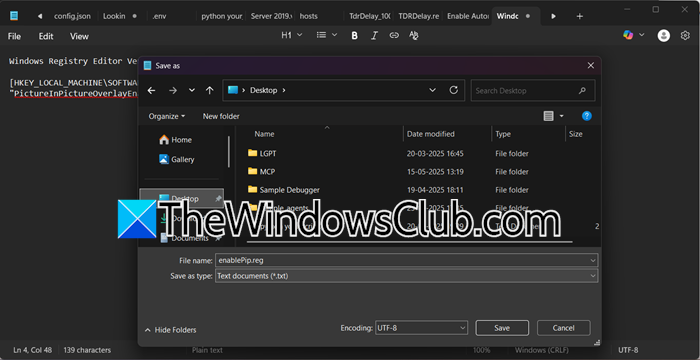
If you are a part of an organization, you can use this method. You can push registry changes via Group Policy to enforce PiP settings across all company devices without manual user configuration. However, before making any changes, you need to back up the Registry.
Once done, we need to use the following script to enable PiP.
To enable Picture-in-Picture Overlay in Microsoft Edge for all users:
Windows Registry Editor Version 5.00

[HKEY_LOCAL_MACHINE\SOFTWARE\Policies\Microsoft\Edge]
"PictureInPictureOverlayEnabled"=dword:00000001
To disable Picture-in-Picture Overlay in Microsoft Edge for all users:
Windows Registry Editor Version 5.00

[HKEY_LOCAL_MACHINE\SOFTWARE\Policies\Microsoft\Edge]
"PictureInPictureOverlayEnabled"=dword:00000000
You need to create a registry file for each task (if necessary), paste the corresponding script, and append the .reg extension to the registry file.
We hope that this works for you.
Read: Microsoft Edge Browser Tips and Tricks
Edge Picture in Picture not working
If Picture-in-Picture is not working in Edge, check your Edge settings and the Registry as discussed above, and if that does not help, follow the solutions mentioned below.
- Update Microsoft Edge
- Clear Edge Browser Cache
- Repair Microsoft Edge
Let’s discuss them in detail.
1] Update Microsoft Edge
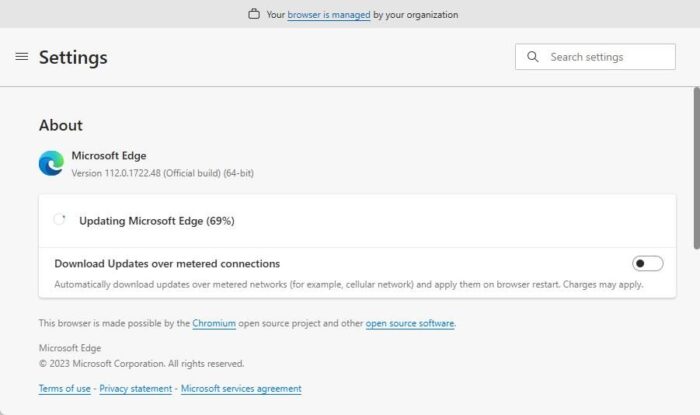
First, we need to update Microsoft Edge if the Picture-in-Picture feature is not working. To do so, either go to Settings > About Microsoft Edge or paste edge://settings/help in the address bar. It will search for updates and install them if any are available. You will have to restart the browser to complete the updating process.
2] Clear Edge Browser Cache
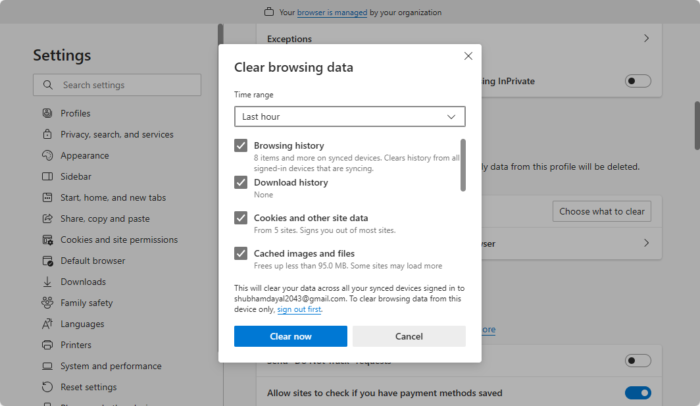
Next up, we need to clear Edge browser cache, as a corrupted cache can also do the trick for you. You can follow the steps outlined below to achieve the same result.
- In Edge.
- Click on the three dots and select Settings.
- Go to Privacy, search, and services, click on Clear browsing data, and click on Choose what to clear.
- Set Time range to All time, tick Browsing history, Download history, Cookies and other site data, and Cached images and files.
- Finally, click on Clear now.
3] Repair Microsoft Edge
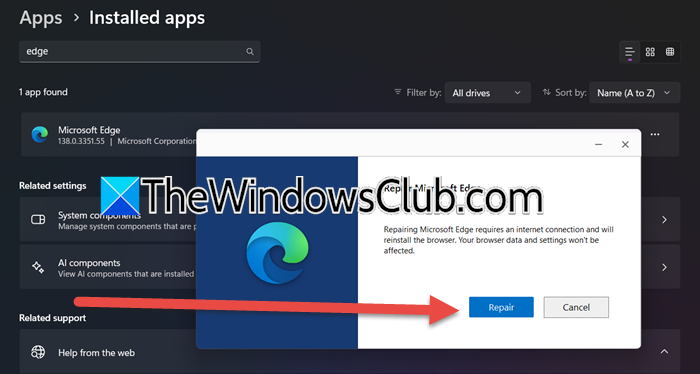
If nothing works, our last resort is to repair Microsoft Edge. You can open Settings > Apps > Installed apps, search for “Microsoft Edge”, click on the three dots, and select Modify. Finally, click on Repair.
Read: How to use multiple Picture-in-Picture video modes in Firefox.
How do I turn off picture-in-picture in Microsoft Edge?
To turn off Picture in Picture in MS Edge, you need to go to Settings > Privacy, search, and services, and disable Automatic Picture-in-Picture. If you have enabled it using the registry, you can use the script mentioned earlier to disable it.
Also Read: How to use Picture in Picture on Windows 11.
