
If you want to translate a video into another language, you can enable live or real-time video translation in the Edge browser. It is possible to enable or disable this real-time video translation if you have the latest Edge version.
Before getting started:
- As mentioned, this feature is available in Edge 141 or a later version. You can use the Stable release to experience this feature.
- You must have at least 12 GB of RAM and a 4-core CPU. Otherwise, this feature won’t be available.
- As of now, you can play with only five languages, i.e., English, Korean, Spanish, Hindi, and Russian.
- Not all websites are supported. Although Microsoft has not released a list of supported websites, you can try it on YouTube.
- If the audio doesn’t have loud background music, the translation is pretty accurate.
Enable or Disable Live or Real-Time Video Translation in Edge browser using Settings
To enable or disable Live or Real-Time Video Translation in the Edge browser using Settings, follow these steps:
- Open the Edge browser and go to Settings.
- Navigate to the Languages tab.
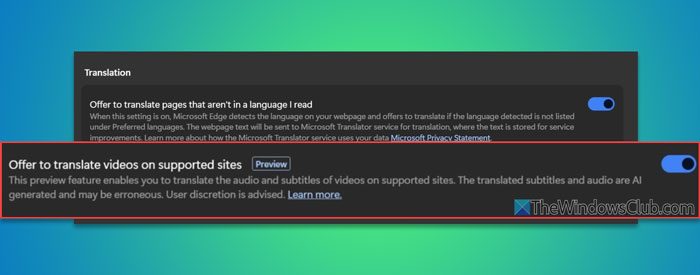
- Find the Offer to translate videos on supported sites option.
- Toggle the button to turn it ON.
- Open YouTube and play a video in English.
- Click on the Translate audio option and choose a language.
To learn more about these steps, continue reading.
First, open the Edge browser and make sure that you have Edge version 141 or later. In case you are not sure, click on the three-dotted icon in the top-right corner and select Help and feedback > About Microsoft Edge. If an update is available, it will be installed automatically.
Once done, open the Edge Settings wizard and go to the Languages tab on the left-hand side.
Next, find the option called Offer to translate videos on supported sites and toggle the corresponding button to turn it ON.
Next, open a supported website. If you do not know any such site, open YouTube and play a video that is in English or any other supported language. Then click the Translate audio button and choose your preferred language.
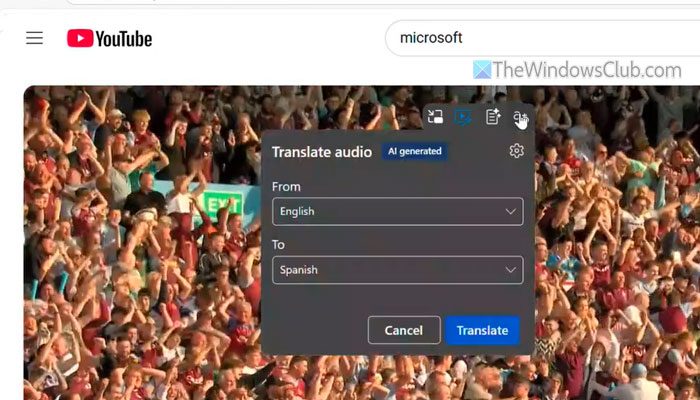
Your video will be translated automatically and immediately. However, if you want to disable the real-time translation, open the same settings and toggle the same button.
For your information, you can turn on or off this functionality using Registry Editor as well.
Turn on or off Live or Real-Time Video Translation in Edge browser using Registry
To turn on or off Live or Real-Time Video Translation in the Edge browser using Registry Editor, follow these steps:
- Press Win+R > type regedit > click the OK button.
- Click on the Yes button.
- Navigate to either Microsoft in HKCU or HKLM.
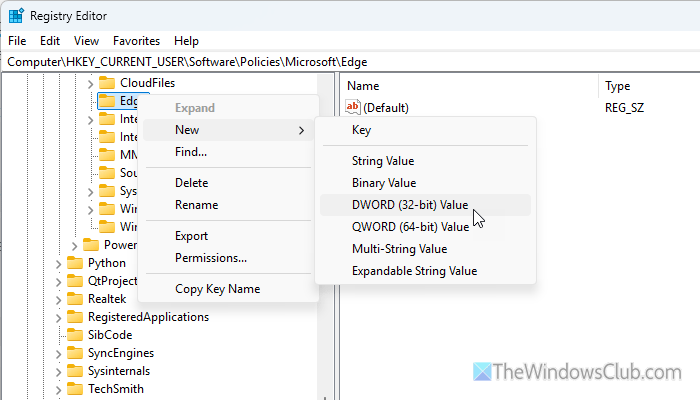
- Right-click on Edge > New > DWORD (32-bit) Value.
- Name it LiveVideoTranslationEnabled.
- Double-click on to set the Value data as 1.
- Click the OK button.
- Restart your computer.
To know more about these steps, continue reading.
To get started, open the Registry Editor. For that, press Win+R to open the Run prompt, type regedit, click the OK button, and click on the Yes button.
Then, navigate to the following path if you want to enable this feature only in the current user account:
HKEY_CURRENT_USER\SOFTWARE\Policies\Microsoft
However, if you want to turn on the real-time video translation for all user accounts, navigate to the following path:
HKEY_LOCAL_MACHINE\SOFTWARE\Policies\Microsoft
Right-click on the Edge key, select New > DWORD (32-bit) Value, and name it LiveVideoTranslationEnabled.
Double-click on it to set the Value data to 1. Then, click the OK button, close all open windows, and restart your computer.
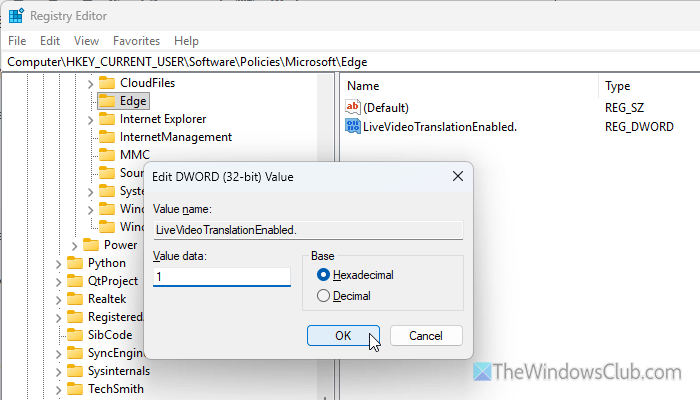
It will enable live or real-time video translation in the Edge browser. However, if you want to turn off this functionality, you have two options:
First, you can open the same REG_DWORD value that you have recently created and set the Value data to 0.
Secondly, you can right-click on the LiveVideoTranslationEnabled REG_DWORD value, select the Delete option, and confirm the removal.
In both cases, you must restart your computer.
Live or Real-Time Video Translation is not available in Edge browser
Here are some of the common reasons why live or real-time video translation is not available in the Edge browser:
- You do not have a minimum of 12GB of RAM/Memory and a 4-core CPU.
- You have selected a language that is not supported as of now.
- You have opened a website that is not supported right now.
Read: Best free Voice Changer software and online tools
What are the benefits of video translation?
The main benefit of having video translation is that you can watch foreign videos in your native language. Instead of reading the captions, you can directly listen to the audio in your preferred language.
Read: Best free Translator apps for Windows 11 PC.
