
Drop Tray, earlier called Drag Tray is a feature in Windows 11 to streamline file sharing. By dragging a file to the top of the screen, you can access various sharing options. It is still being rolled out to all. This post will guide you on how to enable or disable the Drop Tray feature.
Enable or disable Drop Tray using Settings in Windows 11
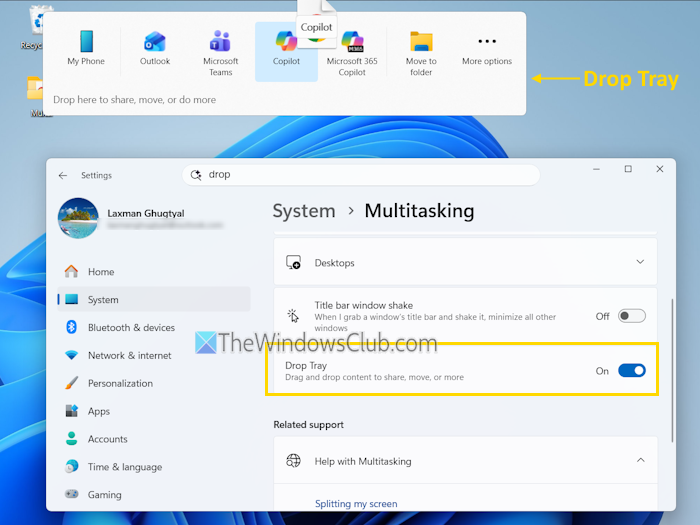
Starting with Windows 11 (build 26300.8068), you can enable or disable Drop Tray (formerly known as Drag Tray) using the Settings app in Windows 11 to drag and drop content to move, share, etc. Here are the steps:
- Use the Win+I shortcut key to open the Windows 11 Settings app
- Select the System category
- Click on the Multitasking option
- Use the Drop Tray toggle to turn it on or off.
In earlier builds of Windows 11, the Drop Tray (Drag Tray) feature was available in Settings > System > Nearby sharing. It has now been moved to the Multitasking page.
Enable or Disable Drop Tray in Windows 11 using Vive Tools
Drop Tray is a top-edge flyout designed to simplify and speed up file sharing by offering app-specific options for individual files, while excluding folders, collections, or containers like ZIPs, and also linking to the Windows Share interface.
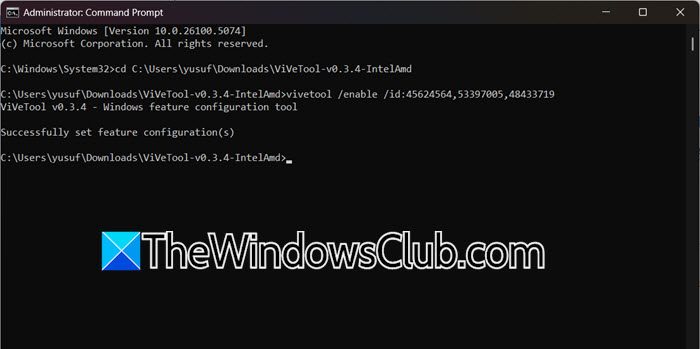
You can also access Drag Tray on Windows 11 (stable version) using the Vivetool.
Follow the steps mentioned below to enable Drag Tray using Vivetool.
- First of all, go to github.com.
- Click on the ViVeTool-v0.3.4-IntelAmd.zip hyperlink, and it will start downloading.
- Once downloaded, extract the ZIP file. When you are extracting, make sure to copy the path to the folder.
- Now, open Command Prompt as an administrator
cd c:\folder\path\ViveTool-v0.x.x ---> Replace this with actual copied path.
- To enable the Drag Tray feature in the Folder options, you need to press Enter.
vivetool /enable /id:45624564,53397005,48433719
Now, reboot the computer.
To share a file, open File Explorer and navigate to its location. Then, drag the file to the top edge of the screen to reveal the Drag Tray, where you can either drop it directly on an application or onto the More options area to open the full Share interface.
Disable Drag Tray via Registry
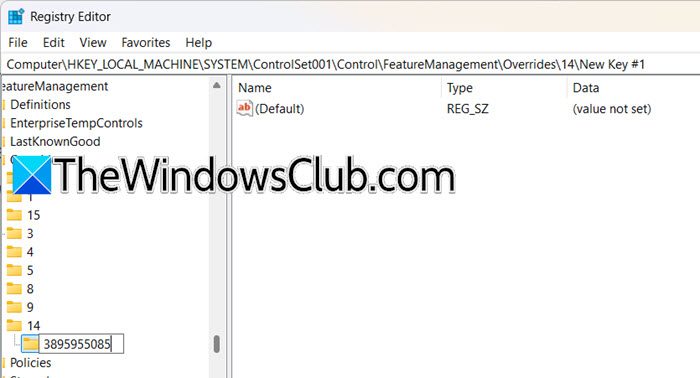
If your Windows 11 iteration has Drop Tray feature enabled, you can not disable it from Settings. Instead, we need to make some changes to the registry. To do so, open the Registry Editor by searching it out of the Start Menu and create a backup of your registry.
Now, go to the following location.
HKEY_LOCAL_MACHINE\SYSTEM\ControlSet001\Control\FeatureManagement\Overrides
Right-click the Overrides key, then click on New > Key, and name it 14. Within this new key, create another key named 3895955085. Inside this key, create two new DWORD (32-bit) Values: first, name one EnabledState and double-click it to set its value to 1, then create a second named EnabledStateOptions and ensure its value is set to 0. Click OK for each, and finally, restart your computer to apply the changes.
You can even use commands to disable Drop Tray. Just run the following commands to do the same.
To disable Drop Tray using Command Prompt
reg add "HKLM\SYSTEM\ControlSet001\Control\FeatureManagement\Overrides\14\3895955085" /v EnabledState /t REG_DWORD /d 1 /f & reg add

"HKLM\SYSTEM\ControlSet001\Control\FeatureManagement\Overrides\14\3895955085" /v EnabledStateOptions /t REG_DWORD /d 0 /f
To re-enable the Drop Tray using Command Prompt
reg delete "HKLM\SYSTEM\ControlSet001\Control\FeatureManagement\Overrides\14\3895955085" /f
To disable Drop Tray using PowerShell
New-Item -Path "HKLM:\SYSTEM\ControlSet001\Control\FeatureManagement\Overrides\14\3895955085" -Force; New-ItemProperty -Path

"HKLM:\SYSTEM\ControlSet001\Control\FeatureManagement\Overrides\14\3895955085" -Name "EnabledState" -Value 1 -PropertyType DWord -Force; New-ItemProperty -Path

"HKLM:\SYSTEM\ControlSet001\Control\FeatureManagement\Overrides\14\3895955085" -Name "EnabledStateOptions" -Value 0 -PropertyType DWord -Force
To re-enable the Drop Tray using PowerShell
Remove-Item -Path "HKLM:\SYSTEM\ControlSet001\Control\FeatureManagement\Overrides\14\3895955085" -Recurse -Force
That’s it!
Read: How to share Files and Folders over a Network in Windows 11
How do I turn off drag and drop in Windows 11?
Windows 11 doesn’t have an explicit option to disable drag and drop. Instead, we can make registry changes to disable or enable drag and drop on our system. We recommend you check our guide to know how to disable Drag and Drop in Windows 11.
Read: How to share Files and Folders using File Explorer on Windows 11
Why can’t I drag files in Windows 11?
There are several reasons why you might be unable to drag files in Windows 11, including a temporary glitch in File Explorer, specific touchpad or mouse settings that disable the drag-and-drop function, or your system operating in a tablet mode that alters input behavior. Additionally, the feature might be intentionally disabled through a registry edit or group policy, or a lack of administrative privileges could be preventing the action in certain locations. You need to check our guide to know what to do if the Drag and drop is not working.
Also Read: Share a file or folder in OneDrive.
