
Windows is simple, be it in the design, the UI, or the features. Understanding and using a Windows 11/10 PC is easy, even for beginners. Anyone can perform basic computer tasks without any specific tech knowledge; in short, it is one of the easiest desktop operating systems to use. Today, we will be talking about sharing the files and folder through the File Explorer on your PC. Yes, you can directly share your files and folder from your File Explorer.
How to share Files in File Explorer on Windows 11
Open your File Explorer on your PC first. Just so you know, there are many different ways to open the File Explorer on your PC. Simple ones are to use the shortcut Win+E or type File Explorer in the Search option.
Once File Explorer is open, select the file you want to share, then right-click it.
From the context menu click on the Share icon as shown in the screenshot below. 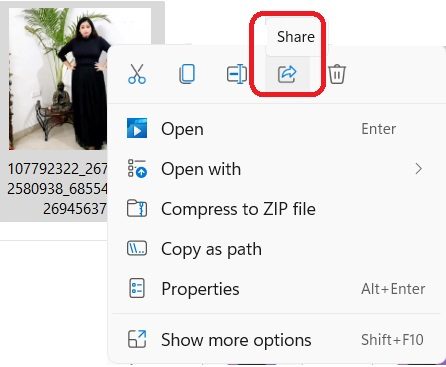
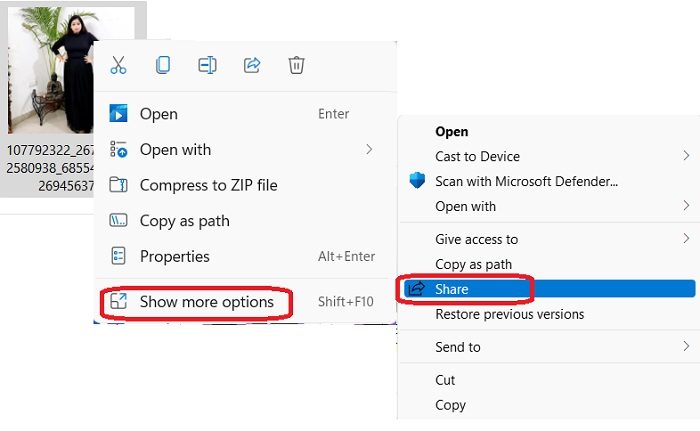
This Share icon may sometime appear at the bottom too. Alternatively, you can click on Show More Options and then click on the Share button or press the Shift+F10 key on your keyboard.
The sharing option you get includes: Nearby sharing, Sharing to an email contact, or Sharing via OneNote or Windows Mail app. Let’s check out these options in detail.
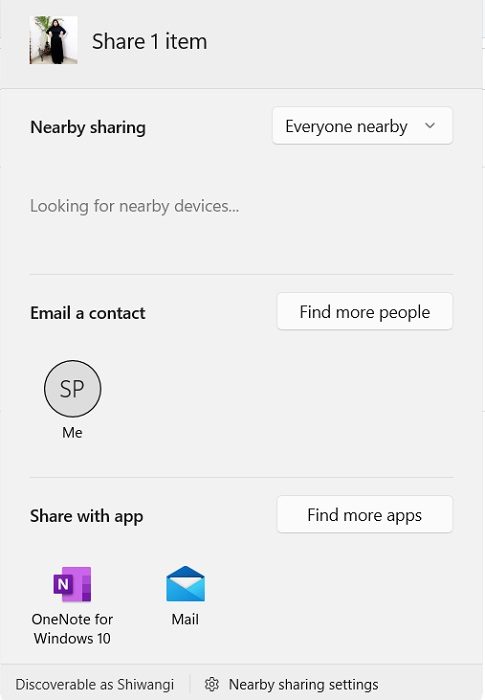
Nearby Sharing
This option lets you share a file (document, photo, video, etc) with any nearby devices using the same Wi-Fi connection or devices connected via Bluetooth.
To use the Nearby Sharing feature, it is important that both your devices are running the same version of Windows. Also, both the PCs should have the Bluetooth feature enabled.
To share a file using the Nearby Sharing option-
Open your File Explorer and select the file you want to share. 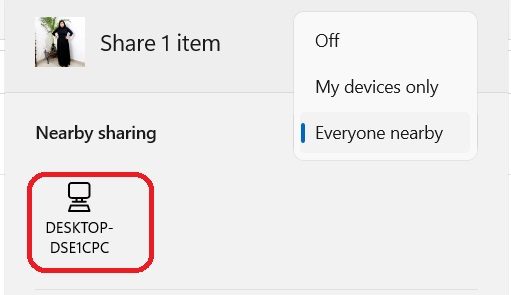
Right-click and select the Share icon from the context menu and then go to Nearby Sharing.
Choose the device you want to share your file with.
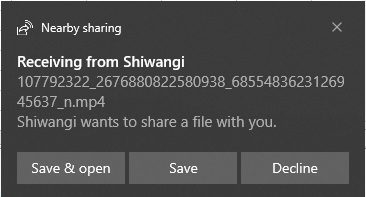
You will get a notification on the other PC, and you have to click on either of the available options: Save & open or Save. You can also decline if you want to.
Read: Nearby Sharing not working in Windows.
Sharing a file via email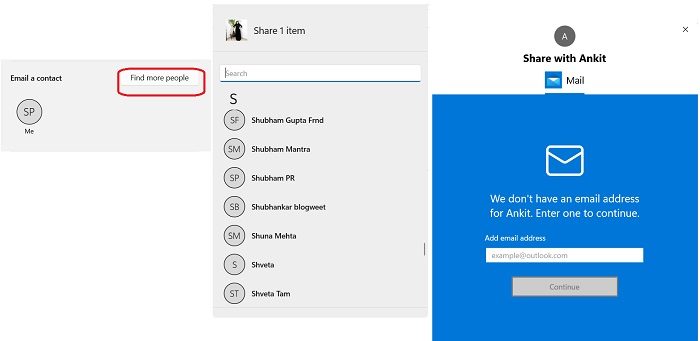
To share a file via email, open the File Explorer and select the file you want to share.
Click on the Share icon and select Email a Contact. If you don’t see the contact here, click on Find more people.
This will open the contact list of your Microsoft Account. If the email address of the selected contact is registered, you can directly email it.
If not, enter the email address manually and click on Continue. 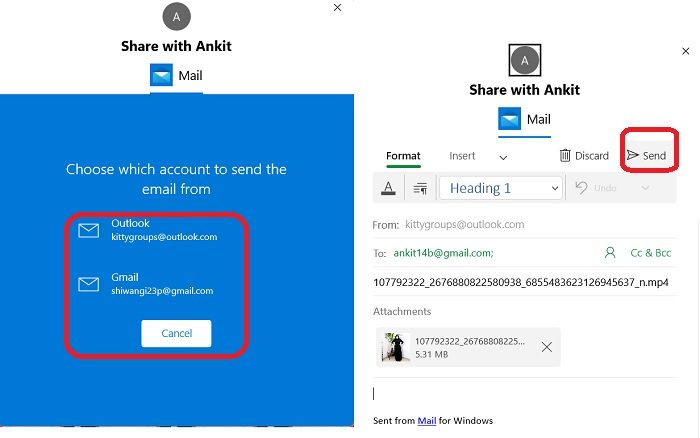
Select the Microsoft account you want to send the file through and your file will automatically be attached to an email with the recipient’s email address. You can then add content to your email and click on the Send button. You can also format your email and add Cc and Bcc if required.
This email will be sent through the Outlook/Mail for Windows app.
Share with app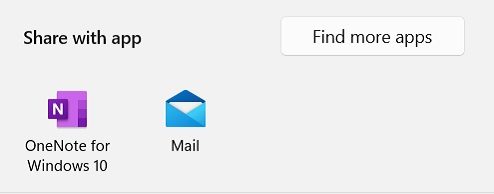
To share a file from your File Explorer with an app, select the file, right-click and click on the share icon.
Select the third option, Share with app.
By default, it includes the OneNote for Windows and the Outlook/Mail app from Windows. You can add more apps by clicking on Find more apps.
It will open the MS Store, and you can select the app you want.
How to share Folders in File Explorer on Windows 11
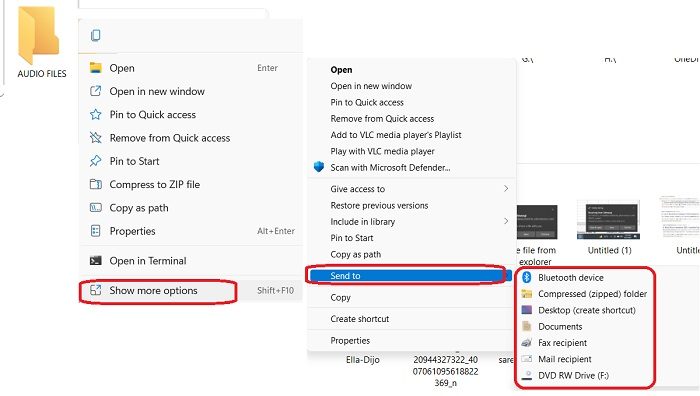
Unlike files, you cannot share folders using Nearby sharing, email or an app directly. To share a folder in File Explorer-
Open File Explorer and select the folder you want to share and right-click.
Select Show more options and click on Send to.
Here you will get the sharing options. Select the one you want and proceed.
How do I share files between computers?
You can use the Nearby Sharing option in your File Explorer to share files between two of your computers. Remember that both your PCs must have Bluetooth and use the same Wi-Fi connection.
How do I receive files through nearby sharing?
When someone sends you a file using the Nearby Sharing option, you get a notification on your PC that someone has sent you this file. Click the Save & Open or Save option to save the file to your PC.
