
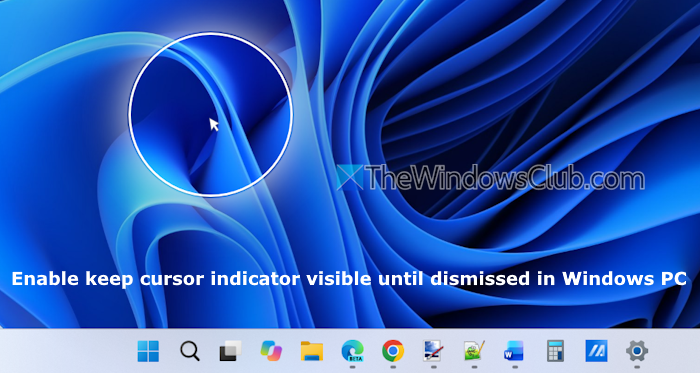
This tutorial shows how to enable the Keep cursor indicator visible until dismissed feature in Windows 11. We already have this feature: press the Ctrl key to find the Mouse pointer. A circle appears around the mouse pointer to locate it. However, starting with Windows 11 version 26H2, we can enable a setting to keep the mouse indicator visible until we press Esc or click a mouse button (left, middle, or right). A redesigned mouse indicator with a modern animation will appear, as visible in the image below.
How to enable Keep cursor indicator visible until dismissed in Windows 11
You can enable the Keep cursor indicator visible until dismissed option in Windows 11 in two ways:
- Using Windows Settings
- Using the Registry Editor.
Using this setting, you can keep the mouse indicator visible until you press Esc or click a mouse button.
1] Using Windows Settings
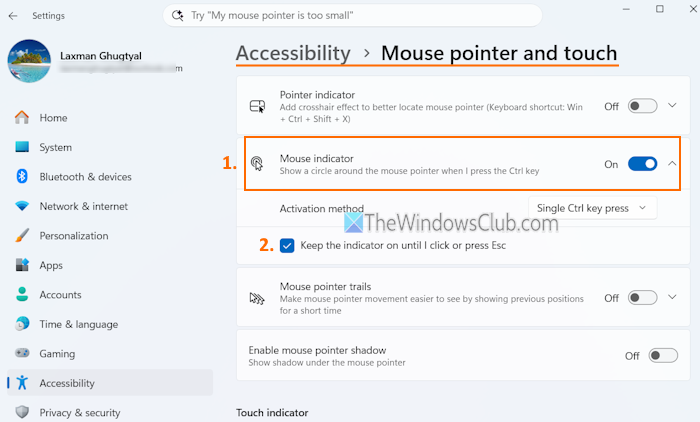
Use these steps to enable the Keep cursor indicator visible until dismissed option using the Settings app in Windows:
- Open the Windows 11 Settings app using the Win+I hotkey
- Select the Accessibility category
- Access the Mouse pointer and touch page
- Turn on the Mouse indicator option and expand it
- Set the Activation method to show the mouse indicator (Single Ctrl key press and Double Ctrl key press)
- Tick the Keep the indicator on until I click or press Esc option to enable it.
Later, when you want to turn off this feature, follow the above steps and uncheck the Keep the indicator on until I click or press Esc option.
Read: Make the mouse pointer color red, solid black, etc. for better visibility
2] Using the Registry Editor
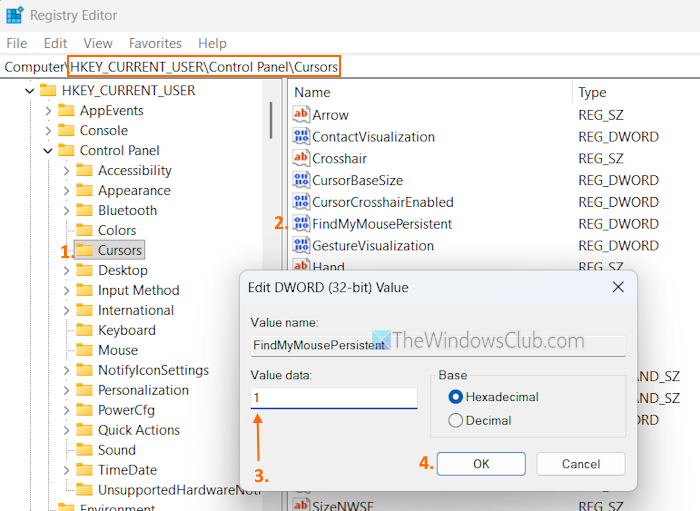
Before you proceed, back up the Windows Registry. Also, you must turn on the Mouse indicator option in the Settings app first. Once done, follow these steps to enable the Keep the indicator visible until dismissed setting using the Registry Editor:
- Open the Search box, type regedit, and hit Enter to open the Registry Editor
- Access the Cursors Registry key. The path is:
HKEY_CURRENT_USER\Control Panel\Cursors
- In the right section, double-click on the FindMyMousePersistent DWORD (32-bit) Value
- An Edit DWORD (32-bit) Value box will pop up
- Add 1 in the Value data field of that box
- Press the OK button
- Restart your PC. You can also sign out and sign back in to apply the changes.
Later, when you want to disable or turn off the Keep indicator visible until dismissed setting, repeat the above steps and double-click on the FindMyMousePersistent value. Add 0 in its Value data box and press OK.
That’s all.
Now read: How to customize Mouse Buttons, Pointer, Cursor on Windows PC
How to keep mouse cursor from disappearing in Windows PC?
To prevent the mouse pointer from disappearing while typing in Windows 11, access the Mouse Properties. First, open the Settings app. Navigate to Bluetooth & devices > Mouse > Additional mouse settings. In the Mouse Properties, switch to the Pointer Options tab. Uncheck the Hide pointer while typing option and press OK.
How to make mouse pointer visible in Windows 11?
If you can’t locate or track the mouse cursor on your Windows 11 PC, press the Ctrl key. This will show a circle around the mouse pointer. You can also access Mouse pointer and touch page in the Settings app to keep the indicator on until you press a mouse button or press the Esc key.
Read next: Cursor is not responding in a specific area of the screen on a PC.
