
For vibe coders, Cursor has become an integral tool. It allows non-programmers to build their apps with prompting. However, sometimes while working with Cursor, you encounter random errors, such as the AI code suggestions or Autocomplete not working. As a result, you cannot progress further with your app build. However, fixing the issue is fairly simple, and we have discussed it all below.

Cursor Autocomplete or Code Suggestions not working
If Autocomplete or AI Code Suggestions are not working in Cursor AI Code Editor Tool, follow these suggestions to fix the issue:
- Basic fixes
- Solve network and protocol issues
- Repair the project index
- Code doesn’t appear.
Before we start, check whether the Cursor is having an outage. Open the Cursor’s status page first. If there is an active incident, you will need to wait.
1] Basic fixes
Before getting into any complicated fixes, let’s look at some basic checks.
First, check the status bar, located in the bottom-right corner of the editor. If you see a small Tab icon that is dimmed or says off, then simply re-enable Cursor Tab.
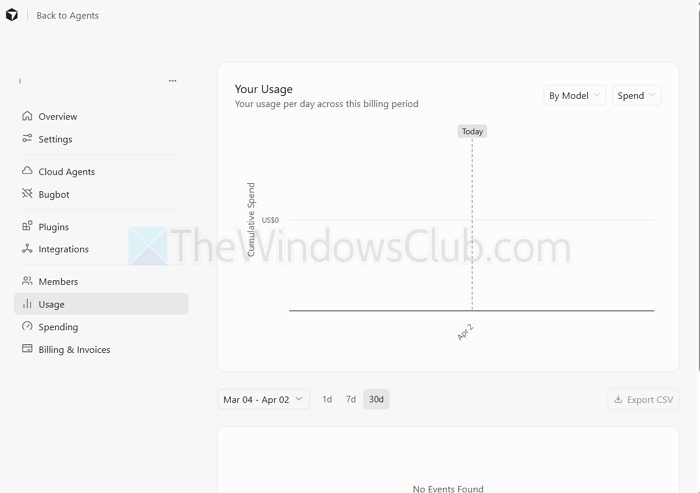
There is also a good chance that you have probably hit your usage quota. To check this, go to cursor.com/dashboard/usage and log in with your Cursor account.
Thirdly, you can restart the language server by pressing Cmd + Shift + P (Mac) or Ctrl + Shift + P (Windows) and run the following command: Developer: Reload Window.
2] Solve network and protocol issues
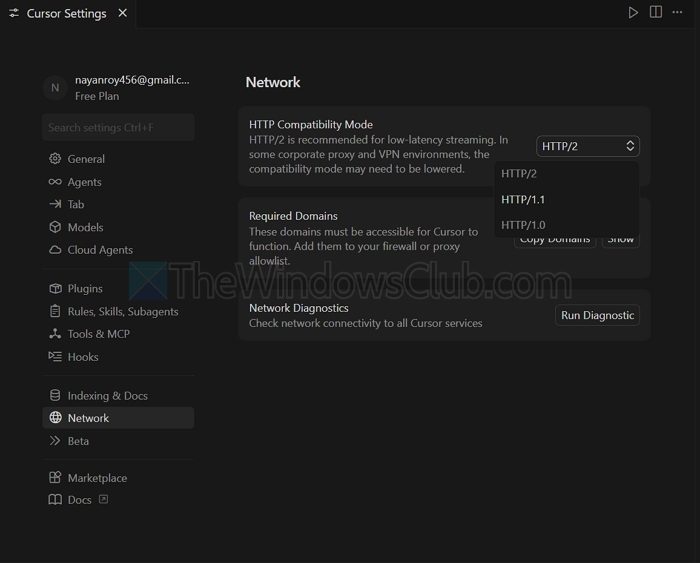
Cursor uses HTTP/2 to stream suggestions. As a result, if you are using VPNs, firewalls, or corporate proxies, you might face trouble.
- To fix this, you can disable HTTP/2 by going to Cursor Settings > Network.
- Here, in the HTTP Compatibility Mode, select HTTP/1.1.
- Finally, restart the Cursor.
Furthermore, you can click the Run Diagnostics button on the same Network settings tab to see if it throws any errors.
If HTTP/2 fallback does not help, suspect SSL inspection or corporate certificates. Recent Cursor support guidance says TLS handshake failures can come from proxy, firewall, VPN, or SSL inspection layers; in those cases, you may need your company’s root CA trusted by the app environment.
3] Repair the project index
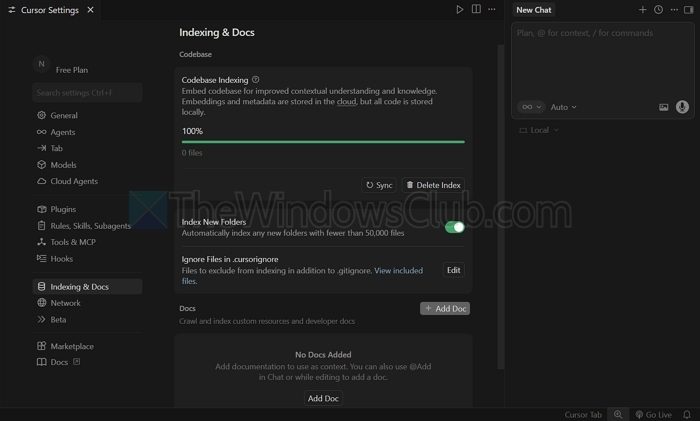
Cursor’s AI works best when it understands your code. If your indexing is stuck, it will not know the context and will stop giving any suggestions.
- Go to Settings > Indexing and Docs.
- Click on the Sync button right under Codebase indexing.
- Let the process get completed and then relaunch Cursor and see if it has resolved the issue.
4] Code doesn’t appear
If Agent can “suggest” code but nothing appears, check your workspace path. One confirmed case was caused by opening a symlinked workspace, which made files look outside the workspace and blocked normal edit behavior
So, these were a few ways to help you if Cursor AI code suggestions are working. Even after all the above fixes, if you encounter the same error, I would recommend reinstalling Cursor or switching to other AI code editors, such as the Kilo AI coder.
Why are AI suggestions slow or laggy?
The issue is usually related to performance rather than functionality. This can happen when your system is under heavy load (such as too many browser tabs or background apps running), when your codebase is very large, and indexing takes longer, or when your internet connection is unstable.
Why does Cursor AI work in some files but not others?
This typically happens because Cursor relies heavily on its understanding of your project’s context. If a file is outside the main project directory, excluded from indexing, too large, or uses an uncommon file extension, the AI may stop providing suggestions altogether.
