
Synchronizing two or more folders on a Hard Disk, Floppy Disk, LAN, USB Key, CD-DVD, and even an FTP server isn’t an easy task to accomplish on Windows 10 with just what Microsoft offers. You will need a third-party tool for this specific situation, and you know what? We’ve found one.
Have you ever heard of DSynchronize? Probably not, and why would you anyway? This free file and folder sync software is hardly popular, but that doesn’t mean it’s not useful in many ways. Now, after our short use time, we can say that it is straightforward, and doest come with a crowded user interface. In terms of looks, the user interface needs some work, but for the most part, it is usable and as such, we suspect most folks should have little problems getting around it.
DSynchronize for Windows PC
Synchronizing files between drives and folders is an easy task on Windows PC, but with DSynchronize, you’ll have more options-
- Sources and Destinations
- General
- Special
- Timer
- Other cool stuff.
Let us talk about this in more detail.
Sync files & folders across drives
1] Sources and Destinations
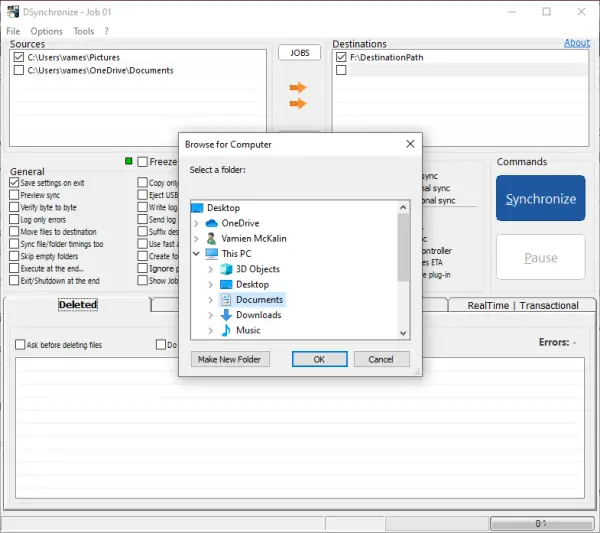
OK, so synchronizing your files across folders and hard drives is quite simple, at least from our point of view. In the top section, there are two parts: Sources and Destinations. From here, users can easily transfer files between devices without problems.
To pin your preferred source, right-click the box, then select Browse. The same is required when you need to add your preferred destination.
You can add multiple sources and destinations, and when you’re done, you can transfer between them at will.
2] General
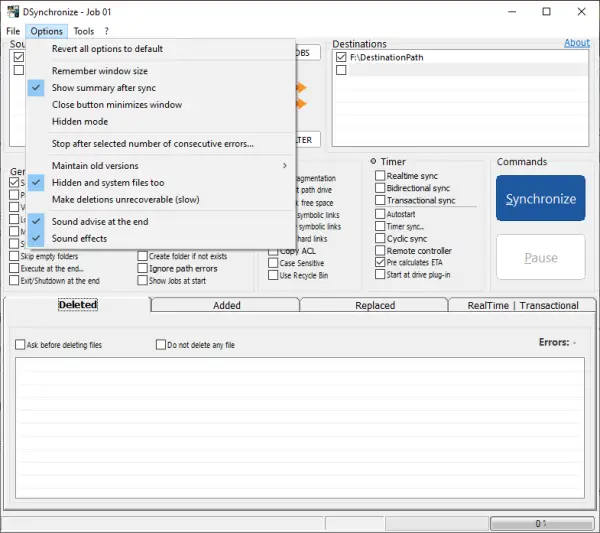
Under the General tab, you will find a ton of options. The user can save settings on exit, preview, verify, log errors, and much more. This is a wonderful section to play around with if you want to control how the app works.
3] Special
As for the Special section, then, it brings some keep tools to the table. You see, one doesn’t want to deal with fragmentation when synchronizing; therefore, it comes with an antifragmentation option. Not only that, it can check for free space, adjust path drive, copy hard links, and a lot more than you might expect.
4] Timer
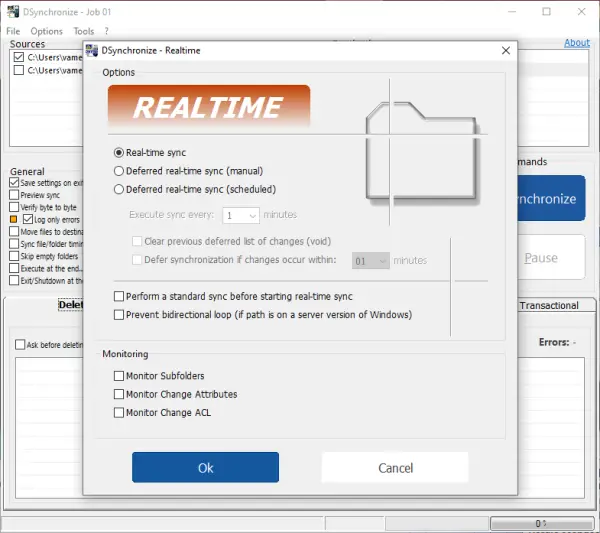
In the timer section, users can activate real-time sync, bidirectional and transactional sync, and autostart.
5] Other cool stuff
The Options menu at the very top contains several options. When you try to sync, you’ll hear a small sound, and the same goes for canceling the sync. If you do not like to hear these sounds, then turn it off from the Options menu, and that’s it for that.
Download the tool directly from the official website.
