
If you see the error message, “docs.google.com refused to connect” while trying to open a document in your web browser, read this post to know how to fix the issue. When you click a document link shared online, it opens in your default web browser and loads directly in Google Docs, which allows you to view or edit the file. However, in some cases, the document fails to load and displays the following message:
docs.google.com refused to connect
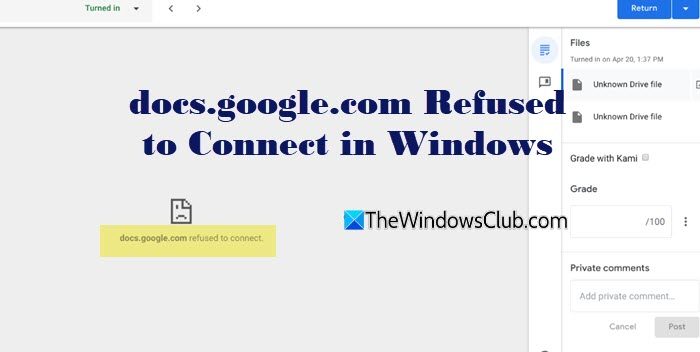
This happens when the browser cannot establish a stable connection to Google Docs, even though your internet connection is working. In this post, we will show you how to fix this error in Windows 11.
What causes the “docs.google.com refused to connect” error?
One of the most common causes of the error is a corrupted browser cache or outdated cookies. Browser extensions can also interfere with embedded Google services, preventing the document from loading. In some cases, being signed in to multiple Google accounts simultaneously can cause session conflicts, resulting in connection refusal. The good news is that this is a common error and can be fixed using a few simple troubleshooting steps.
docs.google.com Refused to Connect in Windows 11
To fix the “docs.google.com refused to connect” error on a Windows 11 PC, use these solutions:
- Clear browser cookies and cache
- Disable browser extensions
- Sign out of other Google accounts
- Create a new browser profile
- Reset network settings and flush DNS
Before discussing these solutions in detail, we suggest you try a few quick fixes:
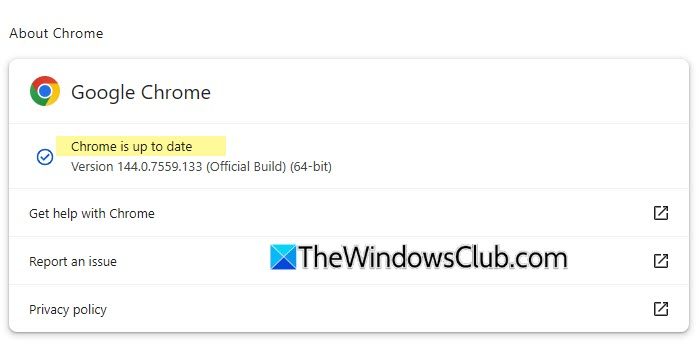
- Open Google Docs in Incognito or Private mode. This helps determine whether the issue is related to browser extensions, cached data, or account conflicts. If the document opens normally in Incognito mode, the problem is likely caused by your browser profile. You can then proceed with the detailed solutions listed below.
- Update your web browser. Although modern browsers update automatically, they may not update if left open for long periods. Close and reopen the browser or check the About section to install pending updates.
- Try a different web browser. This helps identify whether the issue is browser-specific.
If the problem persists, follow these solutions:
1] Clear browser cookies and cache
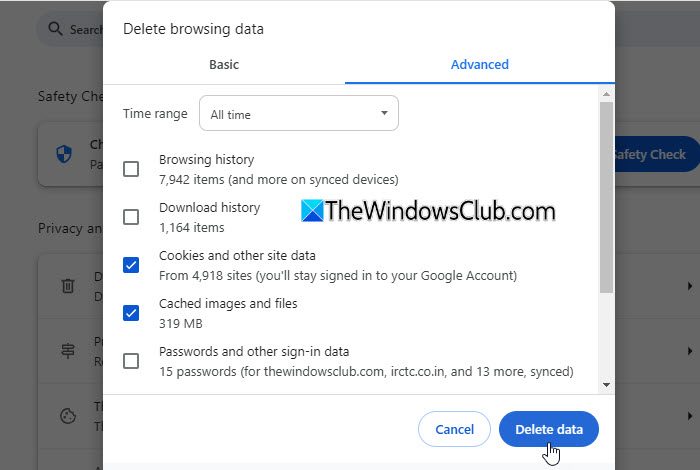
Modern browsers store cached files and cookies to load websites faster. However, corrupted or outdated session data can prevent Google Docs from loading properly. Clearing cookies and cache removes stored data and forces the browser to establish a fresh connection.
For steps, refer to our detailed guides on how to clear cache and cookies in Google Chrome, Mozilla Firefox, and Microsoft Edge.
2] Disable browser extensions
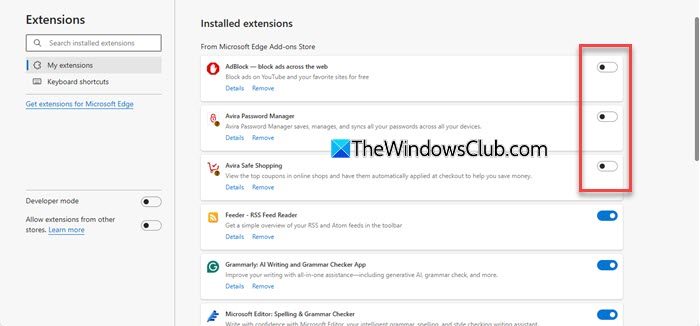
Browser extensions, especially ad blockers, privacy tools, and script blockers, can sometimes interfere with Google Docs and prevent the document from loading. In several cases, Google Docs started working immediately after disabling such extensions.
See our detailed guides to disable browser extensions in Google Chrome, Mozilla Firefox, and Microsoft Edge.
If the document opens normally after disabling extensions, re-enable them one at a time and test again. This will help you identify the extension causing the issue. Once identified, remove or update the problematic extension.
3] Sign out of other Google accounts
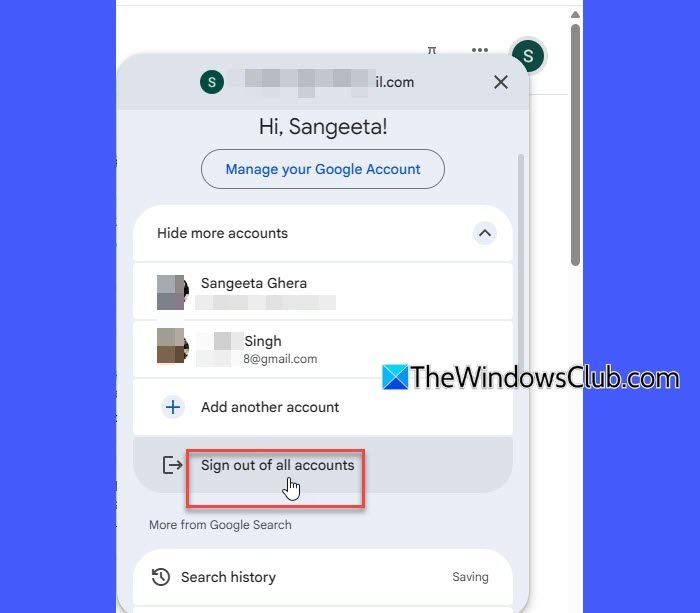
Many users have reported that this error occurs when multiple Google accounts are signed in simultaneously in the same browser. Signing out of all accounts and logging back in with only the required account can refresh the session and resolve the issue.
Open Google Docs or any Google service page. Click your profile picture in the top-right corner. Select Sign out of all accounts.
Close the browser. Reopen it and sign in only with the account you want to use.
Try opening the document again. If the document loads successfully, the issue was likely caused by an account session conflict.
4] Create a new browser profile
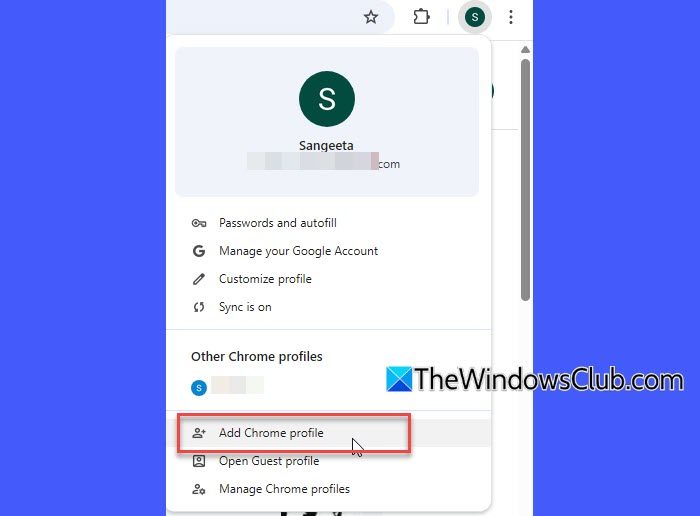
If your current browser profile is corrupted, Google Docs may fail to load properly. Creating a new profile starts the browser with fresh settings, which can resolve issues caused by corrupted user data.
Create a new browser profile and see whether Google Docs works in it. You may refer to our detailed guides on creating a profile on Chrome, Firefox, and the Edge browser.
If Google Docs loads successfully, sign in to the new profile using your Microsoft, Google, or Firefox account. If synchronization is enabled, your bookmarks, passwords, and other data will sync automatically after signing in. Otherwise, you can manually export and import your bookmarks from the old profile.
Switch to the new profile only if the issue is resolved. Otherwise, continue using your existing profile and proceed with the next troubleshooting method.
5] Reset network settings and flush DNS
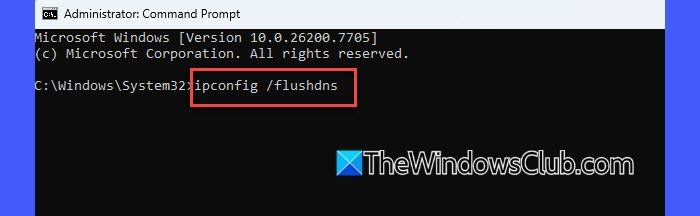
If the error persists, it may be caused by DNS issues or network configuration problems. Flushing DNS clears stored domain resolution data, while resetting network settings restores default network configurations.
Press Win + S, type Command Prompt.
Right-click it and select Run as administrator.
In the Command Prompt window, run the following commands one by one:
ipconfig /flushdns
netsh winsock reset
netsh int ip reset
Then reboot your PC and try opening Google Docs again.
I hope this helps.
What is the cause of Connection refused?
The “Connection refused” error appears when a browser cannot establish a connection with the requested website. In the case of Google Docs, this usually happens due to corrupted browser cache, conflicting extensions, DNS issues, or network-level restrictions. The website may be reachable, but the request is blocked before the page loads fully.
What does “myaccount Google.com refused to connect” mean?
The message “myaccount.google.com refused to connect” means that your browser was unable to establish a connection with Google Account, which manages your account settings, security options, and personal information. This can be resolved by clearing browser data, disabling extensions, or checking your network settings.
Read Next: Localhost refused to connect in Chrome on Windows.
