
A reported error while trying to launch graphic-intensive applications, like video games, on Windows computers is Display driver failed to start. If you encounter this error, along with the Windows black screen, this article will help you resolve it.
Display driver failed to start in Windows 11/10
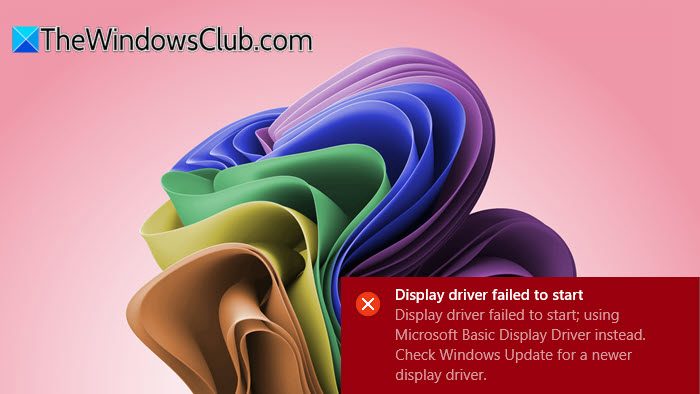
Display driver failed to start; using Microsoft Basic Display Driver instead. Check Windows Update for a newer display driver.
The issue could be caused either by a corrupted graphics driver or some issues with the system settings. Before you begin, update your Windows copy. If it doesn’t help, try the following solutions sequentially:
- Restart Graphics Driver
- Run the Hardware and Devices Troubleshooter
- Update the Graphics driver
- Set your system for maximum performance
1] Restart Graphics Driver
If the Display or Graphics driver crashes, Windows 11/10 can recover the graphics driver on its own. If it does not, you can always restart the Graphics Driver in Windows manually.
Use the key combination Win+Ctrl+Shift+B on your Windows keyboard. The screen flickers and goes black for a second, then comes back.
2] Run the Hardware and Devices Troubleshooter
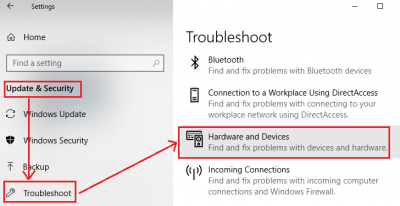
The Hardware and Devices troubleshooter can detect problems with the drivers and associated hardware. If possible, the troubleshooter will fix it. The procedure to run the Hardware and Devices troubleshooter is as follows:
Click on the Start button and go to Settings > Updates and Security > Troubleshoot.
From the list of troubleshooters, select and run the Hardware and Devices troubleshooter.
Restart the system once troubleshooting is complete.
2] Update the Graphics driver
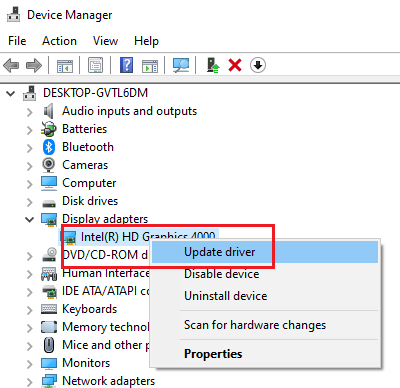
The basic cause of the issue in discussion is that the graphics card driver is outdated. In such a case, we can update the graphics card driver by following this procedure:
Press Win+R to open the Run window and type the command devmgmt.msc. Hit Enter to open the Device Manager.
Expand the list of Display adapters.
Right-click on the graphics card driver and select Update Driver.
Restart the system after updating the driver.
You could also consider reinstalling the graphics drivers. Select Uninstall device from the right-click menu, then restart the system once the uninstallation is complete.
If this doesn’t solve the problem, you may consider downloading the graphics drivers from Intel’s Download Center and install it.
3] Set your system for maximum performance
Windows 11/10 allows users to select the effects they want to activate on their system, thus adjusting the appearance-to-performance ratio. This could be done by setting a specific option in the system. You could set this setting to “Maximum performance” to counter the issue of “Display driver failed to start.”
Search for the word “performance” in the Windows search bar.
Select the option to Adjust the appearance and performance of Windows.
Shift the radio button to Adjust for best performance.
Click on Apply and then on OK to save the settings.
I hope these solutions help you solve your issue.
Why does my display driver keep failing?
Display driver failures can occur due to a simple glitch, outdated or corrupt graphics card drivers, power supply issues, faulty RAM, or overheating. To resolve these issues, restart your PC and see, and if that does not help, update your drivers, check hardware components, and ensure proper cooling.
How do I reinstall my display driver?
To reinstall your display driver, open Device Manager by searching for it in the taskbar. Locate your display adapter, right-click on it, and choose “Uninstall device.” Restart your computer, and Windows will automatically reinstall the display driver. Alternatively, download the latest driver from the manufacturer’s website and install it manually.
