
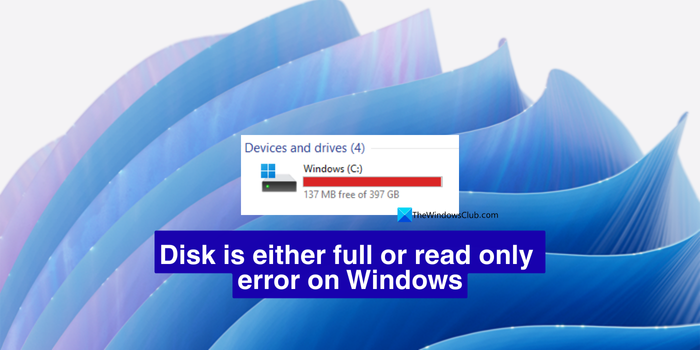
The C drive on a Windows PC is the most important drive for running the Windows OS and other installed programs. By default, everything is saved to this drive unless we choose to save to a different drive. However, as time goes by and our use of it increases, the data on the drive accumulates and fills it. There are instances where we see a false warning of a full C drive or other drives. If you encounter the “Disk is either full or read-only” error on Windows 11/10, follow this guide to fix it easily.
Disk is either Full or Read only error on Windows 11
If the C drive on your Windows 11 PC is suddenly full for no reason, or you find another drive full and see a warning when trying to save a file, the methods below will help you fix it and get your storage space back. Before going into those methods, restart your PC, or shut it down for a few minutes, and then see if it helps. Then, follow these methods.
- Check for large files and organize them
- Check for errors on disk
- Delete Windows.old folder
- Run Storage Sense and Cleanup recommendations
- Uninstall the cleanup program, reinstall and run it
Let’s dive deep into each method.
1] Check for large files and organize them
When we encounter the “Disk is either full or read-only” error on Windows 11, we need to identify large files and either delete them or organize them elsewhere so they don’t consume space on our disks. To find large files, open File Explorer and type Size: > xyz GB.
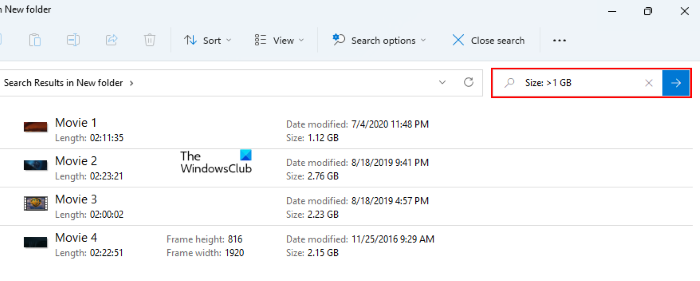
It will show you files that are larger than what you have searched for. Repeat this process until you find the large files.
After finding the large files, delete those you feel are unnecessary, move them to other drives, or upload them to cloud storage services like Google Drive, OneDrive, etc. This way, you do not have to part with the files, but still get the storage space back for other essential files and the smooth running of the PC.
2] Check for errors on disk
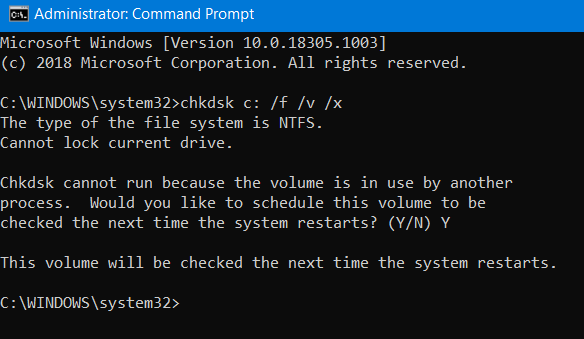
When there are any errors on the disk, you may abruptly see the error of a full or read-only disk. You need to check for any errors in the Command Prompt. Click on the Start menu and search for Command Prompt. Click on Run as administrator from the search results. Then, enter the following command and press Enter. You need to replace <Partition Letter> with the letter of your drive. For the C drive, replace it with C:. Do not forget “:” beside the drive letter.
chkdsk <Partition Letter>: /f /v /x
It will check for errors on the disk you are having errors on and fix them.
3] Delete Windows.old folder
If you have recently upgraded your Windows version and are seeing the error, it can be due to Windows.old folder. Windows automatically saves the old Windows version in that folder on the C drive. It occupies a lot of space and makes it hard for you to save downloads or new files on the drive. To get rid of the error, in such circumstances, you need to remove the Windows.old folder from your PC permanently.
To delete the Windows.old folder easily, open the Settings app, click System, and select Storage. Then, click on Temporary files. Wait a few seconds for it to scan your PC. After the scan, you will see the list of removable temporary files, which also includes Previous Windows installation(s). Check the button beside it and click the Remove files button above it.
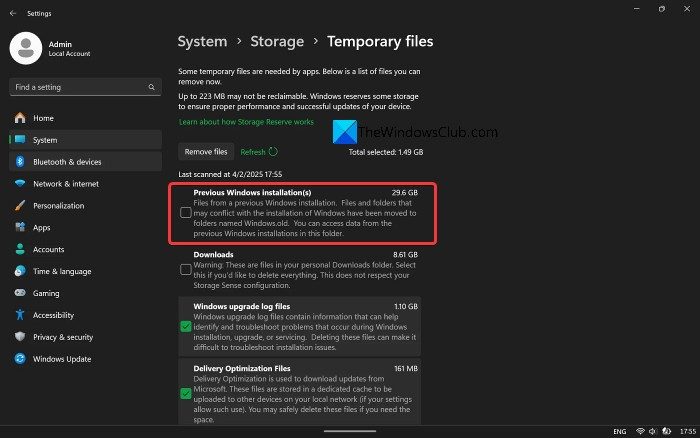
Wait for the process to complete, then restart your PC. You have just reclaimed your storage space. To free up additional storage, follow the next step.
4] Run Storage Sense and Cleanup recommendations
Windows creates many files when we run programs on it. We download a lot of files and forget about them. They all pile up and occupy huge amounts of disk space over time, making it hard for new files and causing errors like “Disk is either full or read-only”. You must delete the files you created manually on the disk. But the files created by the Windows PC while you are using it can be cleaned by Windows using the Settings app.
Open the Settings app, select System, and go to Storage. Under the Storage Management tab, click the Storage Sense. Then, click Run Storage Sense now.
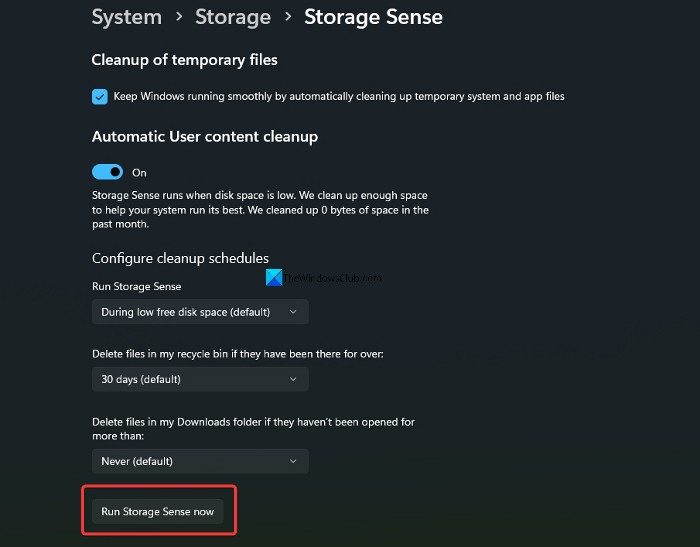
Wait for the process to complete. Then, under Storage Management, click Cleanup recommendations. Check the buttons beside all the categories under Temporary files and click Clean up.
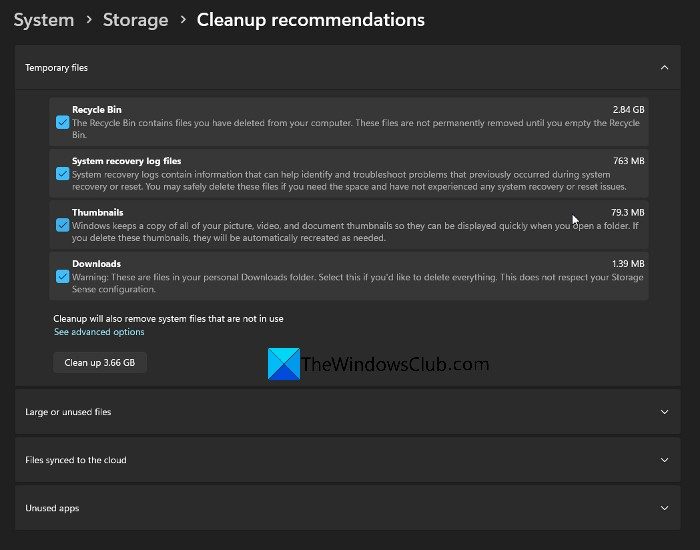
Follow the same with Large or unused files, Files synced to the cloud, and Unused apps. This will free up a lot of space on your PC.
5] Uninstall the cleanup program, reinstall and run it
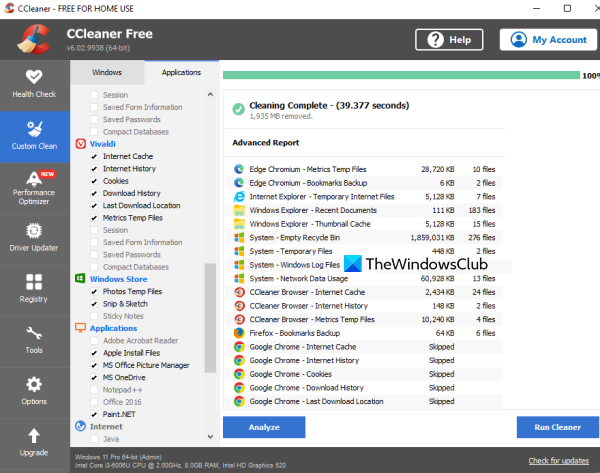
If you have run a cleaning program like CCleaner and see the error, uninstall the program from your PC, restart your PC, and reinstall it if you want to use it again. Or you can use the Storage settings in the Settings app instead of third-party apps to optimize your Windows PC.
Also read:
- Free Disk Space Analyzer software for Windows 11
- Free up and increase hard disk space on a Windows 11 computer
How to fix Disk full on Windows 11?
When you come across a full disk on your PC, run the Storage Sense and Cleanup recommendation in the Settings app. These two would help you delete a lot of unnecessary files. If you still want to clear some more, transfer important files to another disk, or back them up to cloud storage.
How do I turn off read-only in Windows 11?
To turn off read-only in Windows 11, Right-click on the read-only folder and select Properties from the context menu. Then, uncheck the button beside Read-only (Only applies to files in folder). Click Apply and OK to save preferences.
Related read: Windows Update Not Enough Disk Space.
