
In this day and age, it is crucial to keep your environment safe and secure. For organizations using Microsoft 365, one of the most critical steps toward achieving this security is to disable legacy authentication. These older protocols have become a favorite entry point for cybercriminals, and Microsoft has been actively deprecating them. In this post, we are going to see how you can disable Legacy Authentication in Microsoft 365.
Disable Legacy Authentication in Microsoft 365
Legacy authentication refers to older ways of logging in, such as POP3, IMAP, and old versions of Exchange ActiveSync. These methods are similar to a friend who still uses a flip phone; they can communicate, but they lack modern security features. The main problem with these protocols is that they are simple. They send a username and password with every request. Even worse, they do not support Multi-Factor Authentication (MFA). This means that even if you have a strong MFA system in place, an attacker can still break in with just a stolen password.
It’s like having a secure lock on your front door while leaving a window wide open. Microsoft reports that turning off these outdated protocols can cut down account hacks by an impressive 67%. If you want to disable Legacy Authentication in Microsoft 365, follow one of the methods mentioned below.
- Use Microsoft 365 Admin Center
- Use Conditional Access Policies
- Use Exchange Online PowerShell
Let us talk about them in detail.
1] Use Microsoft 365 Admin Center
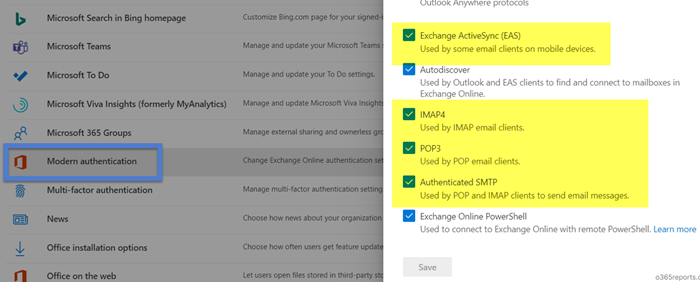
Let us start with the simplest method to disable legacy authentication, which is by using the Microsoft 365 Admin Center. This is best for someone who needs a quick, broad-stroke approach to disable specific protocols. To do the same, you need to follow the steps mentioned below.
- First of all, open the Microsoft 365 Admin Center and sign in to your admin account.
- Now, you need to go to Settings > Org settings.
- Go to Modern Authentication.
- You will see a list of legacy protocols (e.g., IMAP, POP, SMTP AUTH, MAPI, EWS, Exchange ActiveSync). Uncheck the boxes for the protocols you wish to disable.
- Click on Save to apply changes.
That’s how you can disable legacy authentication using Microsoft 365 Admin Center.
2] Use Conditional Access Policies
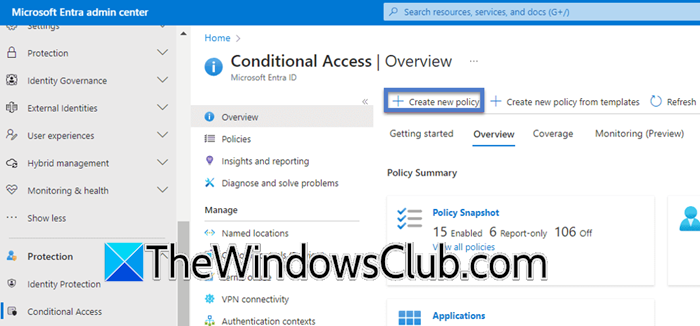
This method is the best choice for organizations using Microsoft Entra ID P1 or P2 licenses. It provides detailed control over user access and allows administrators to set security policies tailored to their needs. You can introduce changes in stages, which helps reduce disruptions for users. This way, organizations can watch how the changes affect user behavior before fully enforcing the new policies. This flexibility is perfect for companies that want to improve security while keeping operations running smoothly. To use conditional access policies, follow the steps below.
- You need to first open the Microsoft Entra admin center and then log in using an admin account or an account that has the Conditional Access Administrator privilege.
- Then, navigate to Entra ID > Security > Conditional Access > Policies.
- Now, click on +New policy or +Create New Policies.
- Give your policy a name, let’s say Block Legacy Authentication.
- Under Assignments > Users or workload identities, select All users.
- Now, go to Target resources > Cloud apps, select All cloud apps.
- Go to Conditions > Client apps.
- Set Configure to Yes.
- Check the boxes for Exchange ActiveSync clients and Other clients.
- Under Access controls > Grant, select Block access and click Select.
- Finally, set the policy to Report-only mode initially to test its impact. After confirming it works as intended, change the Enable policy toggle to On.
This method is highly recommended, especially if you are not in a hurry.
Read: How to add Work/School accounts to Microsoft Authenticator app
3] Use Exchange Online PowerShell
For administrators who prefer the command line or need to make granular, per-user settings, PowerShell is an excellent tool.
First of all, connect to Exchange Online using PowerShell (Connect-ExchangeOnline). Now, to disable legacy protocols for all existing mailboxes, run the following command.
Get-CASMailbox | Set-CASMailbox -ImapEnabled $false -PopEnabled $false -ActiveSyncEnabled $false -MAPIEnabled $false -SmtpClientAuthenticationDisabled $true
This command disables IMAP, POP, Exchange ActiveSync, MAPI, and SMTP AUTH for all users. To ensure new mailboxes are created with these settings, you can also modify the CAS mailbox plans.
This method is best for scripting bulk configurations, creating custom automation, or managing specific user accounts and service exceptions.
That’s it!
Read: How to use Microsoft Authenticator app on PC and Phone
How do I turn off authentication in Office 365?
It’s not possible to completely turn off authentication in Office 365, but you can disable specific features like Multi-Factor Authentication (MFA) or legacy authentication protocols. To disable MFA enforcement, check the Registration Campaign in the Microsoft Entra admin center under Protection > Authentication Methods and disable the campaign. You can also disable MFA for users in the Office 365 Admin Center under Multi-factor authentication settings. To block insecure legacy protocols like POP or IMAP, create a Conditional Access policy or use authentication policies in Exchange Online PowerShell.
Read: Microsoft 365 authentication or initialization failed
How to check if legacy authentication is enabled in Office 365?
To check if legacy authentication is enabled in Office 365, sign in to the Microsoft Entra admin center, navigate to Monitoring & health > Sign-in logs, and add a filter for Client App. Then, select the legacy authentication protocols (like IMAP, POP, SMTP, Exchange ActiveSync, and Other clients) to see active usage. For a dedicated report, use the Sign-ins using legacy authentication workbook under Identity > Monitoring & health > Workbooks.
Also Read: Reset MFA for a user in Office 365.
