
Multi-Factor Authentication (MFA) is a critical security feature for Microsoft 365, but situations like lost phones or forgotten passwords can lock users out of their accounts. Resetting MFA is a common administrative task to restore access while maintaining security. In this post, we will reset MFA for a user in Microsoft 365.
Reset MFA for a user in Office 365
You may need to reset a user’s MFA if they lose their phone, get a new device, cannot access their authenticator app, or if their current authentication method is not working. Resetting MFA ensures they can re-register with a new, secure method upon their next login. To reset MFA for a user in Microsoft 365, follow one of the methods listed below.
- Reset via Microsoft Entra Admin Center
- Reset via Microsoft 365 Admin Center
- Reset via PowerShell
Let us talk about them in detail.
1] Reset via Microsoft Entra Admin Center
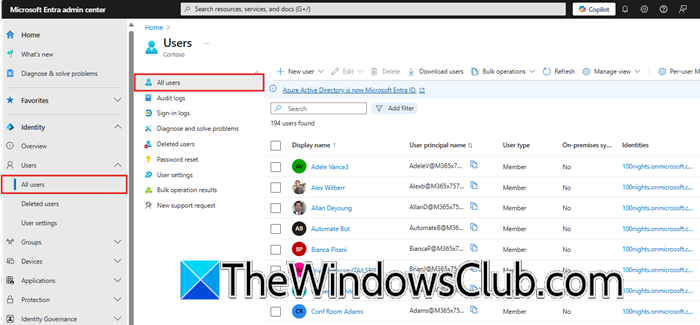
The Microsoft Entra Admin Center (also known as the Azure AD portal) is the most straightforward method, ideal for resetting MFA for individual users. To reset your MFA, you can follow the steps mentioned below.
- First of all, go to entra.microsoft.com (Microsoft Entra Admin Center) and sign in with a Global Administrator or Privileged Authentication Administrator account.
- Now, go to Identity > Users > Active users or All users.
- Click on the display name of the user whose MFA you need to reset.
- In the user’s profile, under Manage, select Authentication methods.
- Click on Require re-register multifactor authentication and confirm by selecting OK.
Finally, check if the issue is resolved.
2] Reset via Microsoft 365 Admin Center
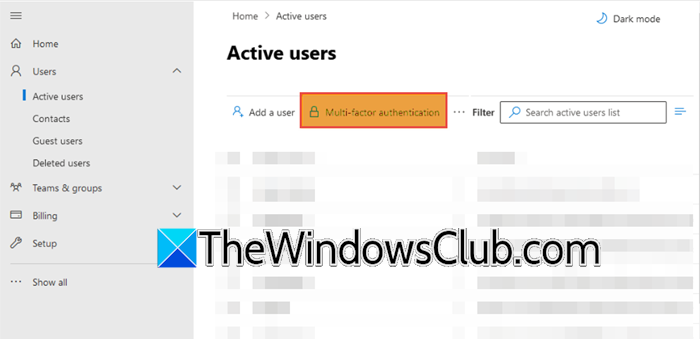
You can also initiate an MFA reset from the classic Microsoft 365 admin center, which redirects you to the Entra interface. Follow the steps below to complete the same task.
- Go to admin.microsoft.com and log in with an admin account.
- Now, go to Users > Active users.
- Now, click on Multi-factor authentication. This will open a new page where you can manage MFA settings for your users.
- Select the check box next to the user you want to reset. In the user management options, click Manage user settings .
- Check the box for Require selected users to provide contact methods again and save your changes.
That’s how you can reset MFA via Admin Center.
3] Reset via PowerShell
PowerShell is a powerful tool for bulk operations or automation, though it is more complex.
First, install the Microsoft.Graph PowerShell module. Then, connect to your tenant with the necessary permissions using the following commands.
Install-Module Microsoft.Graph -Scope CurrentUser
Connect-MgGraph -Scopes "User.ReadWrite.All", "UserAuthenticationMethod.ReadWrite.All"
There is no single cmdlet to reset all MFA methods. Instead, you must remove each authentication method individually. A commonly used and reliable script is the one created by Merill Fernando. The core process involves finding and deleting all registered methods.
# Get the user
$user = Get-MgUser -UserId "[email protected]"

# Get and remove all authentication methods
Get-MgUserAuthenticationMethod -UserId $user.Id | ForEach-Object {
Remove-MgUserAuthenticationMethod -UserId $user.Id -AuthenticationMethodId $_.Id
}
This will do the job for you.
Read: Microsoft Office 365 Quick Start Guide for Businesses
How do I reset my MFA for one user in Office 365?
To reset MFA for a single user in Microsoft 365, a Global Administrator can sign into the Microsoft Entra admin center, navigate to the user’s profile under Users, select Authentication methods, and click Require re-registration of multifactor authentication. This action clears the user’s existing MFA settings and will prompt them to set it up again the next time they sign in.
Read: How to add multiple users with bulk import in Microsoft 365
How do I manage MFA for Users in Office 365?
You manage MFA for users in Microsoft 365 through the Microsoft Entra admin center, where you can enable or enforce MFA for your users, configure authentication methods, and monitor their registration status. As an administrator, you can also reset a user’s MFA to force them to re-register if they get a new device or lose access to their authentication method.
Also Read: Add New User using Admin account in Microsoft 365.
