
Fed up with changes in the arrangement of your desktop icons after every change in screen resolutions? The solution to this frustrating problem is DesktopOK. DesktopOK is free desktop icon layout saver software that lets you save, restore, and lock desktop icon positions and layout. It can record icon positions and some other desktop arrangements. This tiny utility is very useful for those who frequently change the computer screen resolution.
Save & restore desktop icons position layout
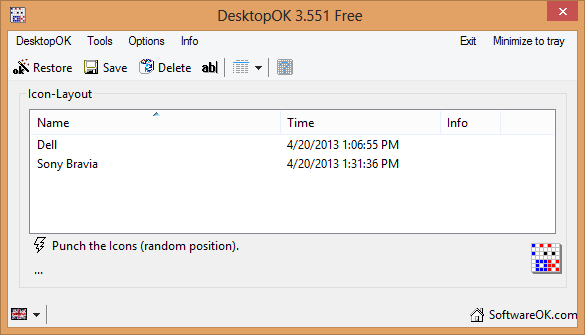
To save an icon arrangement, you can simply click on ‘Save Icon’s Layout’ under the DesktopOK menu, and you can see an entry named as your PC‘s screen resolution would appear in the list box. No worries, you can edit the names without any problems. I prefer renaming the arrangements as per the monitors. For example, I renamed it to Dell, from which I came to understand that it is my PC monitor’s arrangement. I renamed the other to Sony Bravia, which lets me know that this arrangement is for my TV. You can store different arrangements for the same devices, too, by simply adding 1, 2, 3, and so on.
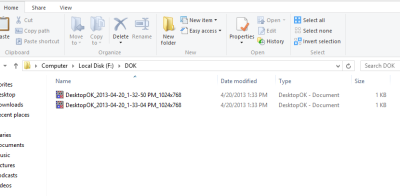
If you want to email the arrangement to someone or if you simply want to export it from the program, then you can also easily do that by saving the arrangement in ‘.dok’ format. The ‘.dok’ files can be exported and imported by DesktopOK only. You can even register this extension for DesktopOK, but you will need to grant the software Administrator Privileges.
Lock desktop icons
You can even choose an arrangement to load at Windows Startup, so you can have the desired icon positions at startup. There are a bunch of other options available in the software that lets you edit general desktop options like Cursor Hiding, Mouse Wheel management, etc. Do note that the software records only positions and not sizes.
Overall, this handy tool is very useful. It is very useful for me as I frequently connect my PC to my TV and Monitor. The utility is 100% free, and there’s even an option in the software itself to email DesktopOK to a friend.
This freeware can be useful if your Desktop icons rearrange and move after reboot.
DesktopOK free download
Click here to download DesktopOK.
How do I restore my desktop icon positions?
To restore your desktop icon positions, you need a backup first. As there is no built-in option to back up desktop icon positions, you need to take the help of third-party apps. For your information, DesktopOK is one of the best options that you can use to back up and restore desktop positions. Whether you use Windows 11, Windows 10, or any other version, you can make use of DesktopOK.
How do I save and restore my desktop icon positions in Windows 11?
By default, Windows 11 or Windows 10 doesn’t offer an option to save desktop icon positions. That is why you can check out the DesktopOK app. This freeware allows users to save the current layout and restore it even if you change it or Windows changes it automatically. The best part is that you can rearrange icons and save multiple preferences to suit your requirements.
Related reads:
- Iconoid helps you better manage your Windows desktop icons
- D-Color is another tool you can use to save the current icon layout, restore earlier icon layout and more.
- IconRestorer lets you Save, Restore, Manage your Desktop Icon positions.
- Icon Shepherd which can restore desktop icon layout to the original location
- ReIcon lets you Backup, Save and Restore Desktop Icon Layouts.
