
Decluttering is important, be it your room or your desktop. A clean and tidy desktop is not only pleasing to the eye, but it also increases productivity. It is always easier to find things on a clean desktop than on one cluttered with numerous useless icons. While working, we often don’t realize that we are saving files and folders on the desktop; in fact, we intentionally save our important files and folders there for easy access. But, at the end of the day, what we have is a messy and disorganized desktop with numerous icons.
While you can always delete the useless icon or clean the Windows desktop clutter manually, there are some good and useful third-party free apps available for the same. Iconoid is one such application that helps you clean up your desktop and manage it more effectively.
Iconoid – Manage Desktop Icons
Iconoid is a very lightweight, simple application that takes less than a minute to land on your PC. With a quick and straightforward installation wizard, the application is installed and ready to use. At first glance, you might find the interface a bit confusing, and it may take some time to figure out the features, but it becomes very easy once you take the time to check it properly.
Iconoid Features
In short, Iconoid is a desktop icon manager that lets you:
- Save and restore icon positions
- Remove or color icon text background
- Select any color for icon text
- Automatically hide icons.
This simple application gives you more control over your desktop and enables personalization of desktop settings. You can hide the icons when you don’t need them or make them appear back in just a single click.
Hide the icons
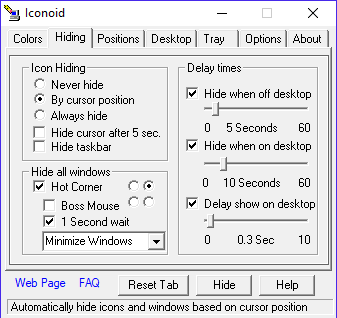
With this small application, you can make all your desktop icons hide for 5 seconds or according to your cursor posting or hide them always. When you select the Always hide option, you can make them appear by a single click of the mouse. You can adjust the settings under the Hide tab.
Icon Background
With this tool, you can also make the icon background transparent and enable or disable drop shadows. Just go to the Colors tab and click on Disable Drop Shadows to disable or enable them. 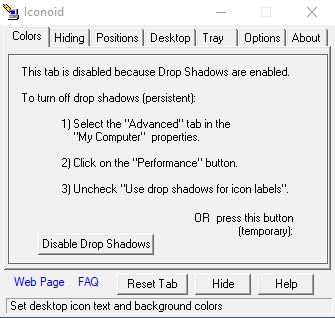
Desktop
Under the Desktop tab, you can handle the desktop display settings manually. You can change the screen color, select a wallpaper or adjust its aspect ratio. Click on Reset tab whenever required and click Hide tab to hide the Iconoid window. 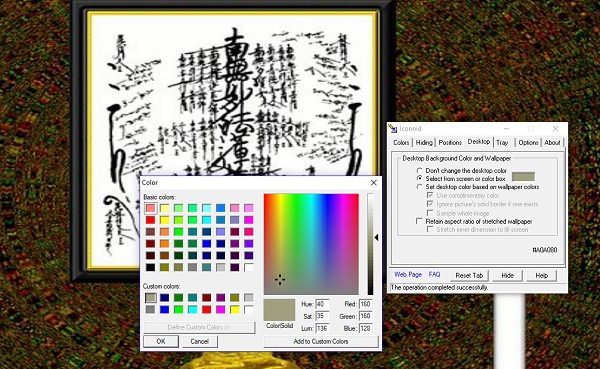
Tray
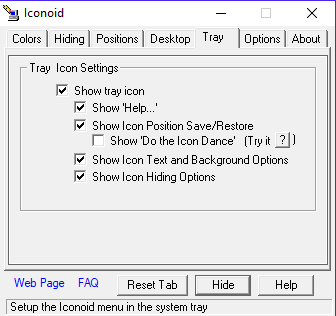
The Tray tab is of course for the system tray options. You can adjust the tray icon settings where you can show or hide the tray icon, change the background options, adjust the icon positions and more. There is another option of Do the icon Dance, but it somehow didn’t work for me, so I am not very clear about what it is.
Iconoid Options
The Options tab lets you decide whether to start Iconoid with Windows or now, to display the tools tips or not, enable window fading, etc. There is also an option of selecting the Hot Keys, exporting and importing the settings which mean to save your settings on your PC as registry files.
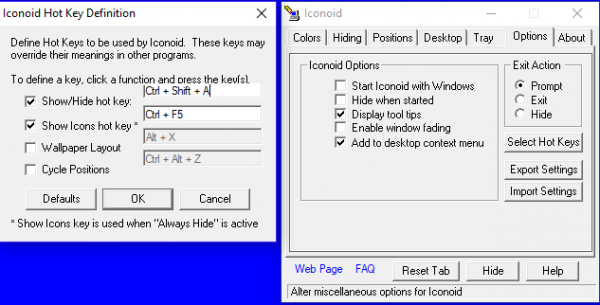
Other settings include separate icon positioning, use of relative positions, special placements for icons, and integrating the Iconoid app with Explorer, among others.
Overall, it is a simple and lightweight application that operates quickly. Any settings you apply take effect immediately. The application places minimal load on your system memory and CPU. I didn’t face any crashes while testing the application, and nor did it hang. So, if you want to get more control over your desktop icons, you can download the application from sillysot.com. The application works on Windows 11/10 too.
Related reads:
- DesktopOK lets you save, restore, lock desktop icons position and layout
- D-Color is another tool you can use to save the current icon layout, restore earlier icon layout and more
- IconRestorer lets you Save, Restore, Manage your Desktop Icon positions
- Icon Shepherd which can restore desktop icon layout to the original location
- ReIcon lets you Backup, Save and Restore Desktop Icon Layouts.
