
SSDs are now a common form of offline storage. Major SSD manufacturers are providing free tools to manage their SSDs. Micron Crucial is one of the leading storage device manufacturers. Crucial SSDs can be managed with the Crucial Storage Executive tool, available for free on Windows 11. Generally, every Crucial storage device should be detected by Crucial Storage Executive. However, at times, issues can cause Crucial Storage Executive to fail to detect the SSD. If you are experiencing the same issue, let’s see how to fix it when Crucial Storage Executive is not detecting an SSD drive on a Windows PC.
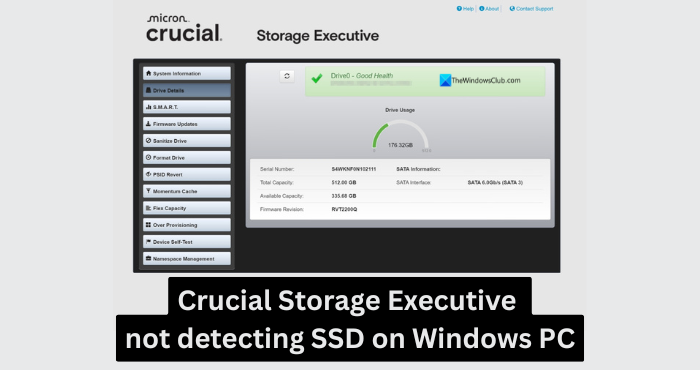
Crucial Storage Executive is an OEM tool that can help you optimize your SSD, see how much storage you’ve used, download the latest firmware, monitor the drive’s temperature, reset your encryption password, enable the Momentum Cache feature and more.
Crucial Storage Executive not detecting SSD on Windows PC
If the Crucial Storage Executive on your Windows PC is not detecting a Crucial SSD drive, these methods can help you fix it and get it working again.
- Ensure your SSD is working fine
- Make sure your SSD is compatible
- Run Crucial Storage Executive as an Administrator
- Check updates of storage drivers
- Check the BIOS configuration
- Update or reinstall the Crucial Storage Executive tool
Deep dive into each solution and see how we can use them to fix the issue.
1] Ensure your SSD is working fine
Make sure the SSD connected to your device is working properly on your PC. If it is not detected by your PC, the issue must be with the SSD or its connection. Make sure the cables are properly connected. Try connecting the SSD to other ports and see if it works. If the drive is connected but not shown in My PC, open the Disk Management tool and make sure it is initialized.
Click the Start menu and search for Disk Management, and open it. Then, right-click on your Crucial SSD listed there and select Initialize Disk.
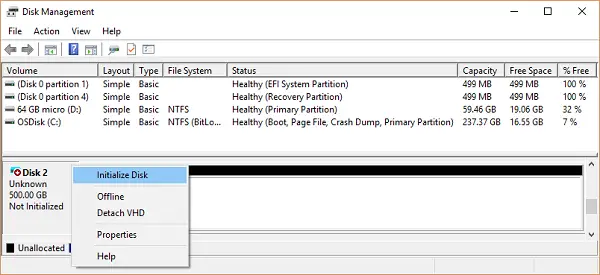
Wait for the process to complete. After successful initialization, the Crucial Storage Executive will detect it.
2] Make sure your SSD is compatible
Crucial Storage Executive does not support all Crucial SSDs. If you have an old SSD released before the introduction of Crucial Storage Executive, it will not work. The SSDs supported or compatible with Crucial Storage Executive are:
- Crucial X10 Pro, X9Pro, X9, X8, X6
- P-series
- T-series
- T500
- MX-series, BX-series
- M500 and M550
If your SSD model isn’t listed as supported, it won’t work with Crucial Storage Executive.
3] Run Crucial Storage Executive as an Administrator
Running a program as an administrator removes restrictions and allows it to function fully. If the Crucial Storage Executive does not detect your SSD, a security feature at the administrative level might be restricting it.
Click the Start menu and search for Crucial Storage Executive. In the search results, click Run as administrator under the Crucial Storage Executive app.
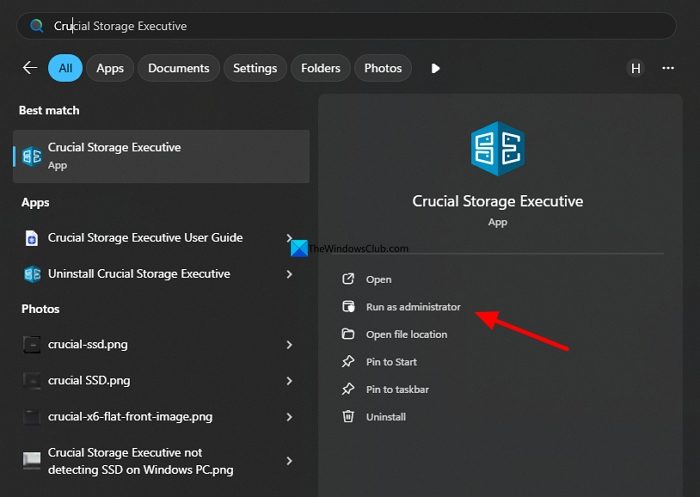
See if Crucial Storage Executive detects the SSD after running it as an administrator. If it detects, set the program to run as an administrator always.
4] Check updates of storage drivers
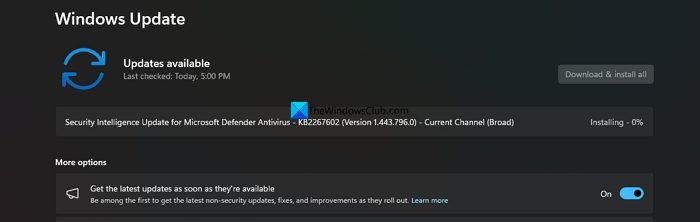
Sometimes the NVMe or SATA drivers play spoilsport. It is essential to keep them up to date. Windows 11 automatically updates them with Windows updates. Just check if there are any pending updates so it can update the storage drivers as well. You can do it in the Settings app through the Windows Update tab.
5] Check the BIOS configuration
When the SATA operation mode is not set to AHCI in the BIOS, Crucial Storage Executive will not detect the SSD. You need to set it to AHCI to avoid storage issues on Windows 11. To switch to AHCI, there are a few important issues you need to address. You must back up your data on the PC, create a System restore point, and keep the BitLocker key ready.
Then, boot into BIOS mode by using F2, F12, or Del key, based on your PC manufacturer. Look for System configuration options and find SATA options. The titles vary by manufacturer. In the SATA options, set it to AHCI from the existing one.
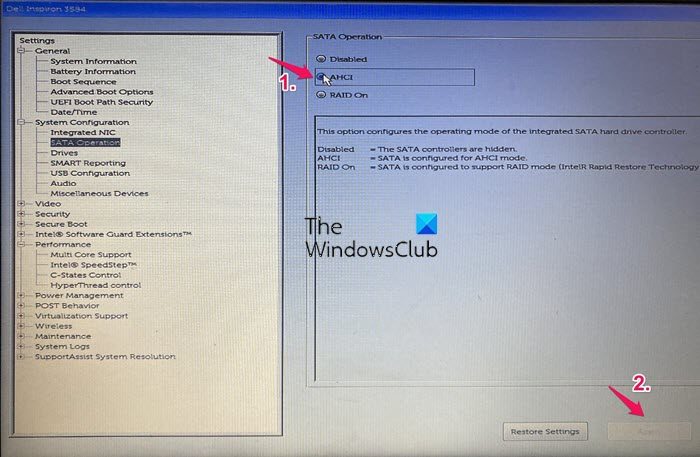
Save the changes and reboot your PC normally. Crucial Storage Executive will now automatically detect your SSD.
6] Update or reinstall the Crucial Storage Executive tool
If the Crucial Storage Executive tool is not up to date, there might be a bug causing the issue. You need to make sure to update it. Unfortunately, there are no options on the tool to check for updates.
Uninstall the Storage tool on your PC, and then head to the Crucial Storage Executive tool web page and download it.
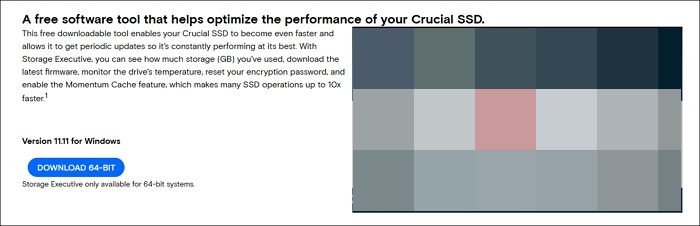
Install it to fix the issue.
Related: SSD not detected in BIOS in Windows 11
Why is my Crucial SSD not detected?
If the Crucial SSD is not detected on your Windows PC or the Crucial Storage Executive tool, there might be an issue with the cable. If everything is fine, the disk might not be initialized in the Disk Management tool. Or the storage configuration in your BIOS settings is set to RAID. You need to fix it so it works.
Read: SSD keeps disappearing and reappearing on Windows 11
Crucial Storage Executive Tool showing all drives except for Crucial SSD
Crucial Storage Executive detects drives on a Windows PC. If it fails to detect your Crucial SSD, the tool might not be compatible with it. You need to make sure the storage configuration is set to AHCI in your system BIOS settings. If your drive is too old, it might not work with the tool.
Related read: SSD showing 0 bytes free after formatting in Windows 11
