
FiveM is probably one of the most prominent GTA modification tools. Recently, many users have reported that after installing the tool, they encounter the following error message.
Could not load CitizenGame.dll
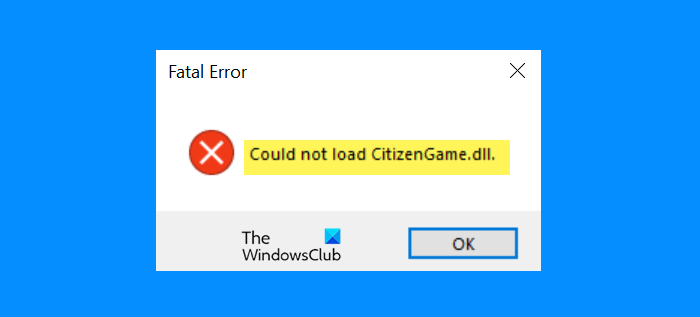
This issue is persistent in all launchers, be it Steam, Rockstar, etc. So, this rules out the possibility of it being a launcher issue. In this article, we will explore some simple solutions to resolve the issue.
Why am I seeing Could not load Citizengame.DLL error in FiveM?
Multiple issues can cause this error, such as corrupted game or cache files. This error message can also appear if there is an issue in Visual C++. It can be outdated or corrupted. In this article, we will discuss all the potential solutions that can resolve the issue.
Fix Could not load Citizengame.DLL error in FiveM on PC
If you are seeing Could not load Citizengame.DLL in FiveM, then follow the mentioned solutions to resolve the issue.
- Delete Cache
- Create CitizenGame.dll
- Reinstall Visual C++ Redistributable
- Allow through Firewall
- Reinstall FiveM and GTA V
Let us talk about them in detail.
1] Delete Cache
Let us start the troubleshooting by deleting the Cache file, as the issue can be because of a corrupted cache. So, open Run, paste the following location and click Ok.
%localappdata%/FiveM/FiveM Application Data
Now, delete the XML file named ‘Caches’. After deletion, try launching the game and see if the issue persists.
If the issue persists, delete all content from the Cache folder in the FiveM directory, except for the Game folder.
2] Create CitizenGame.dll
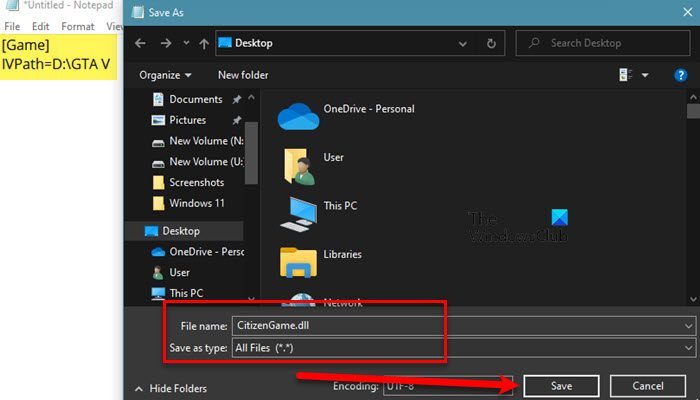
Next, if the issue persists, there may be a problem with the CitizenGame.dll file. Therefore, we must create it manually. To do that, open Notepad from the Start Menu and paste the following text.
[Game]
IVPath=D:\GTA V
Replace D:\GTA V with the location where you have installed your game.
Save this file with the name “CitizenGame.dll”, make sure to change to set Save as type to All Files, and click Save.
Now, go to the Location of FiveM, if you don’t know where it is located, you can click on its shortcut and select Open file location. After reaching there, you can paste the newly created CitizenGame.dll file there.
Finally, right-click on FiveM and select Run as administrator.
3] Reinstall Visual C++ Redistributable
The issue can be because of corrupted Visual C++ Redistributable. So, we need to reinstall it to resolve the issue. So, uninstall Visual C++ Redistributable, then redownload it from microsoft.com, and finally reinstall it.
4] Allow through Firewall
If you have configured a Firewall or have third-party antivirus software that can cause this issue, then they can cause such issues. So, you have to allow both GTA 5 and FiveM through the Firewall. In this section, we are going to see how to allow then through Windows Firewall, if you have third-party antivirus, you can search how to do the same online.
Follow the steps below to complete the same task.
- Open Windows Security from the Start Menu.
- Go to Firewall & network protection.
- Click Allow an app through firewall.
- Now, allow both GTA V and FiveM through Public and Private networks.
Finally, try reopening the game. Hopefully, the issue won’t persist.
5] Reinstall FiveM and GTA V
If nothing works, then this should be your last resort. As mentioned earlier, the issue can be because of corrupted files and this is the way to resolve the same.
So, first of all, uninstall FiveM and then reinstall it. If the issue still persists, then you have to reinstall GTA V as well. So, do that, and see if your issue is resolved.
Hopefully, you are able to resolve the issue with the help of the solutions mentioned here.
Why is FiveM installer not working?
If the FiveM installer is not working on your system, then try copying the FiveM.exe into your GTA V folder. After pasting, you should try opening FiveM. Most probably it will work. If it doesn’t work, you can follow the aforementioned tips and tricks to complete the task.
Read Next: FIFA 21 won’t launch EA Desktop on PC.
