
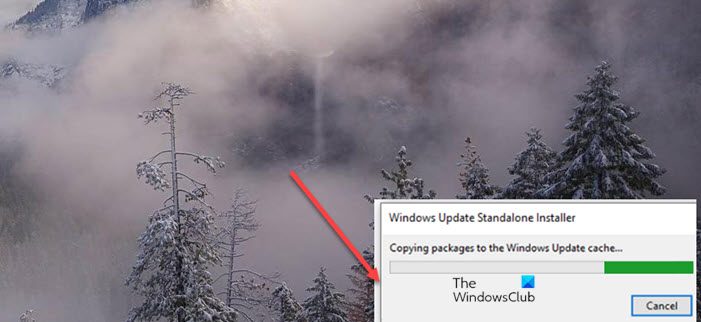
Experiencing difficulties while installing Windows updates is nothing new but there are ways to keep it to a bare minimum and prevent it from impacting user experience. So, when you find your Windows Update Standalone Installer stuck each time on Copying packages to the Windows Update cache step, follow these troubleshooting steps.
How do you tell if a Windows Update is stuck?
Though Windows Update does its job well, sometimes it may look stuck and take forever to update. So, before you reach any conclusion or take any action, wait 2 to 3 hours. If you don’t see any changes, you can consider Windows Update stuck. You should also check RAM and CPU usage using the Task Manager. If you don’t see any activity, then the Windows Update process could be stuck.
Windows Update Standalone Installer stuck on Copying packages to the Windows Update cache
If you are not aware, the Update Cache is a special folder that stores update installation files. If there’s an error related to it, you might not be able to download or install the updates manually and leaving you waiting at 10% or 25%.
To fix the issue, open a Windows command prompt with administrative privileges. For this type CMD in the search box on the Taskbar. When the Command Prompt option appears, right-click it and select ‘Run as administrator’. This will allow you to open the Command Prompt with Administrator privileges.
Next, run the commands as in the given order –
net stop wuauserv
net stop cryptSvc
net stop bits
net stop msiserver
del /f /q "%ALLUSERSPROFILE%\Application Data\Microsoft\Network\Downloader\qmgr*.dat"
del /f /s /q %SystemRoot%\SoftwareDistribution\*.*
del /f /s /q %SystemRoot%\system32\catroot2\*.*
del /f /q %SystemRoot%\WindowsUpdate.log
ren c:\windows\winsxs\pending.xml pending.old
net start wuauserv
net start cryptSvc
net start bits
net start msiserver
What we are doing is resetting the SoftwareDistribution and the catroot2 folders, renaming the pending.xml file, and deleting some data & log files, after stopping and restarting some Services.
Following this, try installing the update.
Related:
- The update is not applicable to your computer: Windows Update Standalone Installer
- Windows Update Standalone Installer stuck and taking a long time – Searching for updates on this computer or Preparing the installation.
What is the catroot2 folder?
Catroot and catroot2 are 2 important folders in the Windows operating system required for the Windows Update process. Whenever you attempt to run Windows Update after downloading it, the catroot2 folder stores the package’s signatures and helps install it.
Related: Windows Update fails to install or will not download.
What does clearing Windows update cache do?
Clearing the Windows Update cache removes old update files and downloads fresh ones from Microsoft’s servers. Besides, it helps install updates that failed earlier due to unknown issues.
Why are Windows updates stuck downloading?
Windows updates can get stuck during the download process for various reasons. For example, it can get stuck at 0% or 25% during download if it gets corrupted, or if there is not enough disk space. So, if you face such an issue, then first check your internet connection, and clear the SoftwareDistribution folder. You should also free up space on the hard disk to ensure enough space for downloading Windows updates.
