
According to a lot of Call of Duty users, the game is crashing with an error message that says the Content package is no longer available. This issue has been seen on Xbox, PlayStation, and PC. In this article, we will discuss this issue and explore what should be done if the content package is not available in COD.
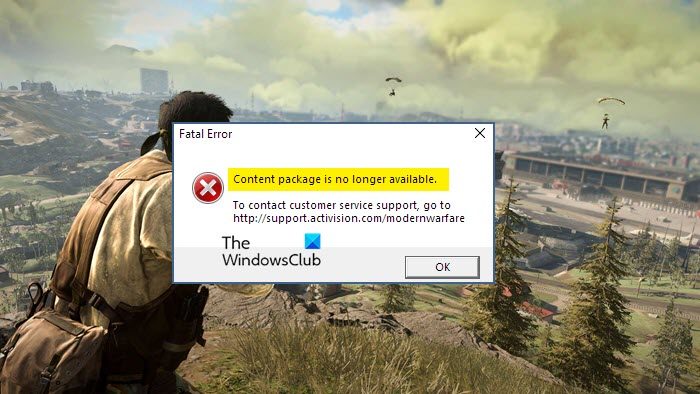
What is Content package is no longer available in Call of Duty?
You may see the error code in question when trying to boot up the game. COD crashes with the error code. The reason why this happens is usually corruption, either your game files got corrupted or the cache. Whatever the case is, it can be fixed. If it’s not corrupted, it could be a bug that should be resolved with an update or due to conflicting apps. We have solutions for everything.
Fix Content Package is no longer available in Call of Duty
If you are seeing Content package is no longer available message in COD, then here are some working suggestions that have helped folks fix the issue:
- Update COD
- Clear the Cache of the game
- Verify Game Files (for PC only)
- Troubleshoot in Clean Boot (for PC only)
- Reinstall the game
Let us talk about them in detail.
1] Update COD
Even though it’s not officially mentioned, the issue can be a bug. And the only way to resolve a bug is by updating the game itself.
If you are on a PC, your launcher will automatically detect and install the latest version of the game. Xbox and PlayStation users need to make sure that they are connected to the Internet and restart the game. An update will be detected and installed on your system if available. Hopefully, updating will do the trick for you.
2] Clear the Cache of the game
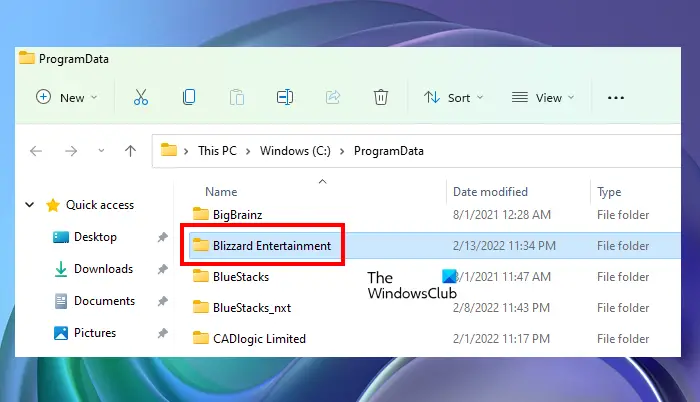
Corrupted caches are notorious for causing such issues. We are going to clear the cache and see if it works.
- For PC: PC users first need to close all the processes related to Battle.net from Task Manager, then open Run, past “%ProgramData%”, and click Ok. Now, delete Battle.net and Blizzard Entertainment folders.
- For Xbox One: Turn on your console. Then, press and hold the Power button until the LED turns off. Now, unplug all the cables and wait for 30 minutes allowing the capacitors to discharge and the cache to be removed. Finally, boot up the console and start the game. Hopefully, it will do the trick for you.
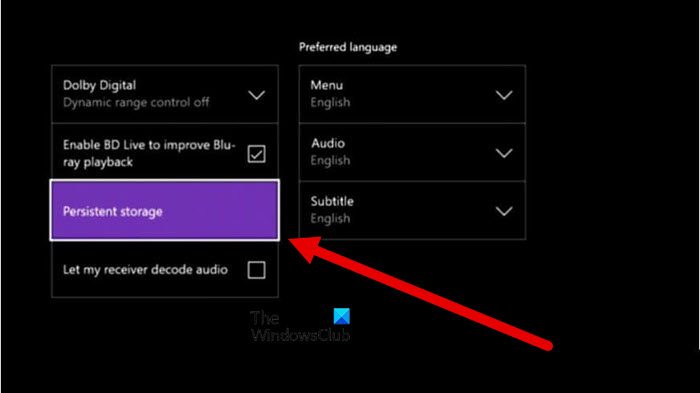
- For Xbox Series X|S: Make sure that you are on the homepage and press the home button from the Xbox controller. Now, go to the Profile & System tab. Select Settings > Device & Connection > Blue-Ray > Persistent Storage > Clear Persistent Storage. This will flush the cache out.
- For PS5 and PS4: Go to the homepage and press and hold the power button of your console until you hear a beep sound. Then, unplug the console and detach all the cables. Wait 4-5 minutes for the capacitors to discharge and caches to be cleared. Attach everything, turn the console back on and boot up the game.
Hopefully, clearing the cache will do the trick for you.
3] Verify Game Files (For PC only)
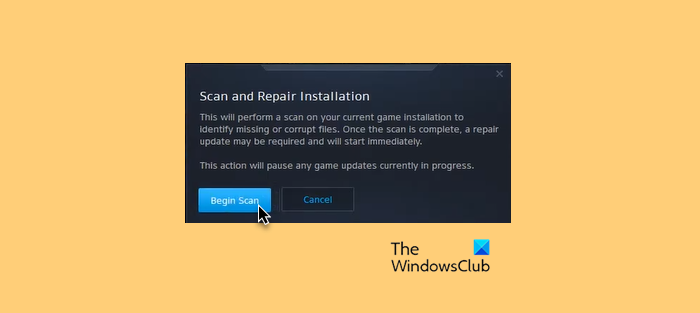
If you are a PC user, then you can use your launcher to verify and repair the game files. Follow the given steps to do the same.
Steam
- Open Steam.
- Go to Library.
- Right-click on your game and select Properties.
- Click on Local Files > Verify integrity of game files.
Battle.Net
- Launch Battle.Net.
- Go to the Games tab.
- Select your game and click on the cog button.
- Now, click Scan and Repair > Begin Scan.
Hopefully, this will do the trick for you.
4] Troubleshoot in Clean Boot (for PC)
There are many third-party apps that can conflict with your game and cause issues. We need to perform Clean Boot and narrow the possibility down to one app. Then, remove that program and your issue will be resolved.
5] Reinstall the game
Sometimes, the game files are corrupted beyond repair. In that case, the only option we have is to reinstall the game. We know COD is a small game by any means, but reinstalling is your last resort. All platforms have an option to uninstall the game; do that, then download a fresh copy to install. Hopefully, this will do the trick for you.
We hope that these solutions worked for you.
How to fix COD Warzone Crashing or Freezing?
If COD Warzone is freezing and then crashing on your system, then according to the pattern, we can say that the game is overheating and then crashing to save its components. But it can also occur due to corrupted system or game files, outdated Graphics Drivers, etc.
