
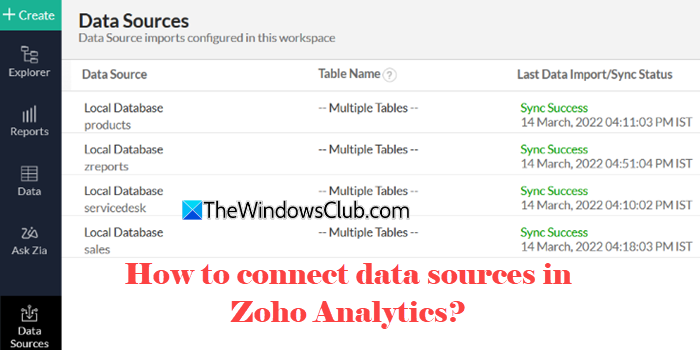
In this post, we will show you how to connect data sources (Zoho apps, databases, cloud apps, etc.) in Zoho Analytics. When you start working with Zoho Analytics, the very first thing you’ll need to do is bring in your data. Whether it’s from files, cloud storage, databases, or business apps, Zoho Analytics makes it easy to connect and blend data from 500+ data sources. Once connected, you can analyze and visualize your data to get actionable insights and make better decisions.
How to connect Data Sources in Zoho Analytics?
To connect data sources in Zoho Analytics on a Windows 11/10 PC, you need to follow these steps:
- Sign in to Zoho Analytics
- Click Import Your Data
- Choose your data source type
- Authenticate and configure connection settings
- Import your data
- Verify and start analyzing
With the above steps, you can connect almost any data source to Zoho Analytics; be it your Zoho ecosystem, third-party apps, business databases, or just spreadsheets on the cloud.
Let us see how this works.
Click here to visit Zoho Analytics in your default browser. Sign in with your existing Zoho account. If you’re just getting started, sign up using a Google or LinkedIn account.
After signing up, you will be presented with a Getting Started wizard that guides you through the basics. Some helpful tips also appear on screen to explain the key options and the process of creating your first workspace and importing data into it.
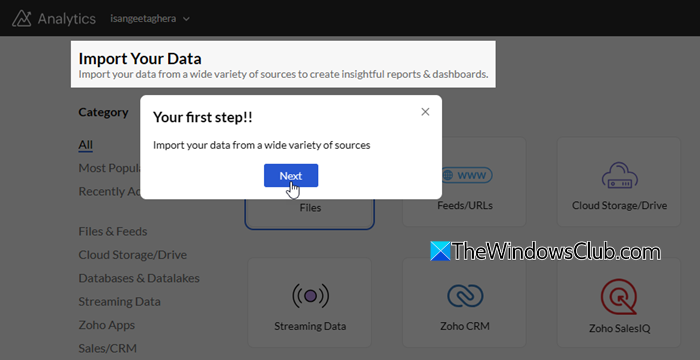
Before connecting your own data sources, you can experiment with the sample data to get familiar with the platform’s interface.

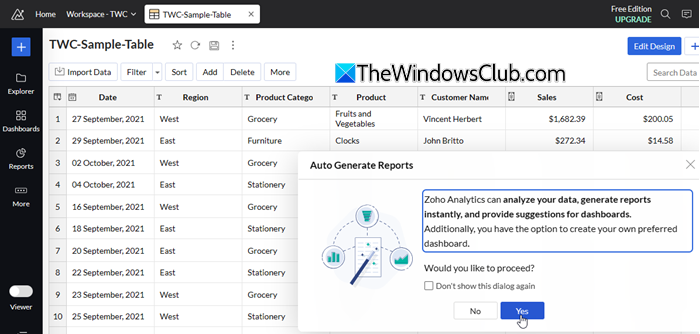
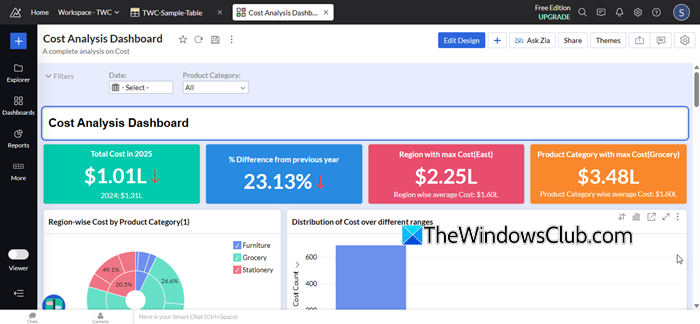
Once the sample data is imported, Zoho Analytics prompts you to automatically generate a set of ready-to-use reports and interactive KPI dashboards. Click Yes to proceed.
Zoho Analytics instantly generates dashboards. Click Save Dashboards to continue.
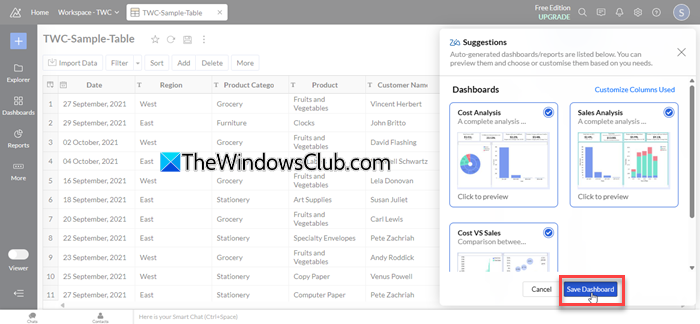
The dashboards and reports give you a glimpse of how visualizations and insights work. After you’ve understood the flow, you can move on to importing your own data.
Note: Zoho Analytics offers a free plan that gives you limited usage (2 users, 10,000 rows, up to 3 scheduled imports, etc.). For advanced integrations and more capacity, you’ll need to upgrade to a paid plan.
Understanding Data Sources, Connectors, and Zoho Databridge
Before you start importing data, it’s important to understand what Data Sources, Connectors, and Zoho Databridge are, and how they work in Zoho Analytics.
Data Sources are the places where your raw data resides. These could be Zoho apps (Zoho CRM, Zoho Books, Zoho Desk, etc.), third-party cloud apps (Google Analytics, Shopify, HubSpot, etc.), databases (MySQL, SQL Server, Oracle, etc.), files (Excel, CSV, JSON, etc.), or web feeds or URLs providing structured data.
A Connector is a prebuilt integration that links Zoho Analytics to these data sources. It acts as a bridge, fetching data dynamically, securely, and automatically, so that you don’t have to export and import files manually.
If you’re connecting to on-premise databases or local files, you need to use a tool called Zoho Databridge. It’s a lightweight independent utility that bridges your on-premise data source and Zoho Analytics server to enable easy data import.
Note:
- Connectors are not free. You can still test Zoho Analytics using file imports in the free plan, but connecting live apps or databases requires a paid subscription.
- You require administrator rights to import data through Zoho connectors.
Connect Zoho Apps with Zoho Analytics
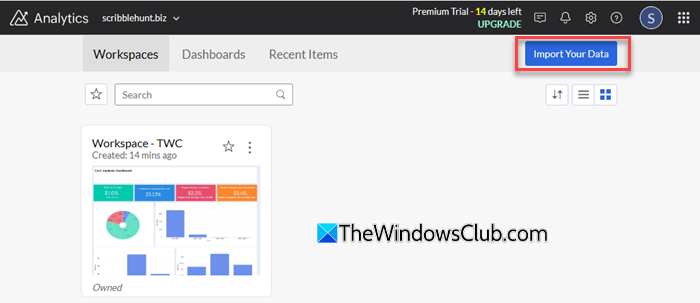
Click the Import Your Data button in the top-right corner of your Zoho Analytics homepage.
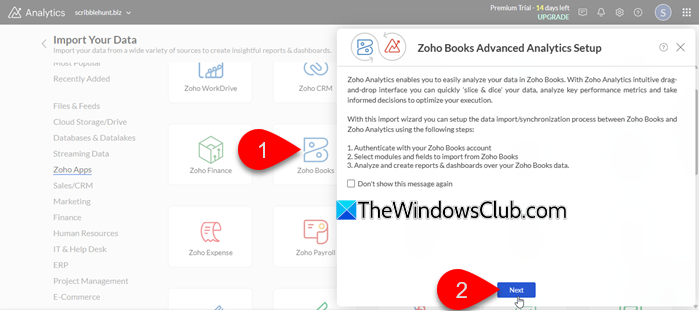
Select the desired Zoho App from the list of available data sources and click Next.
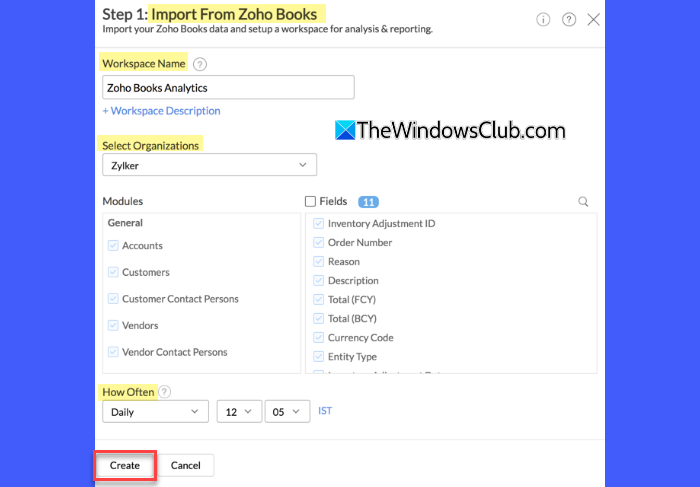
The Import Wizard appears. Enter a suitable name for the Workspace you’re creating. Then select the Organization you’re importing into Zoho Analytics using the available dropdown.
From the How Often dropdown, you may set up an interval to schedule automatic data syncs (this may vary based on your plan).
Click Create to proceed.
Initial data import typically takes a few minutes to a couple of hours, depending on the volume of data.
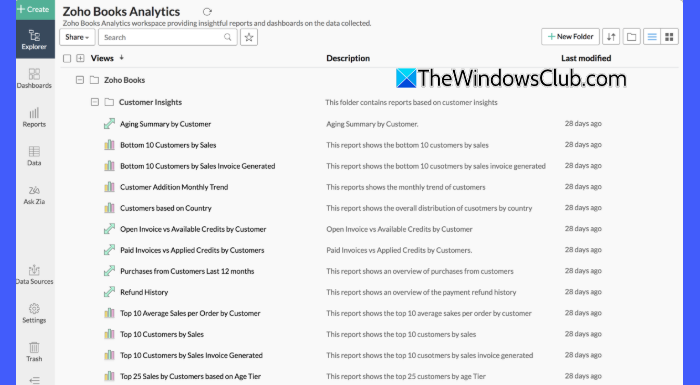
Once completed, Zoho Analytics will automatically generate dashboards and reports to help you visualize key insights from your data.
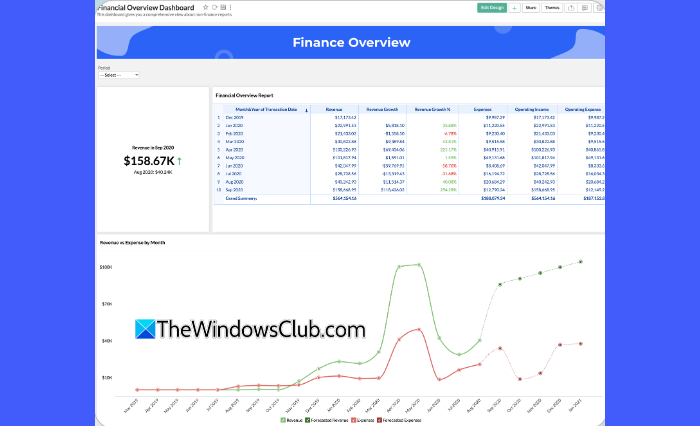
Note: The overall process remains largely the same, though a few steps may vary depending on the app you’re connecting to. For more information, refer to Zoho’s Business Apps Analytics page here.
Connect Databases with Zoho Analytics
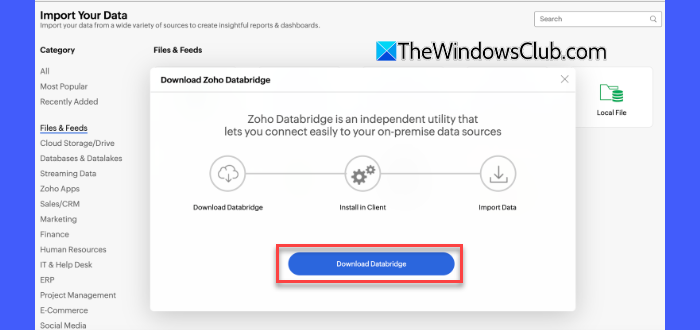
Click the Import Your Data button in the top-right corner of your Zoho Analytics homepage. Select Local Databases from the list of available data sources. You’ll be prompted to install Zoho Databridge. Click Download Databridge and follow the prompts.
Once Zoho Databridge is installed, the Import from Local Databases wizard appears. Select Local Databases as the source, and then select the Database Type (e.g., MySQL) from the available dropdown. Select Connection Type as Data Import.
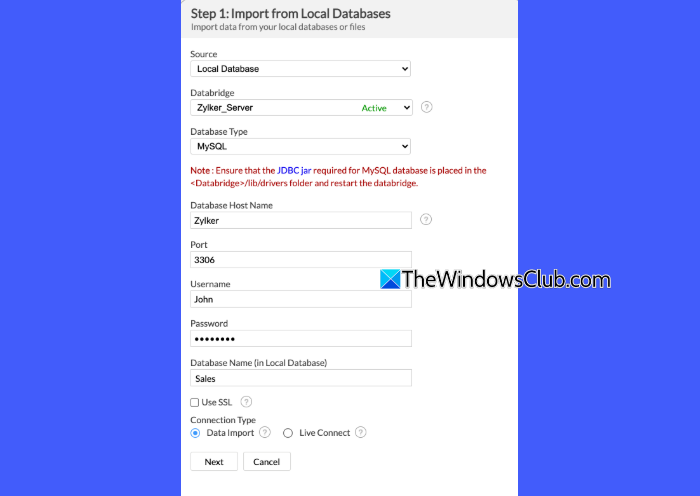
Input connection details and click Next. Then select Data to Import (single table, multiple tables, custom query, stored procedure). You can also set up how to handle error conditions in case they occur while importing data.
After that, you can continue with the final steps to complete the import.
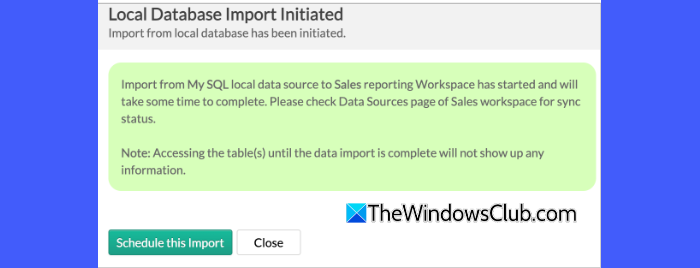
Zoho Analytics will display the newly created tables. You can create your reports over the same.
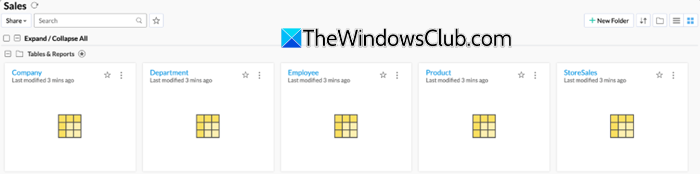
Connect Cloud Apps with Zoho Analytics
Click the Import Your Data button in the top-right corner of your Zoho Analytics homepage. Select Cloud Storage/Drive from the list of available data sources.
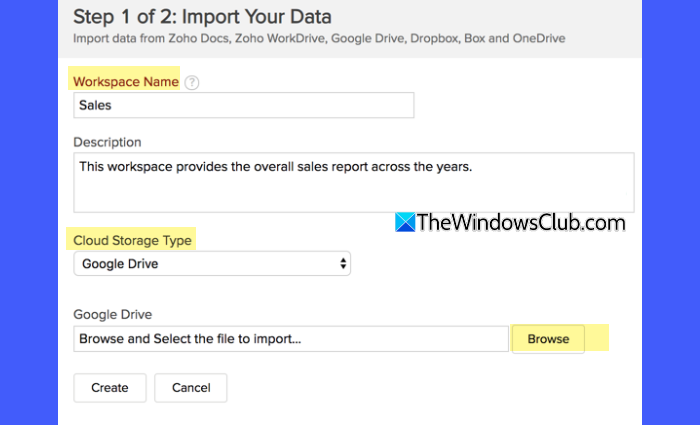
Enter the name of your Workspace in the Workspace Name section. Select the cloud app from the Cloud Storage Type dropdown (e.g., Google Drive). Click Browse to choose your files. Provide all the necessary credentials, set up schedule settings to automatically refresh your data at regular intervals, and click Create.
Zoho Analytics will display the newly created tables. You can create your reports over the same.
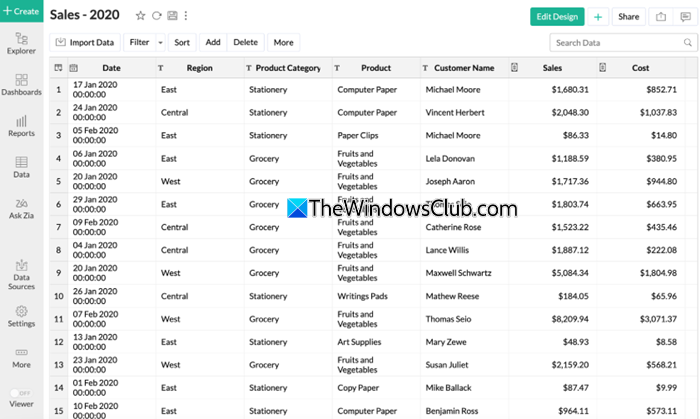
Similarly, you can connect to other data sources by following the respective import or connector setup instructions.
That’s it! I hope you find this helpful.
Read: How to forward Zoho emails to Gmail even on Zoho free accounts.
Can Zoho Analytics connect to multiple data sources?
Yes, Zoho Analytics can connect to multiple data sources in the same workspace. You can bring together data from Zoho apps, cloud apps, databases, and files. This helps you analyze everything in one place without switching between different platforms.
What are the data sources in Zoho Analytics?
Zoho Analytics supports different types of data sources. You can connect to Zoho apps, such as CRM or Books, databases like MySQL or SQL Server, cloud apps like Google Analytics or Shopify, and files like Excel, CSV, or cloud storage. You can even import data from web feeds or URLs for real-time updates.
Read Next: Automate recurring invoices & payment reminders in Zoho Books.
