
Managing a large customer base can become overwhelming if invoice and payment reminders are handled manually. Zoho Books simplifies this process by allowing you to automate recurring invoices and payment reminders, ensuring timely payments and streamlined workflow. In this article, I will show you how to automate recurring invoices and payment reminders in Zoho Books.
How to automate recurring invoices and payment reminders in Zoho Books
Automating invoices and payment reminders for regular customers saves time by minimizing manual errors. It not only streamlines your billing process but also improves your customers’ satisfaction. Here, I will talk about the steps to automate recurring invoices and payment reminders in Zoho Books.
Automate recurring invoices in Zoho Books
Zoho Books allows you to create non-recurring and recurring invoices. To automate recurring invoices, you have to create them. Follow these steps:
- Log in to your Zoho Books account.
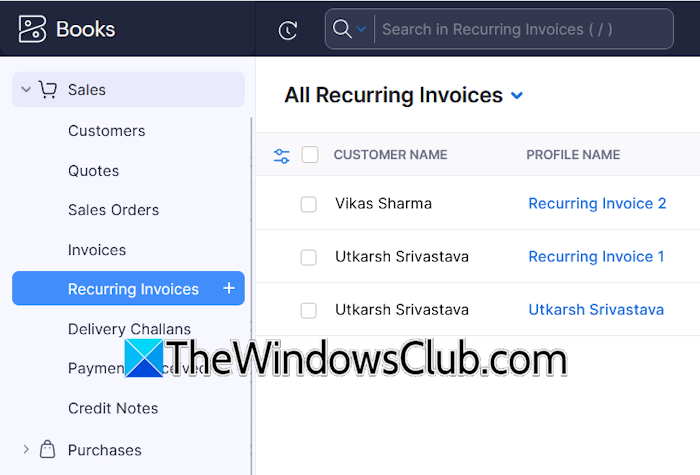
- Expand the Sales tab on the left pane.
- Click Recurring Invoices.
- Click New.
- Configure the recurring invoice.
Let’s see how to configure the recurring invoice.
Click on the Customer Name field to select a customer from the list of your customers. If you want to create a recurring invoice for a new customer, first, you have to add that customer to your customer list.
The Profile Name is the name of your invoice. You can type any name here, such as Recurring Invoice 1. Fill in the other required details. In the “Repeat Every” field, select the recurrence period for your invoice. For example, if your customer pays you every month, select Month.
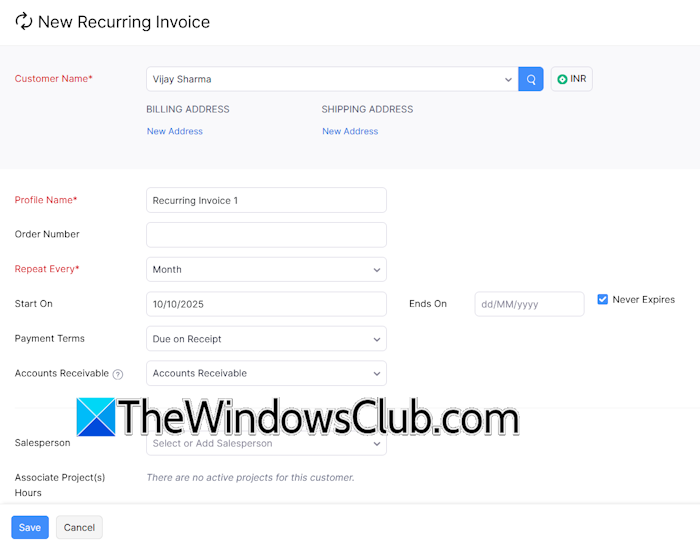
Next, select the start date and end date for the invoice. If currently there is no expiration date for your invoice, leave the Ends On field blank and check the Never Expires checkbox.
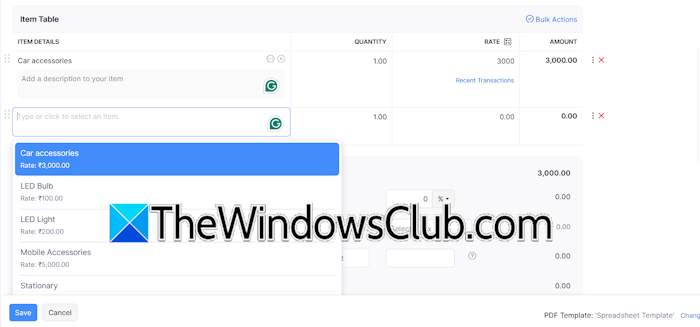
Scroll down and add items to your invoice. Now, click Save.
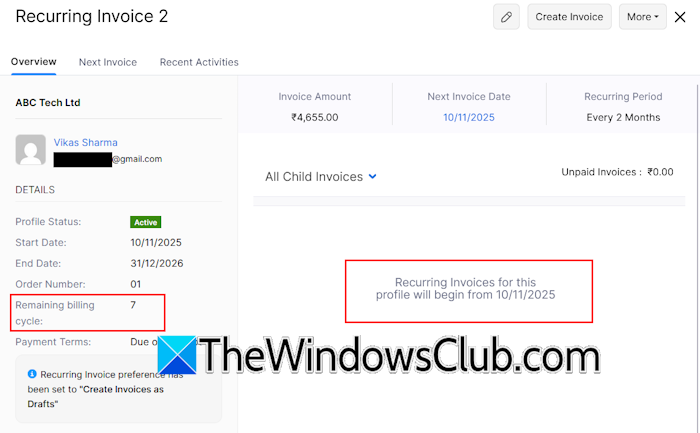
To view all the recurring invoices, select the Recurring Invoices tab on the left pane. Click on a particular recurring invoice to view its details, such as start date, end date, order number, remaining billing cycle, etc. The All Child Invoices section displays all the paid and unpaid recurring invoices.
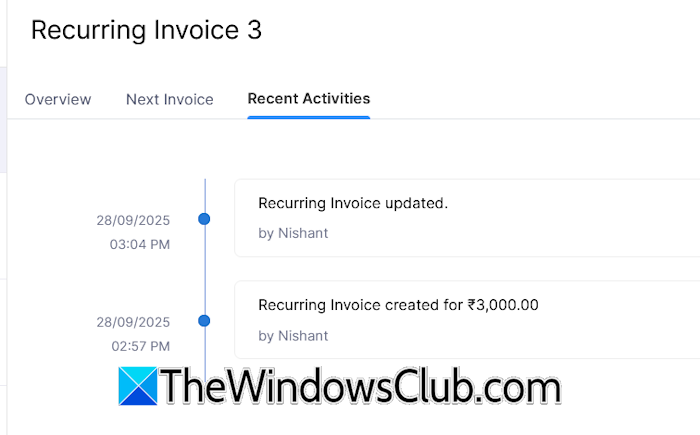
The Next Invoice tab displays information about the upcoming invoice. Select the Recent Activities to view the timeline of changes you made to the recurring invoice.
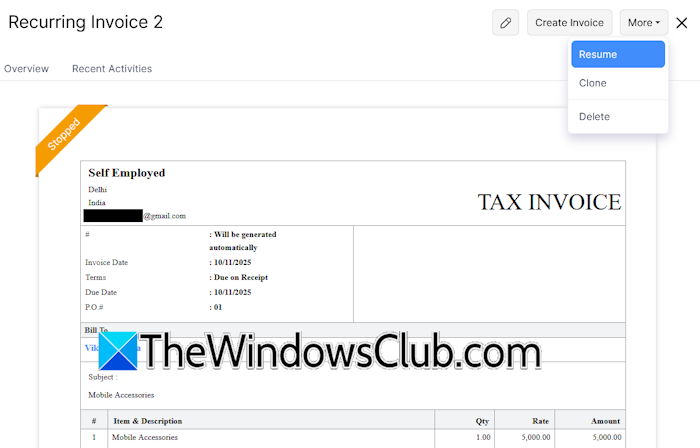
By default, all the recurring invoices are active. However, you can stop a particular recurring invoice if you want. For this, select that invoice and More > Stop. To resume it again, select More > Resume. Zoho Books also shows its status as Stopped and or Active.
Recurring invoices have been created. From now on, your customers will get an automated invoice email on the scheduled date.
Converting a manual invoice into a recurring invoice
Zoho Books also allows you to convert manual invoices into automated recurring invoices. This feature becomes helpful when a customer has become a recurring customer. In this case, you do not need to create a separate recurring invoice for him/her from scratch. Instead, you can simply convert an existing manual invoice into a recurring one. This way, you won’t have to re-enter all the details again—just specify the start date and end date.
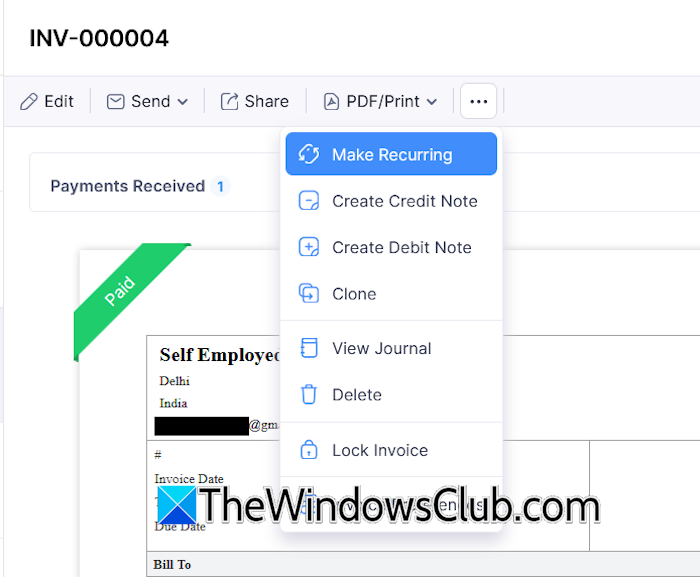
Open a non-recurring invoice and click on the three dots. Select Make Recurring. Add necessary details, such as recurring period, start date, end date, etc., and make required changes. Click Save.
Automate payment reminders in Zoho Books
You can automate payment reminders for both invoices and bills. To automate a payment reminder, first, you need to configure it.
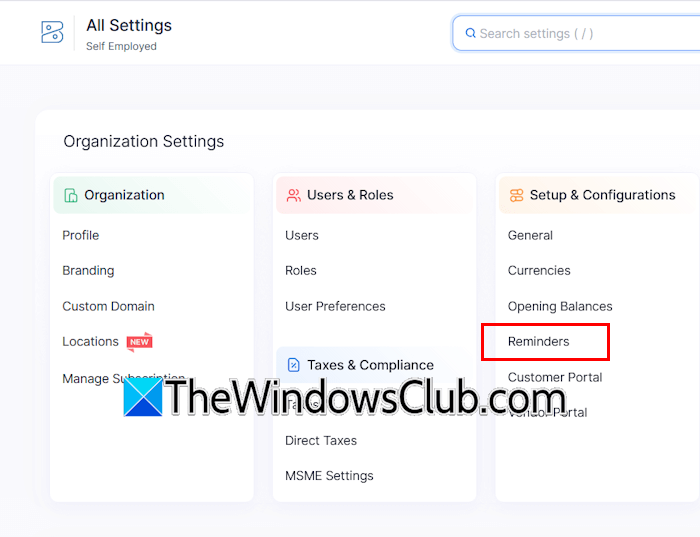
Go to your Zoho Books dashboard and click Settings. The Settings icon is available next to your profile icon on the top right side. Select Reminders.
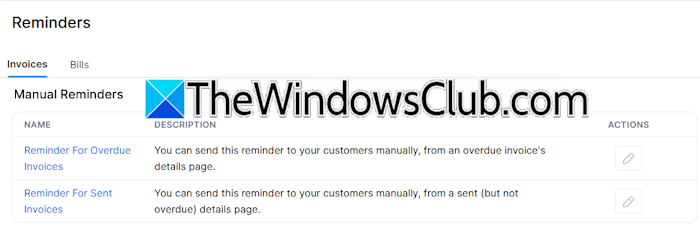
Here, you can set both manual and automated reminders for invoices. To set Manual Reminders, click on the pencil icon next to the reminder and make the required changes.
You can configure Automated Reminders based on:
- Expected payment date
- Due date
Configuring the payment reminders for the expected payment date
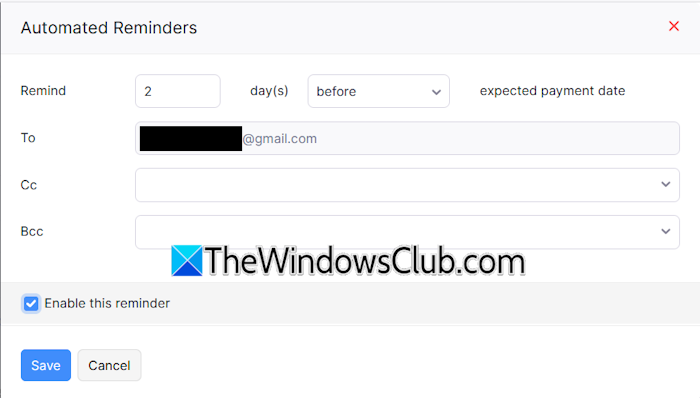
The payment reminder based on the Expected Date is to remind yourself and your team members. You cannot add customers to this reminder. To configure this reminder, click the Payment Expected link and configure it. Select the Enable this reminder checkbox and click Save. Let’s say you need to remind yourself about a scheduled payment 2 days before the expected payment date. Enter 2 in the days field and select before in the expected payment date field. Zoho Books will send you a reminder email before the expected payment date.
Configuring the payment reminders for the due date
You can configure unlimited payment reminders based on the due date. Three reminders are available by default. To add more reminders, click New Reminder. Click any of the available reminders under the Reminders Based on Due Date section to configure it.
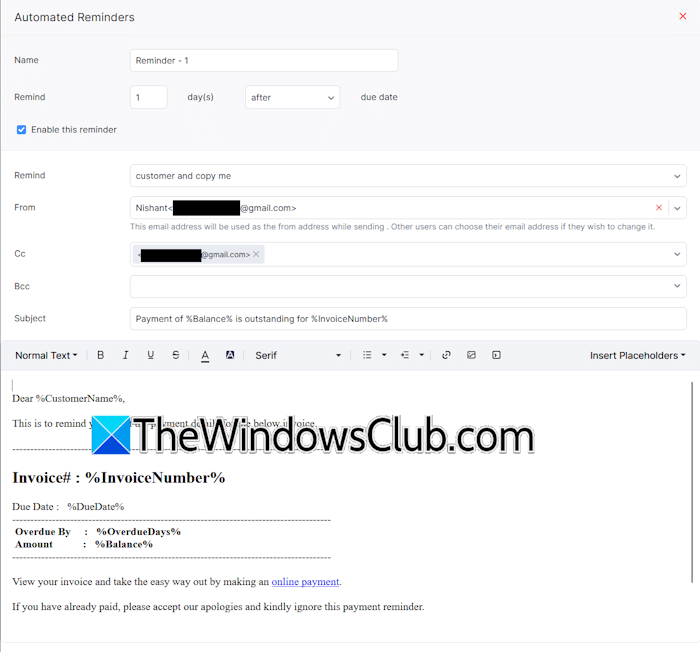
Let’s say you want to remind yourself and your customer of the missed payment. You can set the reminder time to 1 day(s) after the due date. Select the customer and copy me in the Remind box. Select your email address in the From box and select the required email addresses in the Cc and Bcc fields. Now, configure the email message. Do not change the % fields in the email message. Click Save when done and enable the reminder by turning on the Status button.
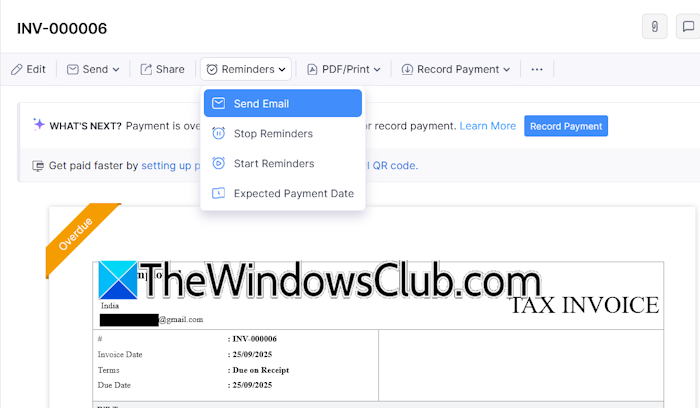
Zoho Books will send automated reminders to your customers if they miss a payment. You can also send reminders manually to your customers. When a customer misses a payment, his/her payment status is reflected automatically in the Invoices tab. Open that invoice, click the Reminders tab, and select Send email.
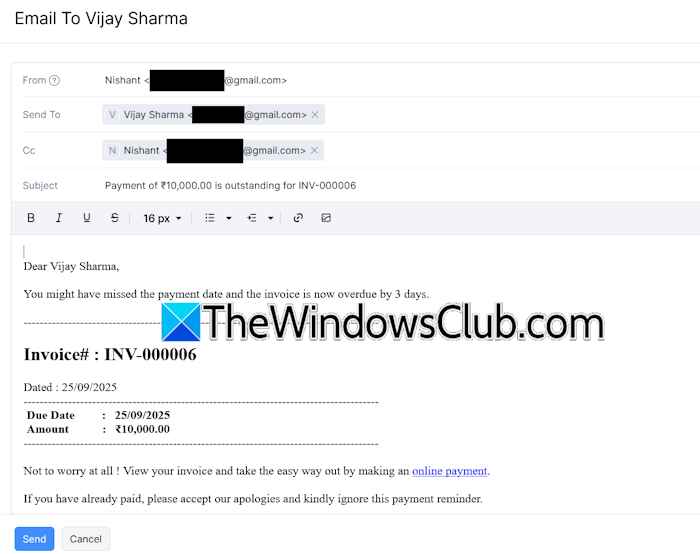
Since you have already set up automated reminders, you will see a pre-configured email message, along with the required email addresses, subject line, and email body. You do not need to do anything. Just click the Send button.
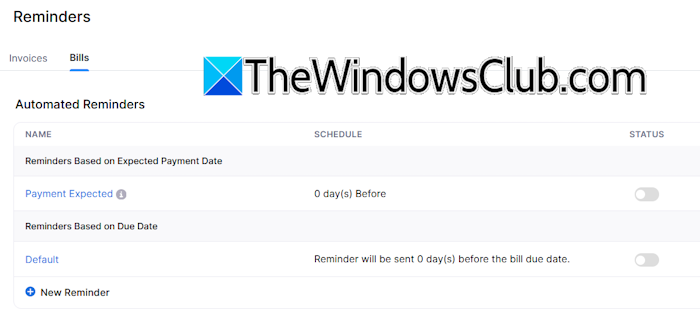
Similarly, you can configure the automated reminders for your bills.
That’s it. I hope this helps.
How do I send a payment reminder in Zoho Books?
To send a payment reminder in Zoho Books, go to the Invoices category and select the overdue payment invoice. Now, click Reminders > Send Email. Read the entire email message and make changes (if required), then click Send.
How do I add a payment mode to Zoho Books?
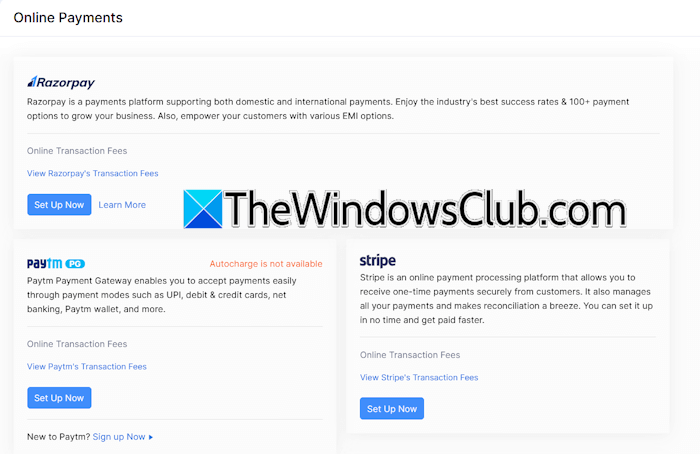
To add a payment mode to Zoho Books, open its Settings and select Payment Gateways under the Online Payments category. Now, you can set up the payment mode through various payment gateways, including Razorpay, Paytm, Stripe, PayPal, and Verifone.
Read next: Best Free CRM Software for Windows.
