
If your computer is freezing or crashing when streaming on Discord, there is something wrong with the application or your computer, or both (basically, compatibility issues). In this post, we are going to talk about this issue and explore ways to resolve it.
Why does my computer freeze when I stream on Discord?
Discord crashes or freezes during streaming due to factors like hardware acceleration conflicts, outdated drivers or software, cache buildup, specific hardware combinations (e.g., AMD CPUs with NVIDIA GPUs), memory leaks, or incompatible settings. Additionally, full-screen applications may cause more issues than windowed ones, and certain software (e.g., Sonic Radar 3 or Sonic Studio 3 on ASUS systems) can interfere with Discord’s functionality.
Fix Computer freezes or crashes when streaming on Discord
If the Computer freezes or crashes when streaming on Discord, you need to follow the solutions mentioned below.
- Disable Hardware Acceleration
- Clear Discord Cache and Temporary Files
- Force PCIe 3.0 in BIOS/UEFI
- Update Motherboard BIOS
- Disable GeForce Experience
- Adjust Video Codec Settings in Discord
- Update Graphics Drivers
Let us talk about them in detail.
1] Disable Hardware Acceleration
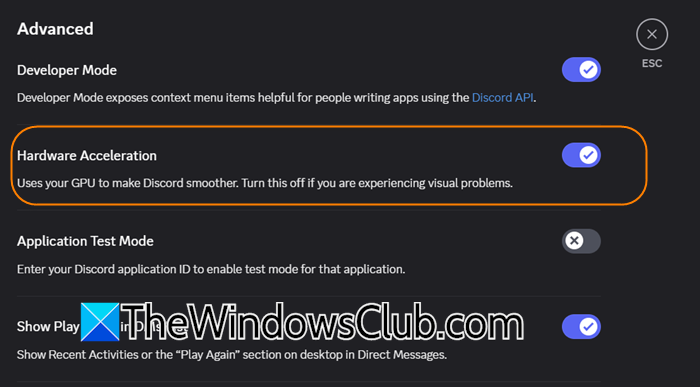
Hardware acceleration lets software shift tasks from the CPU to specialized hardware for better performance. Discord uses the CPU to render visuals and streams, but this can overload the system and cause compatibility issues, so it’s best kept disabled. To disable Hardware Acceleration, you need to follow the solutions mentioned below.
- Open Discord on your computer.
- Then, click on the cog button at the bottom of the window to open Settings.
- Now, navigate to Advanced and then disable the toggle for Hardware acceleration.
- Click on Change & Restart.
Finally, check if the issue is resolved.
2] Clear Discord Cache and Temporary Files
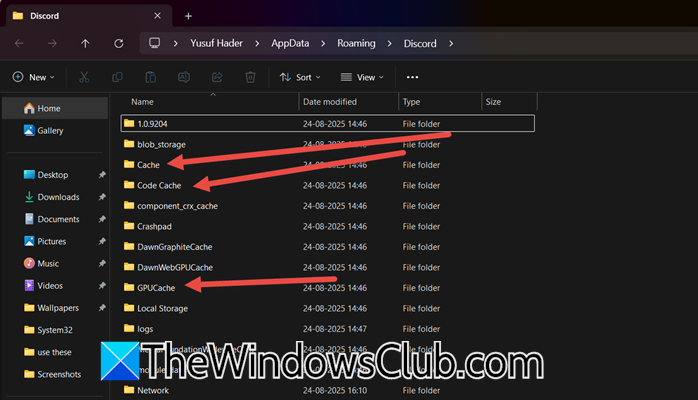
You may encounter this issue if the cache or temporary files are corrupted. And the most obvious solution would be to clear the files. You need to clear the cache and temporary files of Discord using the following steps.
- Open Run by Win + R.
- Type “%AppData%\Discord” and click Ok.
- Delete the content of the Cache, Code Cache, and GPUCache folders.
Finally, check if the issue is resolved.
3] Force PCIe 3.0 in BIOS/UEFI
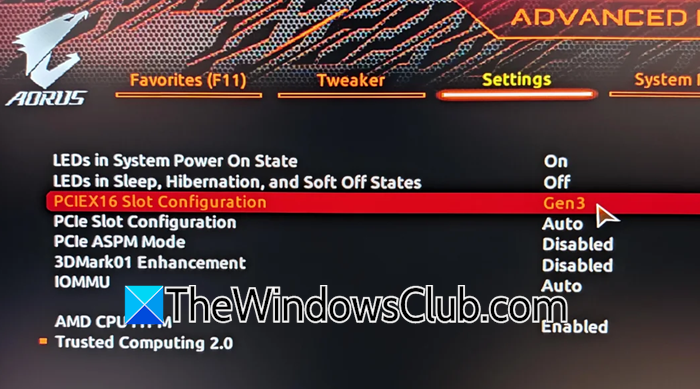
A compatibility issue between certain AMD Ryzen CPUs/chipsets and NVIDIA RTX 30-series cards on the PCIe 4.0 bus can cause these system instability problems. Forcing the older, stable PCIe 3.0 standard eliminates this conflict. You need to boot into BIOS, you need to find PCI and set it to Gen3 or enable PCIe 3.0 or PCIe 4.0. The options would be different depending on the motherboard OEM.
4] Update Motherboard BIOS
Motherboard manufacturers frequently release BIOS updates that improve hardware compatibility, stability, and specifically address issues like PCIe communication errors between the CPU and GPU. Since we are encountering this issue, we recommend that you update the BIOS to the latest version.
5] Disable GeForce Experience
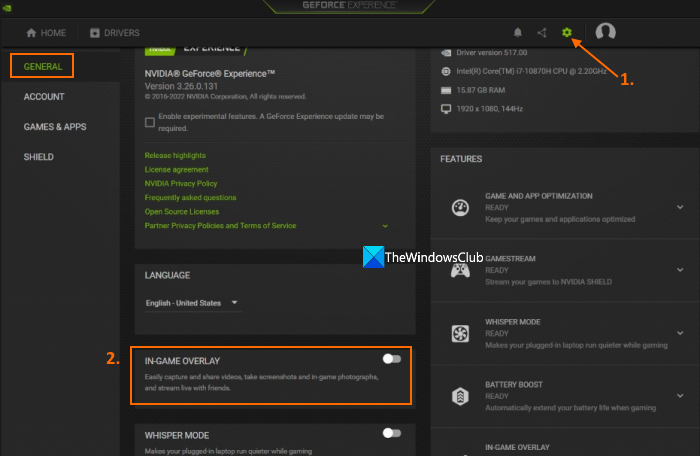
While not the root cause, the GeForce Experience overlay and background processes can sometimes exacerbate system instability, especially when an underlying hardware compatibility issue (like the PCIe one) already exists. Disabling it might resolve the issue for you. To disable GeForce Experience, you need to follow the solutions mentioned below.
- Open GeForce Experience.
- Now, click on the Settings icon or the gear icon in the top right corner of the window.
- In the General section, you need to disable IN-GAME OVERLAY.
Once done, check if the issue is resolved.
Read: Fix NVIDIA GeForce Experience overlay not working on Windows PC
6] Adjust Video Codec Settings in Discord

Disabling the OpenH264 codec can fix software-based encoding conflicts and CPU overload. It forces Discord to use the more stable and efficient hardware encoder built into your NVIDIA GPU, which is better suited for handling game streaming without causing system instability. To make the required changes, you need to follow the steps mentioned below.
- Open Discord by searching for it in the Start Menu.
- Click on the cog icon to open Settings.
- Go to Voice & Video.
- Now, click on the Video tab.
- Scroll down to Advanced and then disable OpenH264 Video Codec provided by Cisco Systems, Inc., and Uses your GPU for efficient video encoding and decoding, if available.
Finally, check if the issue is resolved.
Read: Discord keeps Crashing or Freezing on Windows PC
7] Switch Game or Application to Windowed Mode
Switching from Fullscreen to Windowed or Borderless Windowed mode resolves crashes because games running in exclusive Fullscreen mode take sole priority control over your graphics card to maximize performance. This can block or create a conflict with Discord’s screen capture functionality, as both pieces of software are fighting for exclusive access to the GPU’s output. In the game or app settings, change display mode from “Fullscreen” to “Windowed” or “Borderless” mode.
Read: How to set up Discord Streamer Mode
8] Update Graphics Drivers
If nothing works, your last resort would be to update the Graphics Drivers. In case the issue is due to an incompatibility issue, updating display drivers will do the job for you.
Hopefully, with the help of these solutions, your issue will be resolved.
Read: Discord Screen Share Audio not working on Windows PC
Why does Discord cause my PC to crash?
Discord can cause your PC to crash due to a combination of hardware and software conflicts. Common culprits include its Hardware Acceleration feature clashing with your graphics drivers, outdated or buggy GPU drivers themselves, and system instability from other resource-heavy applications like games competing for priority. Additionally, corrupted app cache files or a conflict between certain hardware components, like AMD CPUs and NVIDIA GPUs on a PCIe 4.0 connection, can also lead to freezes and crashes.
Also Read: Fix Discord Error Codes and Messages.
