
Does Discord keep on crashing or freezing on your Windows PC? Here is a complete guide to fixing freezing or crashing issues with the Discord app on your PC.
Discord is a popular free voice, video, and text chat app specially designed for PC gamers. It is used by millions of users. However, it has its own share of issues and errors that users keep encountering time and again. Some Discord users have reported crashes and freezes with the app. It can be really frustrating, as it keeps you from having a smooth chatting and calling experience with your friends and fellow gamers.

While some users have experienced crashes at app startup, many have encountered crashes or freezes in the middle of a task. Now, if you are facing the same issue, this guide will help you. Here, we are going to mention several fixes that will help you fix the issue of Discord crashing or freezing.
Why does Discord keep crashing on my PC?
There can be several reasons due to which you might experience crashes with the Discord app on your PC. Here are the possible causes:
- If you have outdated or faulty device drivers, it can cause Discord to crash or freeze. So, update all your device drivers to fix the issue.
- In case you have enabled Hardware Acceleration in Discord, it can cause the app to crash or freeze. Hence, disable the Hardware Acceleration option in the app to fix the problem.
- The corrupted cache or app data associated with the Discord app can also cause the app to crash or freeze. If applicable, you can try clearing the Discord cache to resolve the issue.
- The problem might also be caused by a corrupted installation of the app itself. So, try reinstalling Discord to fix the issue.
Discord keeps Crashing or Freezing on Windows PC
Here are the fixes that you can try to fix the crashing or freezing issue with Discord on Windows PC:
- Update all your device drivers.
- Disable Hardware Acceleration.
- Turn off Compatibility Mode for Discord.
- Clear AppData Discord Content.
- Disable Keybinds.
- Uninstall, then Reinstall Discord.
Let us discuss the above-mentioned fixes in detail now!
1] Update all your device drivers
The first thing you should do to fix Discord crashes or freezes is update all your device drivers. There is a high chance that you are dealing with the problem at hand due to outdated or faulty device drivers. So, update all your device drivers to their latest versions, then see if the problem is fixed.
Now, there are several methods to update your drivers on Windows 11 or 10. Here are the 4 common methods:
- The popular method to update your device drivers is to use the Optional Updates feature on Windows 11/10. It is present inside the Settings > Windows Update section. You can simply download and install all the pending device driver updates from there.
- You can also install drivers directly from the manufacturer’s website. Simply visit the official website of the device manufacturer and download drivers. Later, install the drivers by running the downloaded driver installer.
- Another way to update your device drivers is using the conventional Device Manager app. You can follow the below steps to use Device Manager to
- Press Win+X and select Device Manager from the opened menu.
- Go to the respective device category and expand its drop-down menu.
- Right-click on your device.
- Click on the Update Driver option.
- Follow the given instructions to complete the update process.
- There are multiple free driver update software that let you automatically update your drivers without any hassle.
When you are done updating your device drivers, reboot your PC and then launch Discord. Check whether the Discord app still freezes or crashes or not. If yes, you can try the next potential fix to resolve the issue.
2] Disable Hardware Acceleration
If the Discord app keeps crashing or freezing, you can try disabling the Hardware Acceleration feature in the app. This feature is used to perform some tasks more efficiently. However, it can also cause stability issues with your app and might trigger crashes or freezing issues. So, try disabling it and see if the problem is fixed.
Here are the steps to turn off the Hardware Acceleration feature in Discord:
- Firstly, launch the Discord app and click on the User Settings button.
- Now, under the App Settings section in the left panel, scroll down to the Appearance category.
- Next, in the right-hand side panel, turn off the toggle associated with the Hardware Acceleration option.
- After that, relaunch the Discord app and see if it works fine without crashing or freezing.
If you still experience the same crashing or freezing issues with the Discord app, move on to the next potential fix.
3] Turn off Compatibility Mode for Discord
If Discord keeps freezing on your PC, the problem might be caused by a compatibility issue. Hence, you can try disabling compatibility mode for the Discord app and then check whether the issue is resolved or not.
Here are the steps to launch Discord in compatibility mode on Windows 11/10:
- Firstly, close all tasks related to Discord by using Task Manager.
- Now, go to the Discord app shortcut icon on the desktop and right-click on it.
- Next, from the opened context menu, select the Properties option.
- After that, navigate to the Compatibility tab and disable the Run this program in compatibility mode for option.
- Finally, press the Apply > OK button to save changes.
Now, try relaunching the Discord app and see if it works without crashing or freezing. If the issue persists, move on to the next potential solution.
4] Clear AppData Discord Content
If none of the above solutions works for you, try deleting the app data associated with Discord. The crashing issue can be caused due to corrupted app data or cache associated with the Discord app. So, clearing the app data should help you fix the issue. Here is how you can do that:
- Firstly, press Windows + R hotkey to open the Run dialog box and enter %AppData%\ in it.
- Now, locate the Discord folder and open it.
- Next, inside the Discord folder, double-click on the Cache folder to open it.
- Once you are inside the cache folder of Discord, press the Ctrl+A hotkey to select all the content and then press the Delete button on your keyboard to delete all the data.
- Then, go back to the Discord folder and open the Local Storage folder, and delete all the files from that folder.
- When done, relaunch the Discord app and see if the problem is now resolved.
In case the Discord app still crashes or freezes on your PC, you can try the next solution to fix the problem.
5] Disable Keybinds
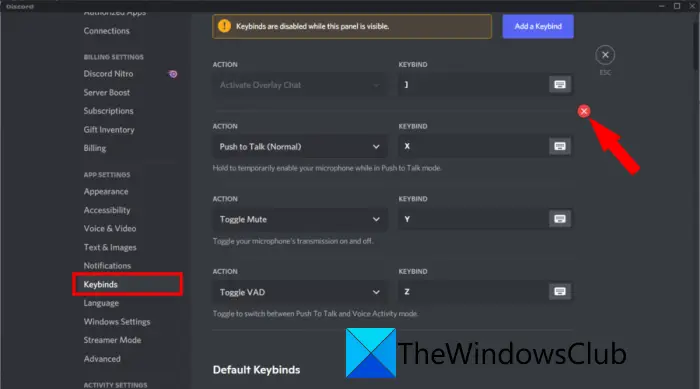
If you are using the Keybinds feature in the Discord app and are experiencing freezing or crashing, try disabling it. Keybinds are like keyboard shortcuts that you can assign to perform a specific task in Discord with a shortcut key. However, some users have reported that using the keybinds can cause Discord to freeze out of nowhere. If the scenario is applicable, you turn it off.
Here is how you can disable keybinds:
- Firstly, launch Discord and click on User Settings.
- Now, under the App Settings category in the left pane, click on the Keybinds option.
- Next, you will see a list of assigned keyboard shortcuts marked with a red cross. Simply tap the red cross next to each keybind to delete it.
- After that, restart the Discord app and see if the problem is now resolved.
If the problem still persists even after trying the above solutions, we have one more fix. You can check it out below.
6] Uninstall, then Reinstall Discord
The problem might lie with a corrupted installation or with files associated with Discord, which is causing it to crash or freeze. So, you can try starting with a fresh installation of the app to resolve the issue.
First, you need to delete the Discord app data. For that, press Windows + R hotkey to evoke Run and then enter %AppData%\ in it. Next, locate the Discord folder, select it, and then delete the folder.
After that, uninstall the Discord app by going to the Settings > Apps > Apps & features section. When done uninstalling the DIscord app, restart your PC.
At the next startup, open a web browser and visit the official Discord website. Then, download the latest version of Discord and run the installer file to reinstall Discord on your PC.
Hopefully, the Discord app won’t freeze or crash after reinstalling it.
How to delete Discord cache?
To delete Discord cache on your Windows computer, you have to delete the Cache, Code Cache, and GPU Cache folders. All these folders are located inside the Discord folder. Open the Run command box and type %appdata%, and click OK. You will see the Discord folder there.
Now read:
- Can’t install Discord, Installation has failed on Windows PC.
- Fix Discord Console Log errors on Windows computer.
- Fix Discord Voice Connection errors on Windows 11.
