
We all know why Discord was created; it was designed to provide an alternative chat network for gamers who play in complex team environments. However, nowadays, Discord is used for many other things and is one of the most useful platforms for gamers. Today, in this article, we will explore how to set up Discord Streamer Mode and cover everything you need to know about it.

What Is Discord Streamer Mode?
There are numerous streaming applications and services available on the market. Some are good, while most tend to lag when streaming a high-profile game. However, even the good ones tend to stream your stream in its entirety. They will stream everything, including any pop-ups that you don’t want to show, or any apps that you want to hide from the public. So, Discord went ahead and created its own Streaming Mode.
The Discord Streamer Mode will block all your pop-ups, messages, invitation, etc. It gives your control over what item on your screen you want to show and what you want to hide.
That is why most Discord users are eager to learn how to use this service.
How to Set Up Discord Streamer Mode
It is a two-step process but first, you need to download a Streaming application. OBS is one of the best options, as it is free and works perfectly with Discord. However, if you use a different streaming service, download it directly to your computer. Now, after download the required tool, you can do the following.
- Integrate Discord with Streaming App
- Enable Streamer Mode
Let us talk about them in detail.
1] Integrate Discord with Streaming App
To Integrate Discord with a Streaming app, follow the given steps.
- Launch Discord and click on the settings icon to go to the User Settings.
- Go to the Connections tab.
- Click on the service you want to integrate Discord with and use your credentials to do so.
2] Enable Streamer Mode
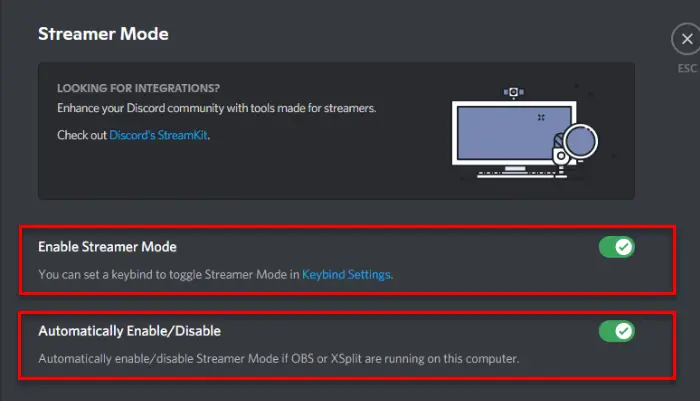
Now, that we have a service to sync your data, we need to enable Streamer Mode. To do that, you can follow the given steps.
- Launch Discord and click on the settings icon to go to the User Settings.
- Go to the Streamer Mode tab.
- Use the toggle to Enable Streamer Mode.
You should also enable the ‘Automatically Enable/Disable’ option, so, you won’t have to worry about enabling the Streamer Mode every time you have to stream.
Now, you can enjoy streaming without any hassle.
Read Next:
