
Microsoft Outlook, the email client, saves emails and attachments offline. As you receive and send emails, the database size keeps increasing. While it ensures you can access emails when not connected to the internet, it also means the mailbox size keeps expanding. In this post, we will show you how to compact and reduce the mailbox size in Microsoft Outlook.
The disadvantage of having a bigger mailbox is that it slows down the experience. It takes longer to open and search for anything. On top of it, email providers such as Microsoft 365, limit the maximum size of the mailbox. It means that unless you reduce the mailbox size in Microsoft Outlook, you cannot send or receive any email.
Where is all the data of the Outlook mailbox stored?
If you use the POP or IMAP feature, all the files, emails, folders, contacts, etc. are stored in the Outlook Data File (.pst). If you are using Microsoft 365, Exchange, or Outlook.com account, the mailbox data is available in an Offline Outlook Data File (.ost). While deleting emails and attachments might help, if you save all information in PST file, it doesn’t shrink on its own.
How to clean up, compact and reduce Inbox size in Outlook
1] Compact and reduce Outlook Data File (.pst)
The advantage with PST file is that when you delete emails, it automatically compacts the database in the background. The compacting process happens when you are not using Outlook. You can also choose to compact it by following the steps below manually:
- Open Outlook, and delete items that you don’t need. When you remove them, the files go inside the “Deleted Items” folder. Right-click and empty it.
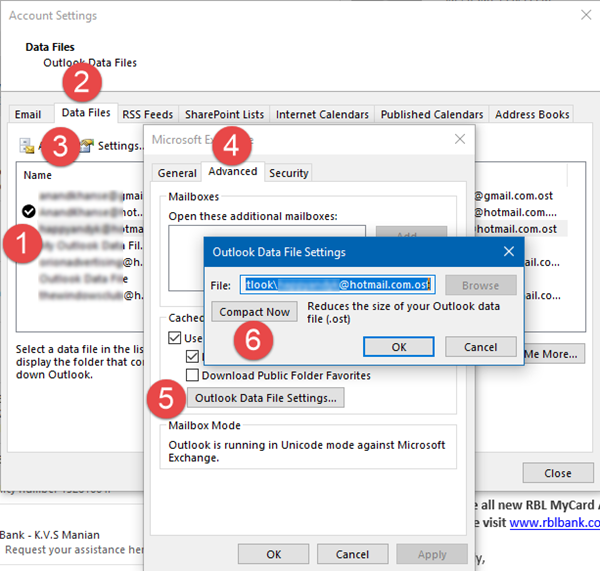
- Click on File > Account Settings >Account Settings.
- Switch to the Data Files tab. Select the data file you want to compact. Then click on Settings.
- Click the Advanced tab > Outlook Data File Settings.
- In the Outlook Data File Settings dialog, click Compact Now and then click OK.
Depending on the PST file size, it might take several minutes to compact.
Read: How to remove the Sync Issues folder in Outlook
2] Compact and reduce an offline Outlook Data File (.ost)
Many email accounts use an offline Outlook Data File to store data. OST or offline Outlook Data File is similar to PST or Outlook Data File with one exception. You cannot import from or export to an offline Outlook Data File (.ost).
- Click File > Account Settings, Account Settings.
- On the Data Files tab, click the data file that you want to compact, and then click Settings.
- Click the Advanced tab > Outlook Data File Settings.
- In the Outlook Data File Settings dialog, click Compact Now and then click OK.
3] Use Outlook Mail Cleanup Tool
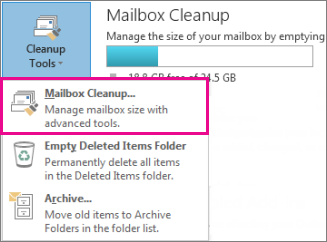
Outlook offers an inbuilt mail cleanup tool, or you can use the Outlook Attachment Cleanup tool to search for old and large messages that you can delete or move to a PST file. It can also remove the copy of emails that conflict with the email server. Sometimes we delete files from the server, but they are still available on the client, occupying space.
Run the Mailbox Cleanup tool
- Click the File > Tools > Mailbox Cleanup.
- Select View Mailbox Size, Find items older than, Find items bigger than, View Deleted Items Size, Empty Deleted Items folder, View Conflicts Size, or Empty Conflicts to perform your desired task.
4] Use Sweep in Outlook
You can use Sweep in Outlook. However, Sweep is only in Outlook on the Web and the New Outlook, and not in Classic MS Outlook. The feature lets you select an email and perform actions like deleting or moving it – for every email from that sender. You can also apply the action to future emails from the same sender.
- Select an email from the sender you want to manage.
- Click Sweep on the menu bar.
- Choose an action: delete all, keep only the latest, or delete older than 10 days.
- Confirm by selecting Sweep to apply the rule.
- Sweep runs once per day and only works in Inbox/subfolders (not Junk, Drafts, Sent, Deleted).
Classic MS Outlook, however, includes Clean Up, found here: Home tab > Delete group > Clean Up.
5] Use Clean Up Conversation Tool in Outlook
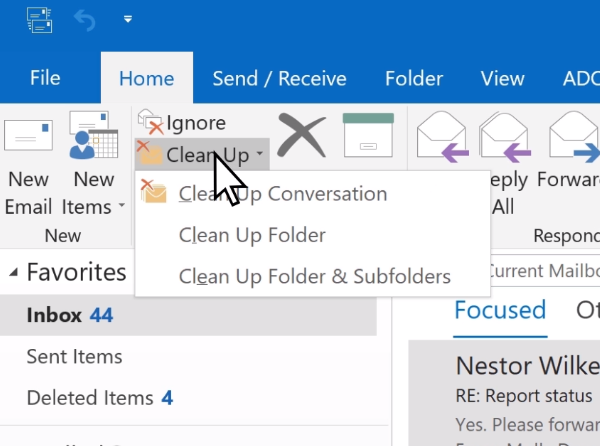
Outlook for Microsoft 365, Outlook 2021/19, Office for business, and others have a tool to clean up conversations. Conversations or Email threads are the same thing. The “conversation tool” is smart. It will evaluate the content of each message, and if any part of the email appears in any of the preview messages, it will delete it.
You have three more options to compact and reduce the mailbox size in Microsoft Outlook.
- Clean Up checks on the selected conversation.
- Folder clean up reviews the selected folder.
- Clean Up Folder & Subfolders also checks on subfolders.
Read: How to change Outlook Conversation Cleanup settings
These are the best tips to help you compact and reduce mailbox size in Microsoft Outlook. However, always make sure you do not accidentally delete essential files.
Read next: How to optimize and speed up Microsoft Outlook.
