
If Claude Desktop won’t open on Windows 11, the problem may not be with your Claude account or the service itself. You are in the right place if you are experiencing the same issue. In this article, we will explore ways to get Claude running again. This post covers what you can do if the Claude desktop app won’t open on Windows 11/10.
Why isn’t the Claude Desktop app opening on my Windows computer?
Claude Desktop may fail to open on Windows because of a broken installation, a stuck background process, or an incomplete update. It can also be due to Windows virtualization issues that require features such as Cowork. On Windows, Cowork depends on Virtual Machine Platform and related services, so problems with these components can prevent Claude from starting or initializing correctly.
Claude desktop app not opening on Windows 11
If the Claude desktop app is not opening on Windows 11, follow the solutions mentioned below.
- Enable Windows virtualization components
- Kill lingering processes
- Reset Claude’s local VM state
- Roll back a broken auto-update
- Use the Claude:// protocol launcher for Store installs
Let’s get started with the troubleshooting guide.
1] Enable Windows virtualization components
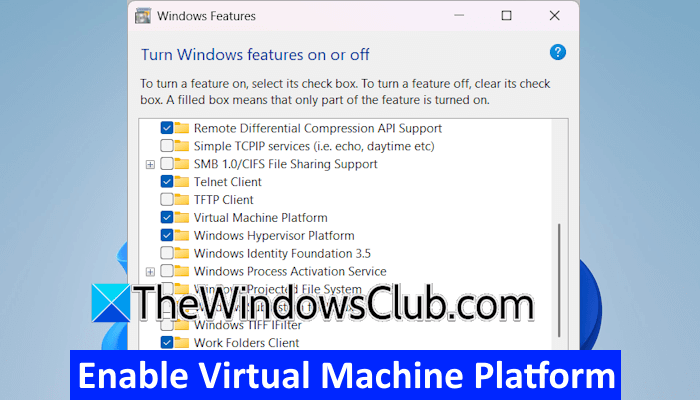
Claude Desktop’s Cowork features use Windows virtualization. Sometimes, Claude installs correctly, but the virtual machine (VM) environment isn’t ready to run. Anthropic lists the Virtual Machine Platform as a requirement for Cowork. Their troubleshooting guidance mentions vmcompute, HNS, and other virtualization services if they are missing or not registered. To help Claude start its background VM, it’s necessary to enable these components.
- First of all, reboot the device, enter BIOS/ UEFI setup, and locate the Advanced settings. There, ensure Intel VT-x is enabled, save changes, and exit.
- Once the device reboots, click Win + R to open the Run dialog box, type optionalfeatures, and hit Enter to open the Turn Windows features on or off dialogue.
- Scroll through the list and enable the following items:
Hyper-V
Virtual Machine Platform
Windows Hypervisor Platform
Windows Containers
- Click OK, allow Windows to install the required files, and when the device restarts, launch the Run dialogue box, type services. msc, and press Enter.
- In the Services window, locate Host Compute Service, and ensure it’s set to Running with startup type set to Automatic. If not, right-click it and select Start.
Now, try launching Claude Desktop again. If it doesn’t open, see the next solution.
2] Kill lingering processes
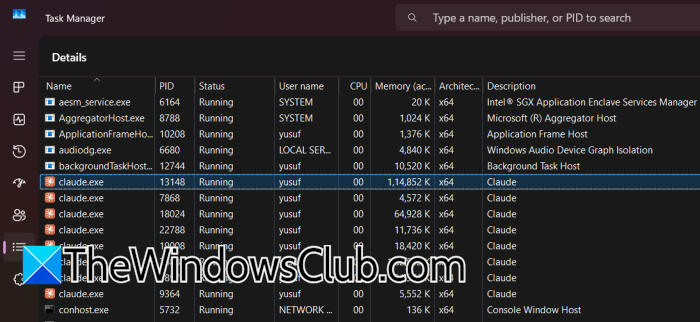
A stuck calude.exe process can remain in the background and prevent a fresh instance from starting. This behaviour has been reported on Windows 11, where users had to terminate the remaining Claude processes before the application would launch normally again. Follow the steps below to do the same.
- Launch Task Manager by pressing Ctrl + Shift + Esc, and go to the Details tab. If you don’t see it, select More details from the bottom, and then select it.
- In the Name column, look for any entry containing Claude, including any child processes or helper executables with Claude in the name.
- Right-click on each one, select End Task, and double-check that no Claude processes remain before closing Task Manager.
Launch Claude Desktop and verify it opens properly. Move to the next solution if the issue persists.
3] Reset Claude’s local VM state
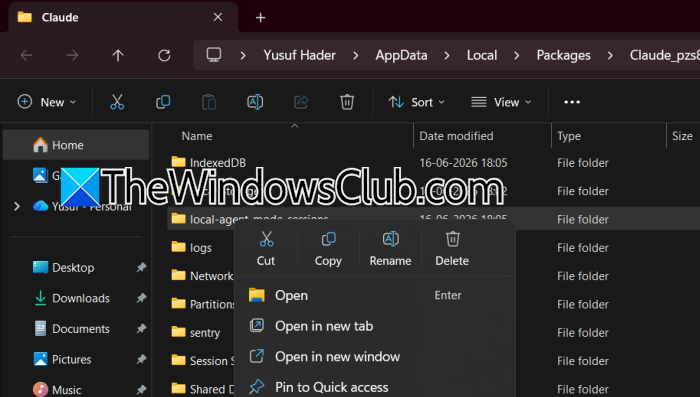
Windows can retain invalid VM, network, or session state after a failed Cowork startup, which causes Claude to repeatedly encounter the same VM error. In such situations, resetting Claude’s local VM state gives Windows and Claude a clean environment to recreate the VM configuration.
For MSIX/Store Installs: Press Win + R, paste the following path, and hit Enter.
%LOCALAPPDATA%\Packages\Claude_pzs8sxrjxfjjc\LocalCache\Roaming\Claude\
Look for subfolders named Cowork, vm, or local-agent-mode-sessions and delete them.
For Standard Installs: Press Win + R, paste the following path, and hit Enter
%APPDATA%\Claude\
Locate and delete the Cowork or vm directory; the name may vary, so if you are unsure, check Claude’s log files for CoworkVMService or HCS errors.
Delete that specific folder, then close the File Explorer window. Launch Claude Desktop to automatically recreate the deleted VM configuration with default clean settings, restart Windows Virtualisation services, and then restart the device.
Open Claude, and it should work normally. Move to the next solution if the issue persists.
4] Roll back a broken auto-update
If the app stopped working suddenly after an update, rolling back the newly installed version is a targeted fix. Deleting the newly installed folder causes the app to fall back to the previous working version, resolving the issue.
You cannot manually roll back versions in an MSIX package. To reset, go to Settings > Apps > Installed apps. Click the three dots next to Claude and select Advanced options. Then, click Reset (or Repair). If that does not work, uninstall and reinstall the package directly from claude.ai/download.
If you installed using a standalone .exe setup file, check this location %APPDATA%\Claude\ or look in %LOCALAPPDATA% for a folder named Claude-3p or Claude. Inside, look for app-* version folders.
Locate app-<version> folders, and identify the newest version folder that was installed by the latest auto-update.
Delete the newest version folder completely, then locate the update.exe and squirrel.exe files, and rename them to update.exe.bak and squirrel.exe.bak to disable the auto-update without uninstalling anything.
Keep the update renamed until a fixed version is available and launch Claude Desktop to see if the issue is resolved. If not, go to the next solution.
Read: How to install Claude AI code in VS Code
5] Use the Claude:// protocol launcher for Store installs
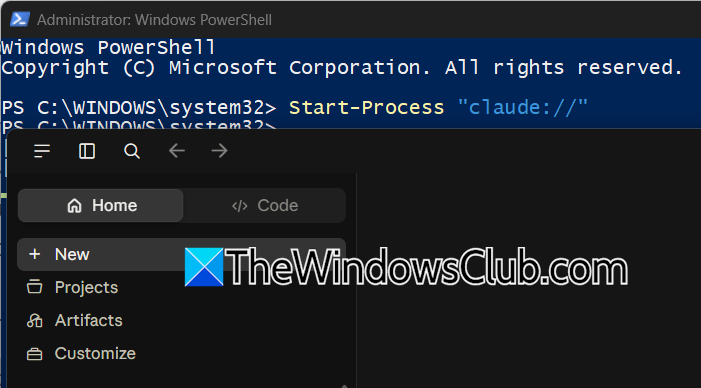
A Microsoft Store or MSIX installation behaves differently from traditional desktop applications with a simple executable path that users can always launch directly. Windows registers the app as an AppX package and can be exposed through the Claude:// protocol. This asks Windows to activate the installed package directly, bypassing issues where a shortcut, executable path, or external application tries to locate Claude as a conventional Win32 program.
- Launch PowerShell and execute the following command to launch the app using its generic protocol:
Start-Process "claude://"
- If that does nothing, navigate to the user profile folder by executing the following:
cd $env:USERPROFILE\.claude\sessions\
- Look for the .json file, open it with Notepad, and copy the bridgeSessionId value. Go back to PowerShell and run:
Start-Process "claude://code/<paste-the-session-id-here>"
This will instruct the Store-installed Claude to open the specific session, which forces the main window to render. Once done, check if the issue is resolved, and proceed to the next solution accordingly.
Hopefully, the issue will be resolved, and there won’t be any issues when opening it.
Read: Using Claude Code and OpenAI Codex remotely in Windows 11
Why isn’t Claude working?
Claude may not be working for several reasons; however, before troubleshooting Claude, check whether it is experiencing an outage or degraded performance. If the services are operational, the problem is more likely local, and users should move to Windows-specific troubleshooting.
Also Read: Run Claude Code Locally for free on PC.
