
On Windows 11/10, software is installed on your System Drive, usually the C drive, in the Program Files folder. The typical default paths in Windows 64-bit are C:\Program Files and C:\Program Files(x86).
This can, however, be changed by selecting another folder or location or partition. To change the default installation folder, the data in the ProgramFilesDir Registry key must be modified, and a new path must be specified for the installation folder.
Windows uses the System Disk for installing new applications; that is, if Windows is installed on the C Drive, the default folder where all the applications you install will automatically appear as C:\Program Files, unless, of course, you change it manually during installation.
Microsoft recommends the C:\Program Files folder for the default installation destination. It’s a convention that ensures proper inter-operation between your program and the OS’s application and security models. So, once software programs are installed, they go by default to C:\Program Files on the computer.
Microsoft does not support changing the location of the Program Files folder by modifying the ProgramFilesDir registry value. It states that if you change the location of the Program Files folder, you may experience problems with certain Microsoft programs or software updates. If at all you decide to try this suggestion, we recommend that you back up your registry and create a system restore point first.
TIP: Windows 11/10 makes things easy. You can easily move Windows Apps to another Drive and change their Install location.
How to change Installation Path in Windows 11
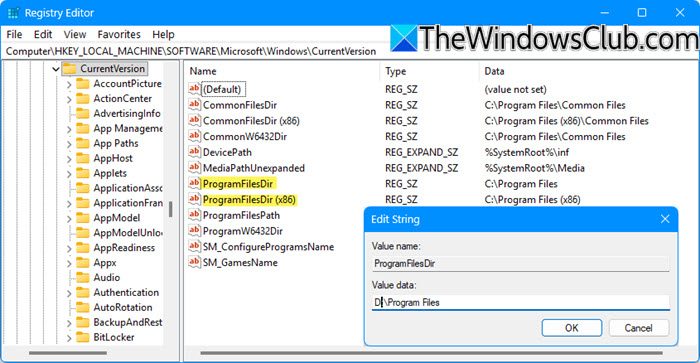
If you almost always prefer not to install on the System Disk, but instead on another partition, say, the D drive, then rather than changing the default location every time, you can edit the registry as follows to change the default install location in Windows 11/10.
Before you begin, create a system restore point first.
Now open Regedit and navigate to the following key:
HKEY_LOCAL_MACHINE\SOFTWARE\Microsoft\Windows\CurrentVersion
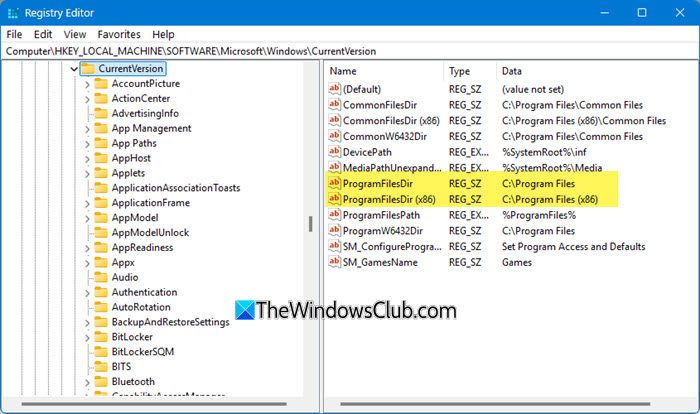
Now in the right pane, look for the values: ProgramFilesDir and ProgramFilesDir (x86) since your Windows 11 is 64-bit.
You have to change the values of both ProgramFilesDir and ProgramFilesDir (x86).
Double-click on each of them, one after the other, and in the box that opens, change its Value data from C:\Program Files to, say, D:\Program Files.
Click OK. Exit.
The default directory for installing all your programs shall now be D:\Program Files.
Also read: How to change the default Save location for Documents, Music, Pictures, Videos in Windows 11
How do I change the default install location in Windows 11?
To change the default Program Files installation directory location in Windows 11, open Settings > System > Storage. Click Advanced storage settings and select where new content is saved. Here, you can choose a different drive for New apps to save to.
Please note that already installed apps remain in their original location. This post will show you how to move installed Programs and Apps to another Drive.
Can I move already installed programs to another drive in Windows 11?
Yes, but you can, but not all programs support moving. To move already installed programs to another drive in Windows 11, open Settings > Apps > Installed apps. Select the app, click Move, and choose a new drive. If the option isn’t available, you will have to reinstall the program in your new location.
