
In this post, we will show you how to change the starting Default Directory that opens when you launch Command Prompt on a Windows 11 PC. When you open Command Prompt (CMD), it usually starts in the default user directory set by Windows (C:\Users\YourName). While this works for occasional use, it can quickly become frustrating if you frequently work in a specific folder and have to type multiple cd commands every time to navigate to it.
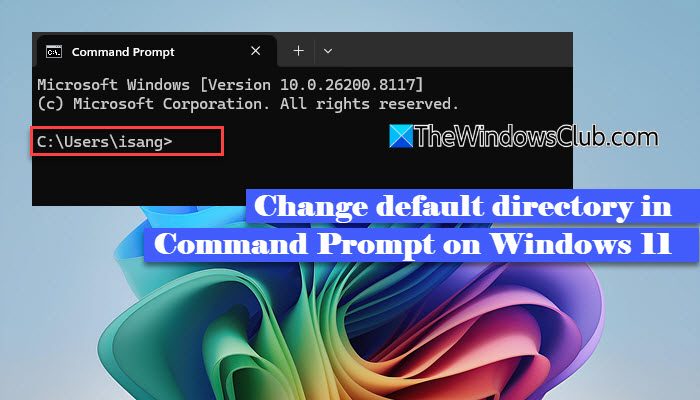
The frustration increases because Windows does not provide a direct built-in option to change this behavior permanently. In this guide, we will show you different ways to change the default directory in Command Prompt, so it opens exactly where you want.
We have already seen how to change the working Directory in Command Prompt; now let us see how to change the Default Directory in Command Prompt when you launch it.
Change Default Directory in Command Prompt in Windows 11
You can change the starting Default Directory that opens when you launch Command Prompt in Windows 11 using the following methods:
- Change the “Start in” path of the Command Prompt shortcut
- Create a custom Command Prompt shortcut
- Open Command Prompt directly from a folder
- Use Windows Terminal settings
- Use Registry
Let us see these methods in detail.
1] Change the “Start in” path of the Command Prompt shortcut
This is the easiest and most reliable way to make Command Prompt open in a specific folder. It modifies the startup location of the CMD shortcut.
Click the Start button icon on your system. In the search bar, type ‘cmd’.
Command Prompt will show up in the search results. On the right pane, select Open file location.
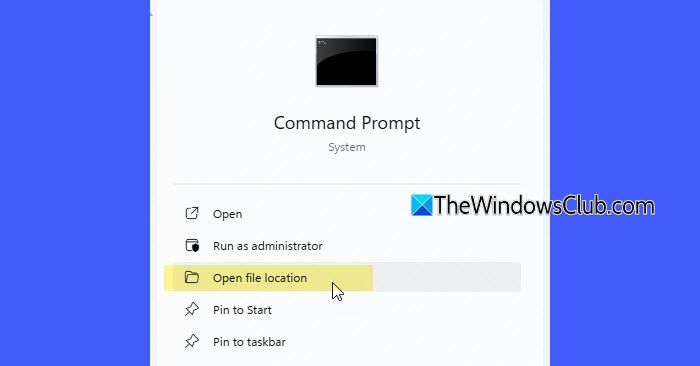
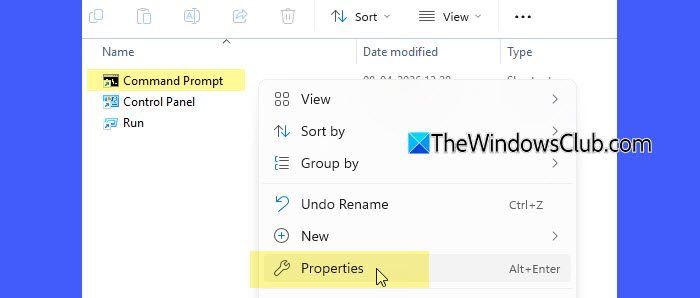
This will open the folder containing the Command Prompt shortcut. Right-click the shortcut and select Properties.
Switch to the Shortcut tab in the Properties window. You’ll see a field labeled Start in. This field specifies the default directory when you open Command Prompt from the Start menu.
Change the Start in field to the directory you want as the default. For example, if you want to set it to C:\<directory_path>, enter C:\<directory_path> in the field. If your directory path contains spaces, enclose it in double quotes.
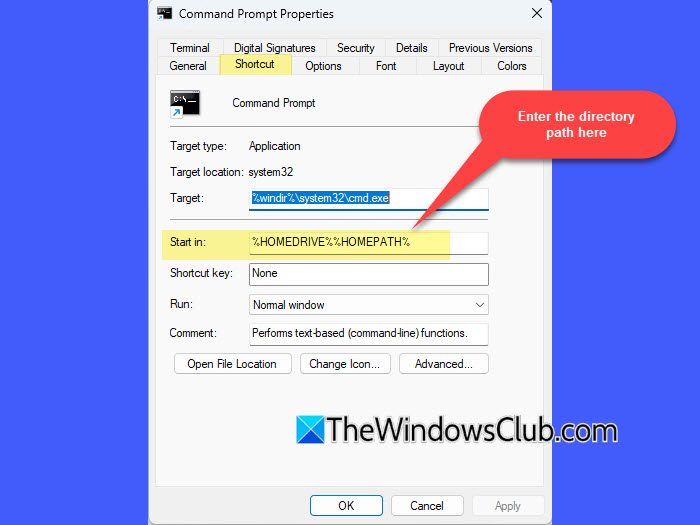
Click Apply and then OK to save the changes.
2] Create a custom Command Prompt shortcut
If you work with multiple directories, you can create custom Command Prompt shortcuts for different locations and open them instantly.
Right-click on an empty area on the Desktop and select New > Shortcut.
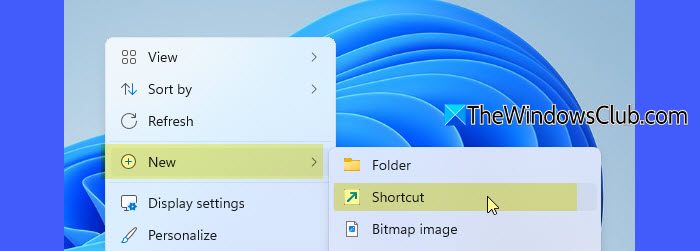
In the location field of the Create Shortcut dialogue, enter:
cmd.exe /k cd /d "<DriveLetter>:\YourFolder"
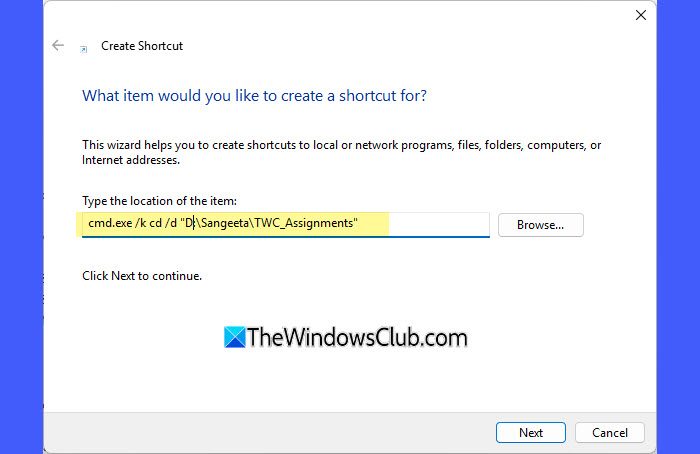
Replace <DriveLetter> with the drive you want Command Prompt to open in by default. (such as D:, E:, or F:).
In the above command:
cmd.exe: Launches the Command Prompt./k: Tells Command Prompt to execute the command and remain open (allowing you to set the startup directory).cd: Stands for Change Directory. It is used to navigate to a specific folder./d: Allows the command to change both the drive and the directory in a single step (for example, fromC:toD:).
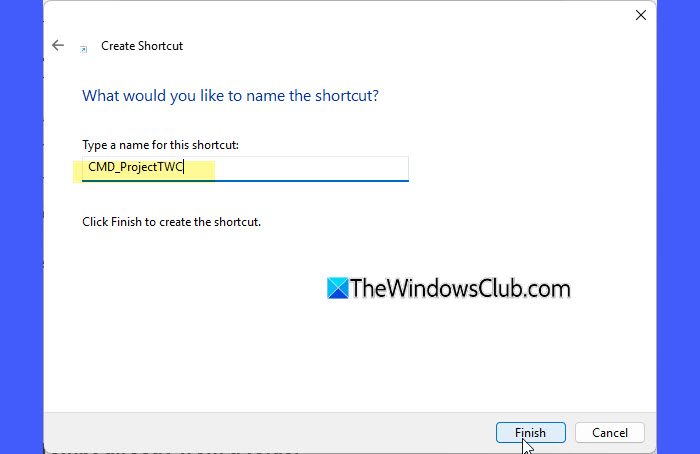
Click Next. Enter a name for the shortcut (for example, “CMD_ProjectTWC”). Click Finish.
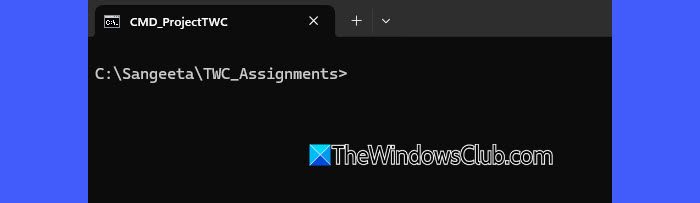
Now, double-clicking this shortcut will open Command Prompt directly in the selected folder.
3] Open Command Prompt directly from a folder
If you prefer using the graphical interface, this method can be quicker than typing multiple cd commands to navigate through directories. It allows you to open Command Prompt directly in the desired folder without manually switching paths.
Open the target folder in File Explorer. Click on the address bar. Type cmd and press Enter.
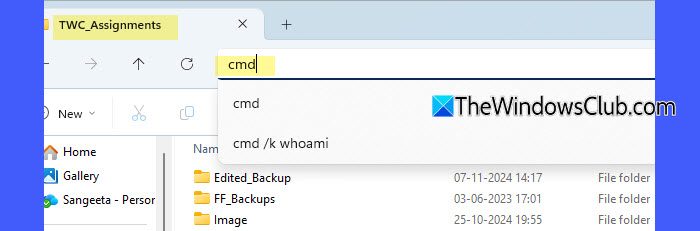
Command Prompt will open with the selected folder set as the current directory.
4] Use Windows Terminal settings
If you use Windows Terminal, you can configure it to start in a specific directory for Command Prompt profiles.
Open Windows Terminal. Click on the down arrow (˅) in the tab bar and select Settings.
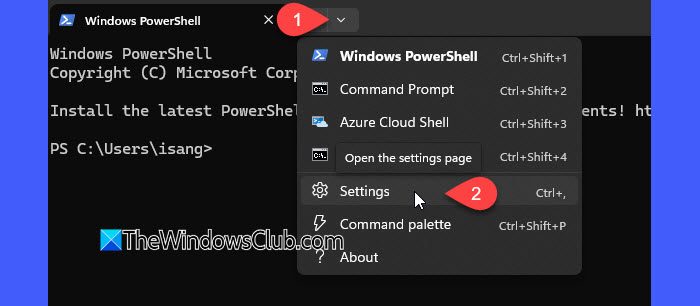
Locate the Profiles section in the left pane. Under it, select Command Prompt.
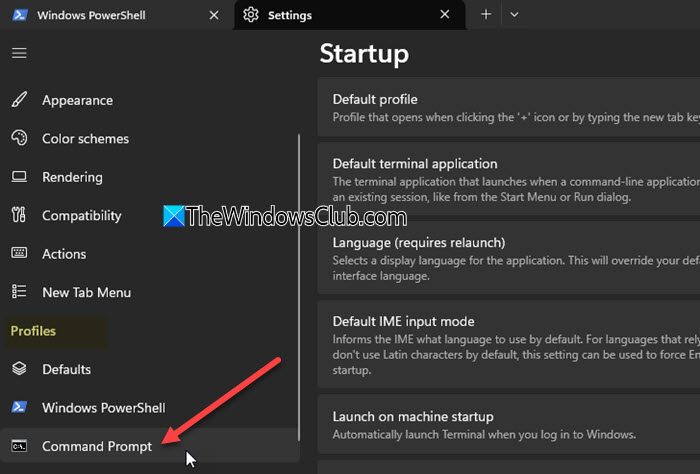
In the right pane, click the Starting directory option. Click Browse and select your preferred folder path. Click Save.
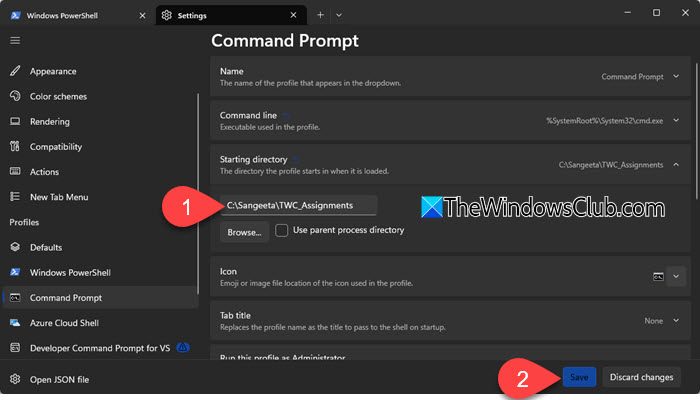
Command Prompt sessions launched via Windows Terminal will now start in the selected directory.
5] Use Registry
This method uses the Windows Registry to run a command that sets your preferred directory automatically every time the Command Prompt starts.
Note:
- If you use the Registry method at the system level (
HKEY_LOCAL_MACHINE), administrator privileges are required to make the changes. - Incorrectly modifying the Windows Registry can lead to system issues or unexpected behavior. We recommend backing up the Registry or creating a system restore point before making any changes.
Press Win + R to open the Run dialogue. Type regedit, and press Enter. In the Registry Editor window, navigate to the following key:
HKEY_CURRENT_USER\Software\Microsoft\Command Processor
If the Command Processor key doesn’t exist, create it manually.
Right-click on Microsoft. Select New > Key. Name it: Command Processor.
Then select the new key. Right-click in the right pane and select New > String Value.
Name it AutoRun.
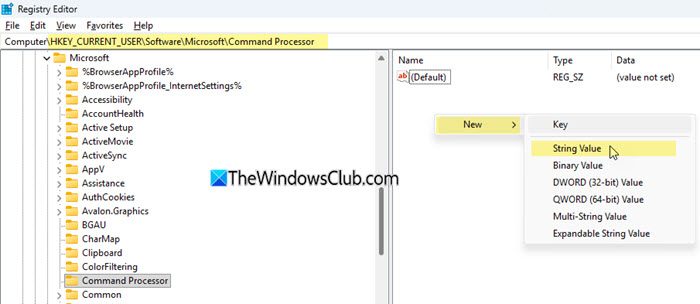
Double-click AutoRun and in the Value data field, enter:
cd /d <DriveLetter>:\YourFolder

Click OK and close Registry Editor.
Now, every time Command Prompt opens, it will automatically switch to the specified directory.
I hope you find this useful.
Read: Change Terminal to Command Prompt in Windows 11.
How to go from C:\ to D:\?
To switch from C: to D: in Command Prompt, simply type D: and press Enter. This changes the active drive. If you also want to move to a specific folder in one step, use cd /d D:\FolderName command. This command switches the drive and directory together.
Why can’t I change my directory in CMD?
You may not be able to change the directory if the path you’ve entered is incorrect, does not exist, or requires permissions you don’t have. Make sure the path is correct, and the folder exists on your system. Use quotes for paths with spaces. If access is denied, try opening Command Prompt as administrator.
Read Next: How to change the Starting Directory in Terminal.
