
Windows Command Prompt is a built-in tool that lets you run programs via the command line. Using the command, you can perform a lot of things instantly on your Windows computer, like troubleshooting and fixing certain kinds of challenging issues, switching or changing directories, and more.
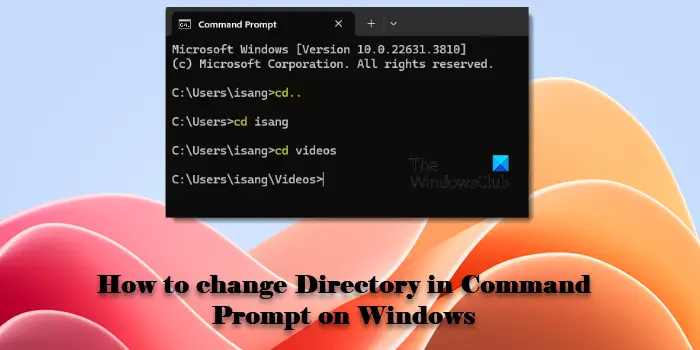
As a Windows user, you need to be well familiar with the basic commands and usage of the Command Prompt. In this guide, we will show you how to change directories in Command Prompt on Windows 11/10.
How to change Directory in CMD in Windows 11
If you want to change the directory in the Command Prompt, you have three options:
- Use Dir and CD commands to change directories
- Use the Drag and Drop method
- Using the Tab key.
1] Using DIR and CD commands
To get started, open the Windows search using Win+Q keyboard shortcut.
In the text area, type cmd and then select Command Prompt from the result list.
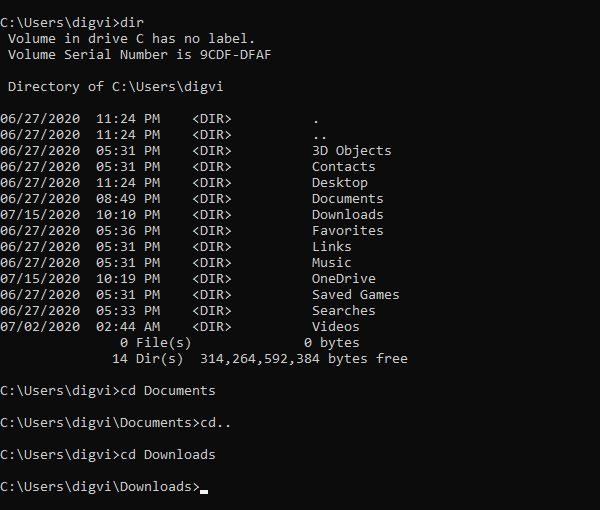
Once you open the command prompt, type dir command to see the list of all subdirectories in the current folder.
In the above screenshot, you can see the list of all directories available in my folder named “digvi”.
Now suppose you want to change the current directory with the Documents folder from the list.
To do so, type cd followed by a space, type Documents and then hit Enter-
cd Documents
If you think you are in the wrong directory and want to change it, you need to move one level back first.
To do that, type the commands below and hit Enter:
cd ..
After turning back, type cd followed by a space and then type the new directory name you want to change.
cd space <directory name>
Make sure to remove the brackets from the above command-line and then press the Enter key.
For reference, you can see the above image, where I have changed the Documents directory to Downloads directory.
Once you change the directory name, again type dir to see the contents of the directory.
Read: How to delete files and folders using Command Prompt.
2] Using Drag and Drop
In case the folder you have to change is present on your computer screen, use the drag-and-drop method to reflect the path name of the folder.
Read: Ways to open Command Prompt in a folder.
3] Using the Tab key
Additionally, you can use the Tab key to type the directory name quickly.
To do this, type cd > space > the first few letters directory name, then hit the Tab key.
Hope this helps!
This post will show you how to change the starting Default Directory that opens when you launch Command Prompt in Windows 11 by adjusting the start-in path.
Change Directory is not working in CMD
If cd isn’t working in Command Prompt; the most common reason is that you’re trying to change to a directory on a different drive. In Command Prompt, cd alone won’t switch drives. You need to either type the drive letter (e.g. D, ) first and then change the directory, or use cd /d to change both the drive and directory at once
How do I change Directory in Command Prompt from C to D?
To change from the ‘C:’ drive to the ‘D:’ drive in Command Prompt, simply type the drive letter followed by a colon (D:) and press Enter. This will switch the current working directory from ‘C:’ to ‘D:’. If you want to change the directory to a specific path within the D: drive without first switching to the drive, you may use the ‘/d’ switch with the cd command. Type cd /d followed by the path to the directory you want to navigate to, including the drive letter. This will allow you to change both the drive and directory in a single step.
What is the CD command in CMD?
The CD command in Command Prompt changes the current directory to a different one on a Windows 11/10 PC. CD, also known as chdir, stands for ‘change directory’. The command helps you navigate your computer’s directory structure, allowing you to change to a directory on the current drive or a different drive, go to the root directory of the current drive, and go up one directory level.
Read Next: How to restore the Registry using Command Prompt in Windows.
