
Some users are experiencing an issue with Excel. According to them, they are unable to type in any cells in an Excel spreadsheet. Also, there are no macros enabled and the Excel sheet or cells are not protected. If you are unable to type in Excel, you can refer to the solutions listed in this article to get rid of the problem.
Can’t type numbers or enter data into Excel cell
The troubleshooting guidelines for this problem are explained below. But before you proceed, close all the Excel files and open Excel again. Now, check if you can type something in your Excel spreadsheet. If Excel won’t let you type this time too, restart your computer and check the status of the issue.
Some users were able to fix the problem by doing the following trick:
- Open a new blank Excel spreadsheet.
- Type something in the new spreadsheet.
- Now, type in the original (problematic) spreadsheet.
You can also try the trick above and see if it helps. If the issue persists, try the following fixes.
- Check the Editing options setting
- Troubleshoot Excel in Safe mode
- Move files from the C directory to another location
- Uninstall the recently installed software
- Disable the Hardware Graphic Acceleration in Excel
- Change the Trust Center settings
- Repair Office
- Uninstall and reinstall Office
Below, we have explained all these fixes in detail.
1] Check the Editing options setting
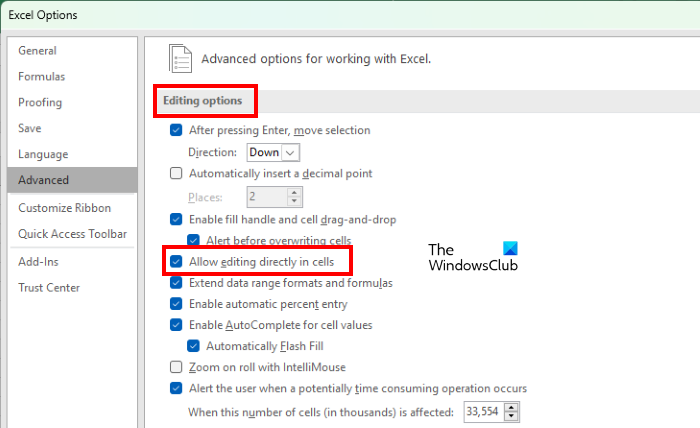
If the “Allow editing directly in cells” option is disabled in Excel Editing settings, you may experience this type of problem. To check this, go through the following instructions:
- Open Excel file.
- Go to “File > Options.”
- Select Advanced from the left pane.
- The “Allow editing directly in cells” checkbox should be enabled. If not, enable it and click OK.
2] Troubleshoot Excel in Safe mode
The problem might be caused by some Excel Add-ins. You can check this by troubleshooting Excel in Safe mode. Some of the Add-ins remain disabled in Safe Mode. Hence, launching an Office application in Safe mode makes it easier to identify the problematic Add-in.
The process to troubleshoot Excel in Safe mode is as follows:
- Save your spreadsheet and close Excel.
- Open the Run command box (Win + R keys) and type
excel /safe. After that click OK. This will launch Excel in Safe mode. - After launching Excel in Safe mode, type something in cells. If you are able to type in Safe mode, one of the Add-ins disabled by default in Safe mode is the culprit. If you are unable to type in Safe mode, one of the Add-ins enabled in Safe mode is the culprit. Let’s see these two cases in detail.
Case 1: You are able to type in Safe mode
- In the Safe mode, go to “File > Options.”
- Select Add-Ins from the left side.
- Now, select COM Add-ins in the drop-down and click Go. After that, you will see all the Add-ins that are enabled in Safe mode. Because you are able to type in Safe mode, none of these Add-ins is causing the problem. Take note of the Add-ins that are enabled in Safe mode.
- Close Excel in Safe mode and open Excel in normal mode.
- Go to “File > Options > Add-Ins.” Select COM Add-ins in the drop-down and click Go.
- Disable any of the enabled Add-ins and click OK. Do not disable the Add-ins that were enabled in Safe Mode.
- After disabling an Add-in, restart Excel in normal mode and check whether you can type. If so, the Add-in you recently disabled was causing the problem. If not, repeat steps 5-7 to identify the problematic Add-in. Once you find it, consider removing it.
Case 2: You are unable to type in Safe mode
- In the Safe mode, go to “File > Options > Add-Ins.” Select COM Add-ins in the drop-down and click Go.
- Disable any of the Add-ins and click OK.
- Now, type something. If you are able to type, the Add-in you recently disabled was causing the problem. Remove that Add-in.
- If you are unable to type, disable another Add-in in Safe mode and then check again.
3] Move files from the C directory to another location
Move the Excel files from the C directory to another location and check whether the problem disappears. Follow the instructions listed below.
- First, close Excel.
- Open the Run command box and type
%appdata%\Microsoft\Excel. Click OK. This will open the Excel folder in your C drive. It is a temporary location for unsaved files. Excel saves your files here temporarily so that they could be recovered in case Excel crashes or your system shuts down unexpectedly. - Move all the files to another location and make the Excel folder empty. After that, open Excel and check if the problem disappears. If this does not fix the issue, you can place all the files back in the Excel folder.
4] Uninstall the recently installed software
If the problem started after installing an app or software, that app or software may be the cause. To check this, uninstall the recently installed app or software, then check whether you can type in Excel. Some users have found the following third-party applications the cause of the problem:
- Tuneup Utilities
- Abby Finereader
If you have installed any of the above software, uninstall it and check if the problem disappears.
Read: Excel freezing, crashing or not responding.
5] Disable the Hardware Graphics Acceleration in Excel
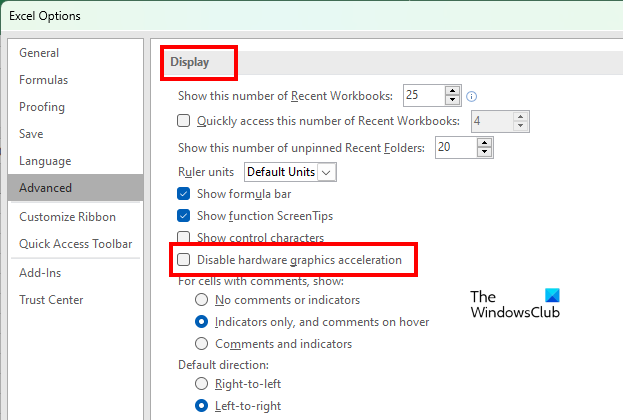
If the Hardware Graphics Acceleration is enabled in Excel, that may be causing the problem. You can check this by disabling the Hardware Graphics Acceleration. The steps for the same are as follows:
- Open Excel.
- Go to “File > Options.”
- Select the Advanced category on the left side.
- Scroll down and locate the Display section.
- Uncheck the Disable hardware graphics acceleration checkbox.
- Click OK.
6] Change the Trust Center settings
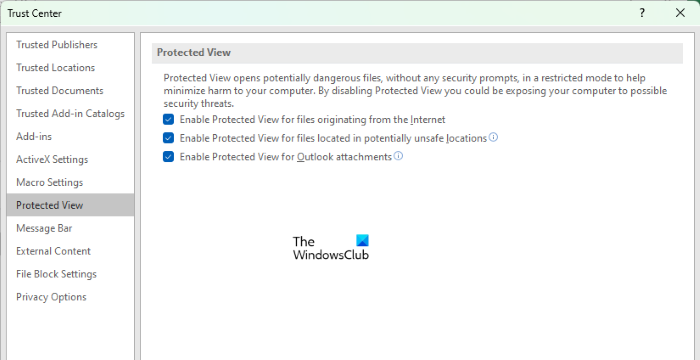
Change the Trust Center settings and see if this fixes the issue. The following steps will help you with that.
- Open Excel.
- Go to “File > Options.” This will open the Excel Options window.
- Select the Trust Center category from the left side and click on the Trust Center Settings button.
- Now, select Protected View from the left side and uncheck all the options.
- Select File Block Settings from the left pane and uncheck all the options.
- Click OK to save the settings.
7] Repair Office
If, despite trying all the above fixes, the problem still persists, some of the Office files might be corrupted. In such a case, an Online Office Repair may fix the problem.
8] Uninstall and reinstall Office
If the online repair fails to fix the problem, uninstall Microsoft Office and reinstall it. You can uninstall Microsoft Office from the Control Panel or from Windows Settings.
Hope this helps.
Read: How to fix high CPU usage by Excel.
Why is my Excel not allowing me to type?
There are several reasons why Excel is not allowing you to type, like incorrect Editing settings, conflicting apps or software, etc. Apart from that, problematic Add-ins also cause several issues in Microsoft Office applications. You can identify which Add-in is causing the problem by troubleshooting Excel in Safe mode.
Sometimes, the Hardware Graphics Acceleration or Protected view causes problems in Excel. You can change the Trust Center settings and see if this fixes the problem.
If some Office files get corrupted for some reason, you may experience different errors in different Office applications. Such a type of problem can be fixed by running an online repair.
How do I unlock my keyboard in Excel?
If you turn on Scroll Lock in Excel, you can move the entire sheet by using the arrow keys. To unlock your keyboard in Excel, turn off the Scroll Lock.
Read next: Fix Errors were detected while saving the Excel file.
