
Disabling the Compatibility Support Module (CSM) in your BIOS is a common step when switching your system to pure UEFI mode, as it helps with faster boot times, secure boot features, and compatibility with modern OS updates. However, in many cases, when you disable CSM, you encounter issues, such as being unable to boot into Windows after disabling CSM. This happens due to a mismatch of disk partition style. In case you are in a similar situation, here are some possible fixes that will help you out:
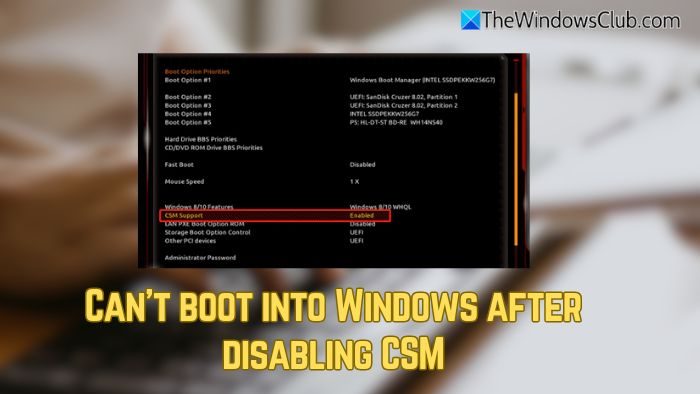
Can’t boot into Windows after disabling CSM
Follow these suggestions to fix the problem of not being able to boot into Windows after disabling the CSM.
- Check your partition style
- If your disk is GPT
- Update BIOS
You will need admin permission and a clear understanding of disk management.
1] Check your partition style
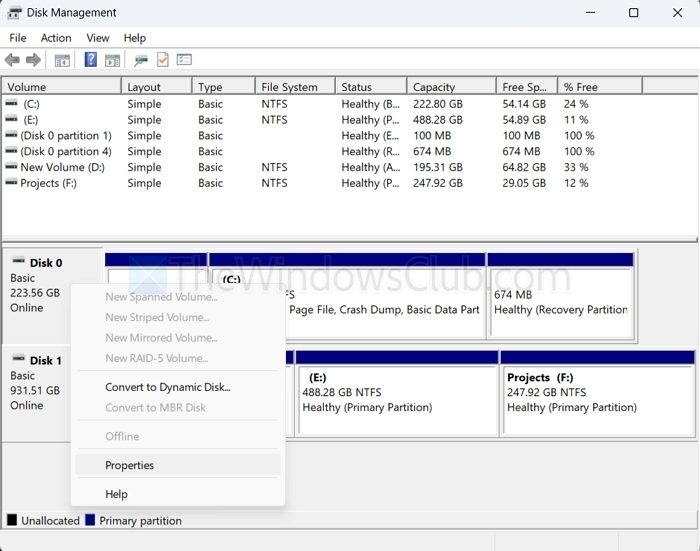
To run your PC without any trouble after disabling CSM, you need to ensure that you are using GPT partition style, as MBR (Master Boot Record) only supports legacy mode with CSM enabled. Instead, here’s what you need to do:
- First, reboot your computer and enter the BIOS.
- From BIOS, temporarily re-enable CSM so Windows can boot normally.
- Press Windows Key + R to open RUN, type diskmgmt.msc, and press Enter.
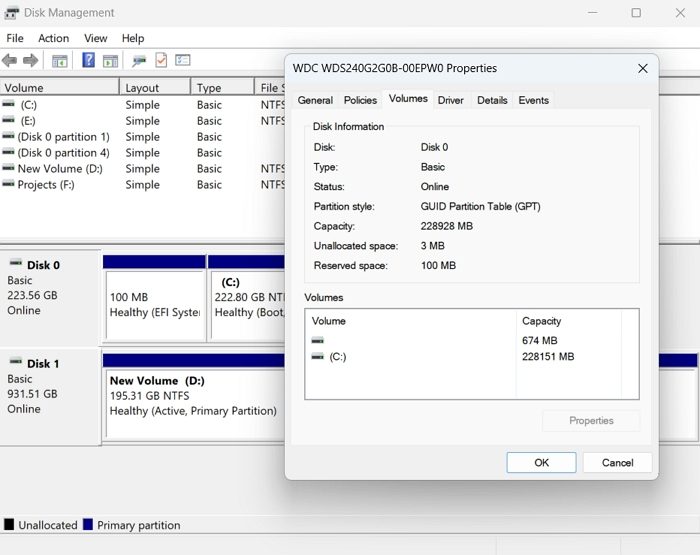
- Right-click on Disk 0 and select Properties > Volumes.
- Over here, you should be able to see the partition style.
If you see that the partition style is GPT, you are good to move to the other steps. However, if it’s an MBR partition, then you will need to switch to the GPT mode by following these steps:
- First, back up everything important on your computer, so in case anything goes south, you will be able to restore it.
- Boot into Windows (enable CSM if necessary).
- Go to Windows search, type CMD, and right-click on it and select Run as administrator.
- Next, run the built-in conversion tool: mbr2gpt /convert /allowfullos
- Wait for it to finish, then reboot into BIOS.
- In BIOS, disable CSM, make sure UEFI boot is selected, and restart your system to see if it worked.
Read: How to boot a Windows computer into UEFI or BIOS firmware
If the conversion fails, you will need to reinstall Windows and format the hard disk to GPT during Windows setup.
2] If your disk is GPT
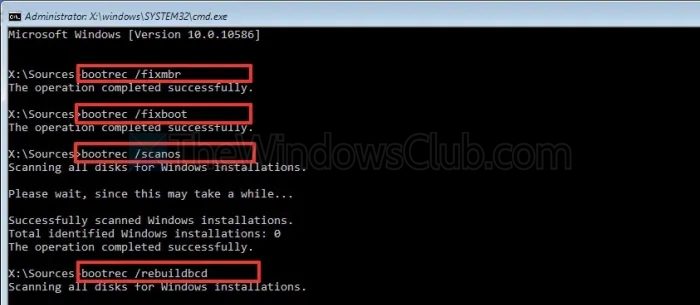
If you are already using a GPT partition, yet you are having booting issues after disabling CSM, here’s what you can do:
- Boot up your PC using a Windows installation USB drive.
- Go to Repair your computer > Troubleshoot > Command Prompt.
- Over here, run the following commands:
bootrec /fixmbr
bootrec /fixboot
bootrec /scanos
bootrec /rebuildbcd
- Finally, reboot and check if it worked.
3] Update BIOS/UEFI
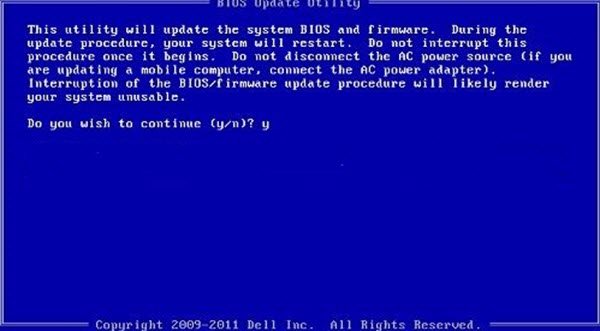
If you continue to have trouble, then it would be a good idea to update your motherboard’s BIOS to the latest version for better UEFI compatibility. For this, you will need to download the latest version of BIOS from your computer’s manufacturer’s website and follow the BIOS flash instructions given.
Read: How to update BIOS on Windows computer
So those were a few quick ways to fix the issue of not being able to boot into Windows after disabling CSM. The issue is most likely due to the wrong partition style, so make sure you are using the correct one. Also, if everything fails, it would be a good idea to reinstall Windows from scratch and make the necessary adjustments as needed.
What happens if I disable CSM but leave Secure Boot disabled?
Disabling CSM without enabling Secure Boot usually won’t prevent your system from booting as long as you are already using a GPT disk and a UEFI-compatible OS. However, you won’t get the added security benefits of Secure Boot (e.g., protection against unauthorized bootloaders or rootkits).
Can I re-enable CSM later if I face compatibility issues?
Yes, you can re-enable CSM in BIOS if you encounter problems booting into Windows or using older hardware (like legacy expansion cards or older operating systems that don’t support UEFI). Keep in mind, though, constantly switching between CSM and UEFI can cause boot issues if your OS and disk format don’t match the selected mode. Ideally, once you migrate to UEFI with GPT, you should leave CSM disabled for stability and long-term support.
