
Many users, when trying to print or run maintenance, are encountering Error Code 5C20. Users hear unusual sounds while performing the task, and after probing further, they see the relevant error code. If your Canon printer displays Error 5C20 on your computer, try the solutions in this article to resolve the issue.
What is Canon Printer Error 5C20?
In general, Error 5C20 is a hardware error. Your Logic board is at fault here, the rollers and the carriage are not able to move. Obviously, it is not intentional; it occurs because of a glitch. However, they can be resolved and we will see how.
Additionally, the issue may be due to a software glitch. There may be an issue with the printer driver installed on your system, or files related to the printer may become corrupted. There is a way by which you can resolve all of this easily and we are going to talk about this in detail hereinafter.
Fix Canon Printer Error 5C20 on Windows PC
Before starting the troubleshooting, it is recommended to update Windows. This is something that works for many of us when we stumble upon an error such as the one in question. Updating the OS will also update the driver, including the Printer driver. If the issue is due to a bug, it will resolve it for you.
If you want to fix Canon Printer Error 5C20, try the following solutions.
- Restart your Canon Printer
- Check the Print Head of your Printer
- Run Printer Troubleshooter
- Reinstall Printer Driver
- Check the Belt
Let us talk about them in detail.
1] Restart your Canon Printer
We should start troubleshooting by restarting the Canon Printer. This has worked for many users and has helped them. We will do that and see if it works. Follow the given steps to do the same.
- Power off the Canon Printer.
- Unplug the printer and wait for half a second.
- Plug the printer and power it on.
Finally, try printing something or doing what you were doing when this message appeared in the first. Hopefully, it will work for you.
2] Check the Print Head of your Printer
Users seeing the error code in question has also complained that the Printer starts making peculiar rattling noises. We will check the Print head to see if it works. Follow the steps below to assess the condition of a potential cause.
- Power off your Printer.
- Remove the cover panel.
- Now, pull out the lever, which should be orange or grey in colour.
- Remove the ink cartridges and check if there is some issue there. Even if there is no issue with the Print Head, you should still clean the area.
Finally, turn on your Printer, connect your computer and see if that helps.
3] Run Printer Troubleshooter
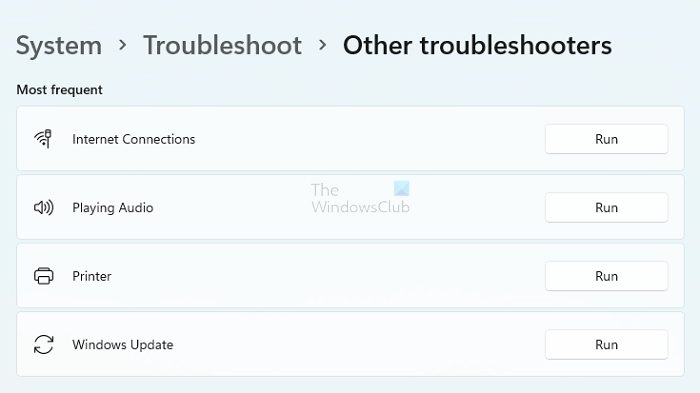
Windows has the feature that allows it to resolve some printer-related issues. We are going to deploy it and see if they are able it fix the problem. Following are the steps to run the Printer troubleshooter.
Windows 11
- Open Settings.
- Select System.
- Go to Troubleshoot > Other troubleshooters.
- Click Run associated with Printer.
Windows 10
- Open Settings.
- Select Update & Security.
- Go to Troubleshoot > Additional Troubleshooters.
- Select Printer and click Run the troubleshooters.
Wait for the process to complete and see if it helps.
4] Reinstall Printer Driver
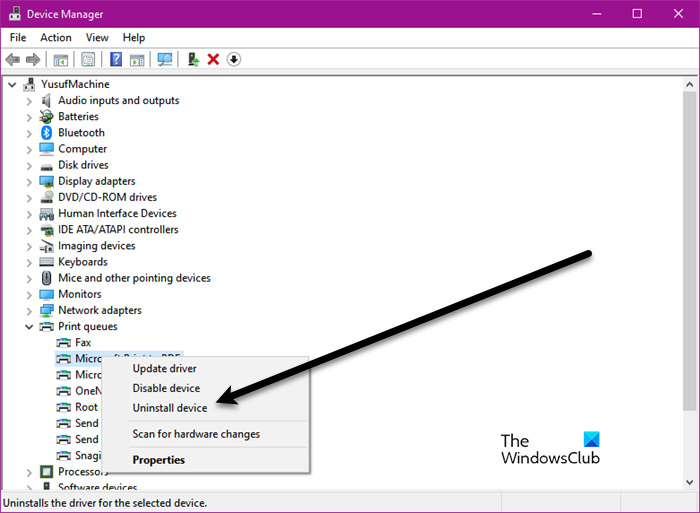
As mentioned earlier, the Printer Driver can get corrupted. What you do is remove the driver and when you reattach it next time, your computer will directly detect and reinstall the driver. Follow the given steps to uninstall the Printer Driver.
- Disconnect your computer from the Printer.
- Open Device Manager.
- Expand Printer queues.
- Right-click on the Canon driver and click Uninstall device.
- Click Uninstall to confirm.
Then restart your computer, reattach the printer and see if that works. If that doe not, then you need to download the Printer driver and install it.
5] Check the Belt
The belt that controls the cartridge and moves it back and forth may be causing the issue. If you want to find the belt, just look behind the cartridge carriage. To access it, remove the carriage and verify that it is positioned correctly. Just hover your hand over the wheel and see if it is in its place.
Hopefully, these solutions will help you resolve the Canon Printer error.
How do I reset my Canon mx920 printer?
If you think that resetting the printer will resolve the issue, then you are right. You can hold on to the power button, wait for 10-20 seconds, and power it back on. However, we would recommend that you check the first solution (mentioned hereinafter) to restart the printer, and hopefully, it will work for you.
Also Check:
