
If you cannot select multiple emails in Outlook using the Ctrl+Click shortcut, there is a high chance of a discrepancy between the web and desktop versions. In this post, we will discuss this in detail and show you how to resolve the issue.
Users often encounter this issue in two main scenarios: transitioning from Outlook on the web to the desktop application, where the lack of checkboxes hampers mass deletion or movement of messages, and after a software update that disables selecting multiple items with a mouse click, while keyboard selection still works. This problem can be intermittent and may affect only some users within the same organization.
You may have trouble selecting multiple emails in Outlook’s desktop app because it is designed differently from the web version. The desktop Outlook does not have visual checkboxes for selecting multiple emails, which means you’ll need to use keyboard shortcuts or navigate through grouped views by date. Sometimes, this issue can also happen due to bugs or glitches that occur after an update, which can interfere with your ability to select emails with the mouse.
Fix Cannot select multiple emails in Outlook
If you cannot select multiple emails in Outlook, follow the solutions below.
- Check your reading pane settings
- Repair your Outlook Profile
- Run Outlook in Safe Mode and Disable Add-ins
- Repair or Update Microsoft 365 or Office
Let us talk about them in detail.
1] Check your reading pane settings
The “Mark items as read when selection changes” setting may create a conflict in the interface’s processing. When enabled, Outlook tries to perform two actions at once: managing your visual selection while also changing the read status of items, which can interrupt or cancel the selection command. Disabling this setting removes that background task, allowing the selection function to proceed without interference.
- In Outlook, go to the View tab.
- Click on Reading Pane, then select Options.
- In the dialog box, ensure that the option Mark items as read when selected changes is ticked.
Now, check if the issue persists.
2] Repair your Outlook Profile

Outlook profile is the core configuration file that stores all your account settings and data connections. If this file becomes corrupted, it can disrupt fundamental application functions, including how the interface manages selections. The repair tool rebuilds or refreshes this profile, eliminating the corruption and restoring normal operation to these basic processes.
You can follow the steps mentioned below to do the same.
- Open Outlook on your computer.
- Go to File > Account Settings > Account Settings.
- Select the Email tab, choose your account, and click on Repair
- Follow the prompts in the wizard and restart Outlook when finished.
Microsoft recommends this step as a standard fix for connection and functionality issues, which can extend to interface problems.
3] Run Outlook in Safe Mode and Disable Add-ins
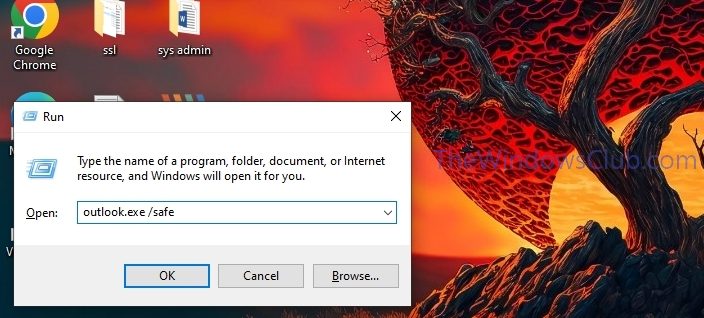
The third-party add-ins run integrated code within Outlook that can interfere with its normal interface functions. Starting in Safe Mode temporarily disables all these add-ins, loading only Microsoft’s core Outlook program. If selection works normally in this clean state, it definitively identifies an add-in conflict, and permanently disabling the problematic add-in removes this external interference.
To start in Safe Mode, close Outlook, then press Win + R, type outlook.exe /safe, and press Enter.
If multi-selection works correctly in Safe Mode, the issue is likely with an add-in. You can disable them by going to File > Options > Add-ins, managing COM Add-ins, and restarting Outlook normally.
4] Repair or Update Microsoft 365 or Office
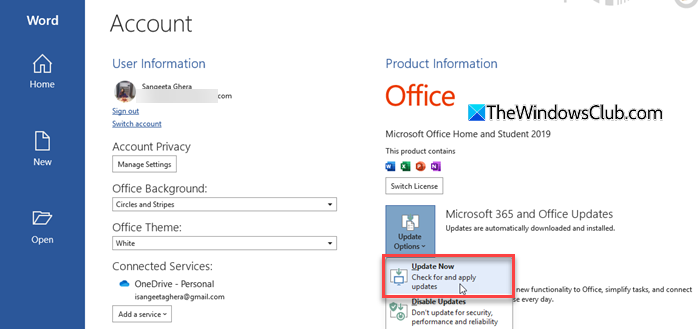
Repairing or updating Microsoft Office works because this process directly fixes or replaces corrupted system files, application data, or outdated components that are preventing Outlook’s interface from functioning correctly. A successful repair reinstalls essential software elements, resolving underlying glitches and restoring standard features like keyboard-based multiple email selection.
To repair Outlook, go to Settings > Apps > Installed apps. Find Office or Microsoft 365, click on the three dots, and select Change. Choose Quick Repair or Online Repair.
To update Outlook, in any Office app like Word or Outlook, go to File > Account (or Office Account). Under Update Options, click Update Now.
Hopefully, with these solutions, you will be able to resolve the issue.
Read: Outlook not sending emails with or without attachments
How do I select multi-emails in Outlook?
To select multiple emails in the Outlook desktop application, hold the Ctrl key while clicking individual messages for non-adjacent selections, or click the first email, hold Shift, and click the last email for a range selection. Use Ctrl+A to select all emails in the folder. In the Outlook web application, enable checkboxes in settings and check the boxes next to the emails you want to select. For bulk actions, use the Filter function to narrow the list by sender, date, or subject before selecting.
Read: Send email to multiple contacts using People Contact List in Outlook.com
How do I delete 1000s of emails at once?
The safest and most effective method to delete thousands of emails at once in Outlook is to first use a Filter to isolate them. You can filter your mailbox view by a specific sender, subject keyword, date range (like “Older than 1 year”), or size. Once filtered, check that only the emails you want to remove are visible, then use Ctrl+A to select all messages in the filtered view and press the Delete key. For a more permanent and storage-freeing option, you can then empty the Deleted Items folder; for Outlook.com or Microsoft 365, you can also use the Clean up or Sweep features to automate deleting large batches from a particular sender.
Also Read: Cannot select Multiple Attachments in Outlook.
