
This article lists effective fixes for the “Cannot load file WilcomEmul.dll” error on Windows 11. This error is associated with the Wilcom Embroidery software. According to the reports, Windows displays this error pop-up every time users launch the software. If you cannot use Wilcom EmbroideryStudio due to this error, this article will help.
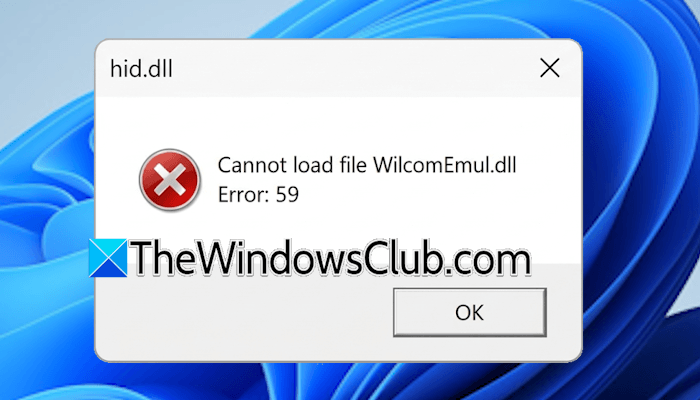
The complete error message is:
Cannot load file WilcomEmul.dll Error: 59
Cannot load file WilcomEmul.dll Error 59
Use the following fixes for the “Cannot load file WilcomEmul.dll” error on your Windows 11 computer:
- Reinstall the software
- Uninstall the recent Windows Update (if applicable)
- Copy the DLL file from a healthy computer
- Repair your system image files
- Restore or reset your computer
Some users have reported this error after upgrading to Windows 11 build 24H2.
1] Reinstall the software
DLL, or Dynamic Link Library, is a file containing shared code or resources required by multiple Windows applications simultaneously. Software uses these files to function properly. A missing or corrupt DLL file impacts the proper functioning of software.
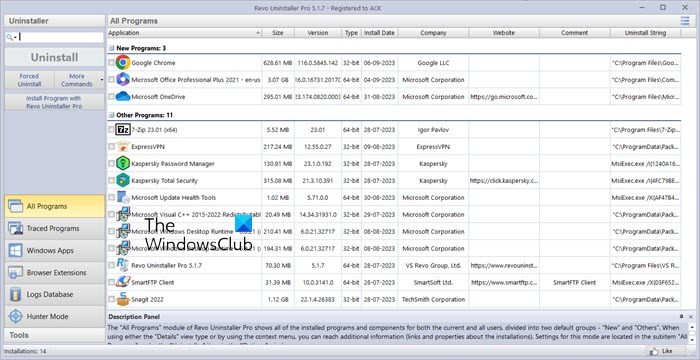
Since the error occurs when launching Wilcom EmbroideryStudio, reinstalling it may help. When we install software, it also installs the required DLL files. Completely uninstall the Wilcom EmbroideryStudio software using a third-party program, such as Revo Uninstaller. After uninstalling it, restart your computer. Now, download the latest version of the software from the official website and install it from scratch.
You should update the Wilcom EmbroideryStudio software and update the HASP drivers too.
2] Uninstall the recent Windows Update (if applicable)
Microsoft recommends keeping the Windows operating system up to date for smooth performance and enhanced security. However, Windows updates can sometimes cause issues. That’s why Microsoft has also provided an option to uninstall the Windows Updates.
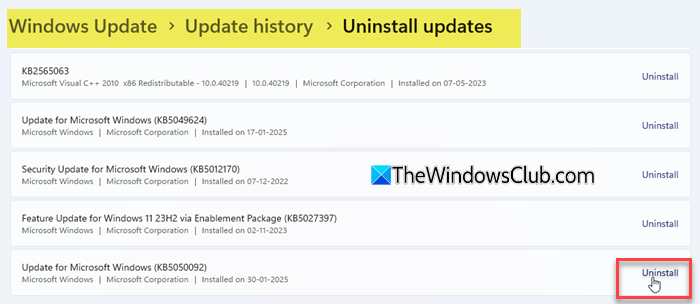
If this issue started occurring after installing a recent Windows Update, you can uninstall it. Open the Windows Update page in Windows 11 Settings and navigate to Update history > Uninstall updates. You will see the installed Windows Updates along with dates. Uninstall the most recent update.
3] Copy the DLL file from a healthy computer
You can also copy the DLL file from a healthy computer to your computer. However, the Wilcom EmbroideryStudio should be installed on that computer. If you are an organization, you can easily use this fix.
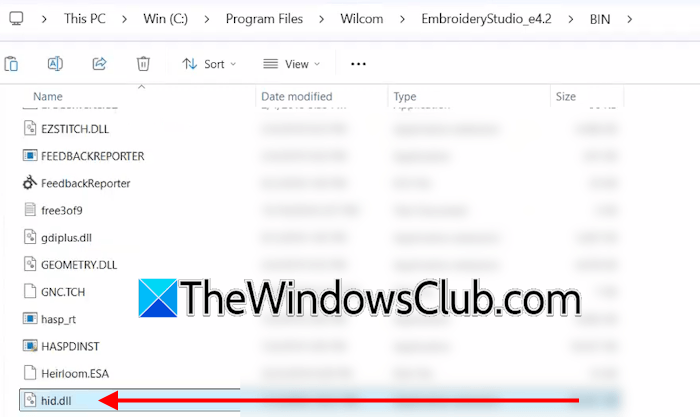
Right-click on the Wilcom EmbroideryStudio software desktop shortcut and select Open file location. Now, look for the hid.dll and WilcomEmul.dll files there. Copy them to a USB flash drive. Now connect the USB flash drive to your computer and navigate to the installation location. Paste both the files there.
4] Repair your system image files

One way to fix the corrupted or missing DLL files is to use the built-in System File Checker and DISM tools. These tools scan a computer for system image file corruption and fix the issue. Run SFC and DISM scans, and see if it helps. The scan will take time. Do not interrupt it.
5] Restore or reset your computer
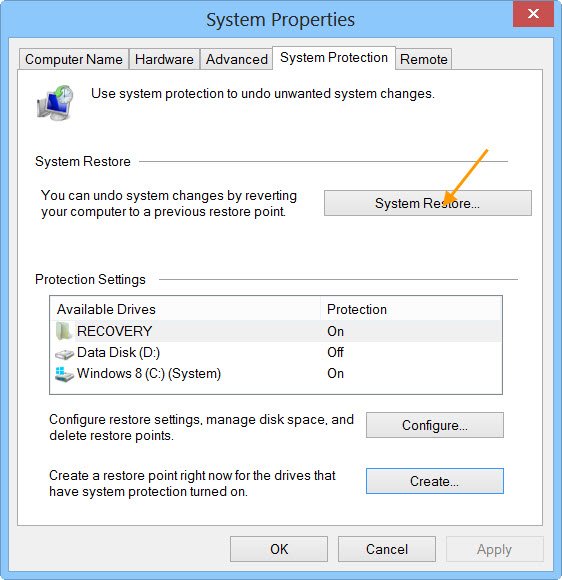
If the error persists, you can use System Restore. System Restore takes your system to the previous working state. While performing this action, select the correct restore point. System Restore also uninstalls all the programs you have installed after the selected restore point.
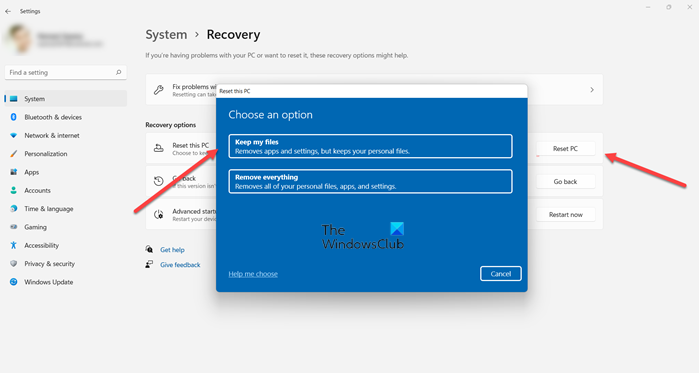
If no restore points exist on your system, the last resort is to reset your PC to the factory default settings. Windows allows you to reset your computer with or without deleting your data. The Keep my files option resets a PC without wiping out your data. However, all the programs will be uninstalled during this process, and you will need to reinstall them later. It is also recommended to back up all your important files before proceeding.
That’s it. I hope this helps.
How to fix msvcr120.dll not found?
When a program cannot find the msvcr120.dll file on your system, it displays the “msvcr120.dll not found” error. This error also occurs when the Microsoft Visual C++ Redistributable is corrupted. Repairing or reinstalling the Microsoft Visual C++ Redistributable can help.
How to fix The code execution cannot proceed because the DLL file was not found, Reinstalling the program may fix this problem.
To fix the “The code execution cannot proceed because the DLL file was not found” error, you can try repairing or reinstalling the Microsoft Visual C++ Redistributable packages. If this does not work, perform System Restore or reset your PC.
Read next: Microsoft Visual C++ Minimum Runtime error.
