
Some users encountered the “Microsoft Visual C++ Minimum Runtime” error while installing some programs, updating apps, or playing games. When this error occurs, the affected program fails to install or run, making it unusable for users. This article lists some effective solutions to fix this error.
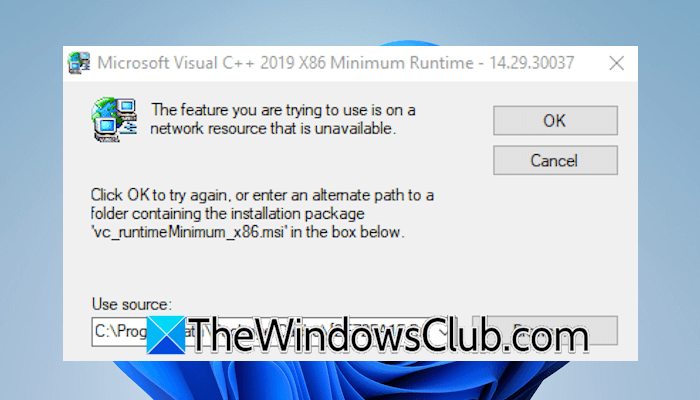
Microsoft Visual C++ 2022 X86 Minimum Runtime
The feature you are trying to use is on a network resource that is unavailable.
The Microsoft Visual C++ version number may be different in your case, but the troubleshooting steps are the same.
Fix Microsoft Visual C++ Minimum Runtime error
Use the following fixes for the “Microsoft Visual C++Minimum Runtime” error on your Windows computer:
- Reinstall the affected program
- Launch the affected game outside the launcher (if applicable)
- Repair or reinstall Microsoft Visual C++ Redistributable packages
- Restore or reset your PC.
1] Reinstall the affected program
If the Runtime error occurs while launching a particular application, reinstalling it can help. Sometimes, the application files become corrupted due to an incomplete update or system crash, which can trigger this error. Moreover, if an antivirus deletes the genuine file, you may encounter this error. In such cases, reinstalling the program can fix the issue.
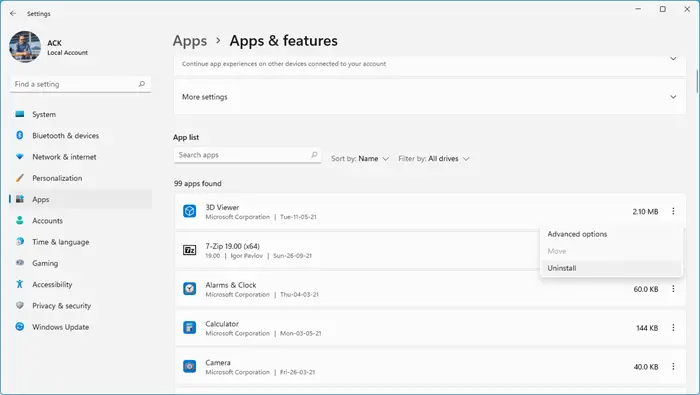
Open Windows 11 Settings and navigate to Apps > Installed Apps. Uninstall the affected program. After that, restart your computer. Now, download the latest version of the program and install it.
2] Launch the affected game outside the launcher (if applicable)
If the Microsoft Visual C++ Minimum Runtime error occurs when launching a specific game through a launcher, try launching the game directly. For this, click Windows Search and search for the game. Now, right-click on it and select Open file location. You will see the installer file there. Double-click on it to launch the game.
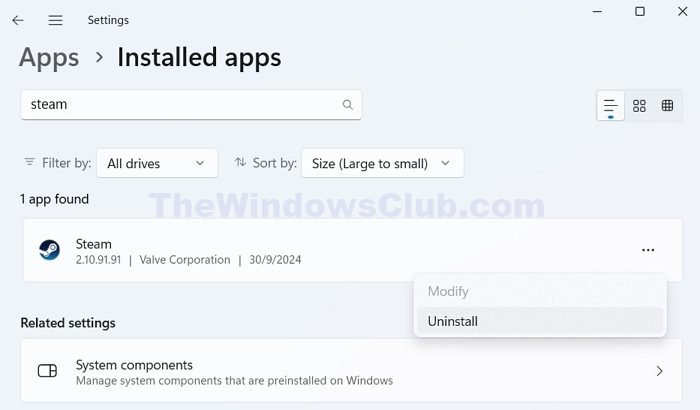
If the game runs flawlessly, it means some of the launcher’s files might have been corrupted. In this case, uninstall and reinstall the launcher.
3] Repair or reinstall Microsoft Visual C++ Redistributable packages
Read the error carefully. It shows the Microsoft Visual C++ Redistributable package version. Note down the version number and follow these steps:
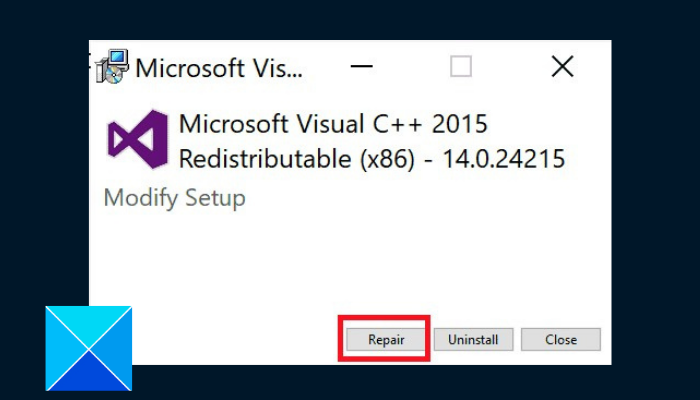
- Open Windows 11 Settings.
- Navigate to Apps > Installed Apps.
- Search for the required version of Microsoft Visual C++ Redistributable.
- Click the three dots next to it and select Modify.
- Click Repair.
If repairing the C++ Redistributable package does not work, uninstalling and reinstalling can help. First, uninstall the affected Microsoft Visual C++ Redistributable package from your system. After that, open the Registry Editor and delete its respective key.
Follow all the steps explained here carefully. Deleting the incorrect Registry key can lead to severe consequences and make your system unstable. Before proceeding, creating a system restore point and backing up the registry is recommended.
Copy the following path:
HKEY_LOCAL_MACHINE\SOFTWARE\Classes\Installer\Products
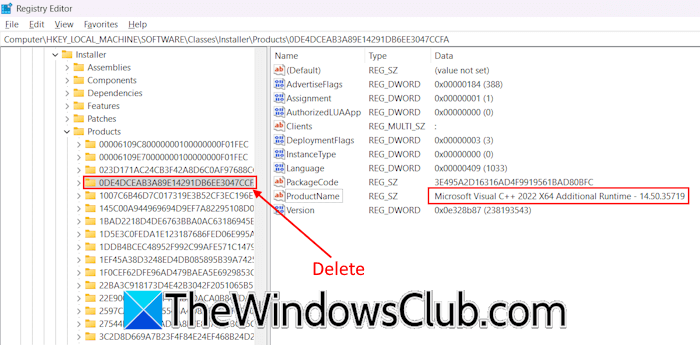
Now, open the Registry Editor and paste the copied path in the address bar. After that, press Enter. Expand the Products folder. You will see multiple subfolders there. Select the subfolders one by one and look for the ProductName value on the right side. When the ProductName shows the required Microsoft Visual C++ version, delete that subfolder.
Restart your computer and install the Microsoft Visual C++ Redistributable package. You can download the C++ Redistributables from the Microsoft official website.
If the error persists, another Microsoft Visual C++ Redistributable package might be corrupted. In this case, you need to uninstall all Visual C++ Redistributable packages from your system and reinstall them. Do not forget to delete their respective Registry keys after uninstalling them.
4] Restore or reset your PC
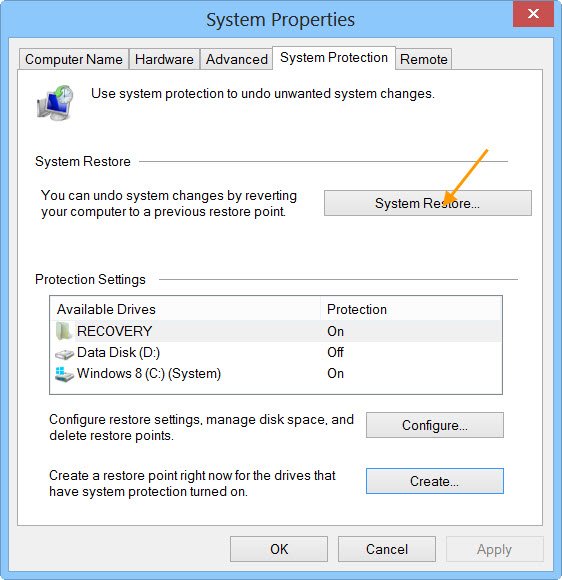
The System Restore allows you to restore your system to the previous working state. If the error still occurs, you can restore your system. Select the correct restore point while performing this action. The System Restore does not delete your data. However, it uninstalls programs and updates installed after the date of the selected restore point.
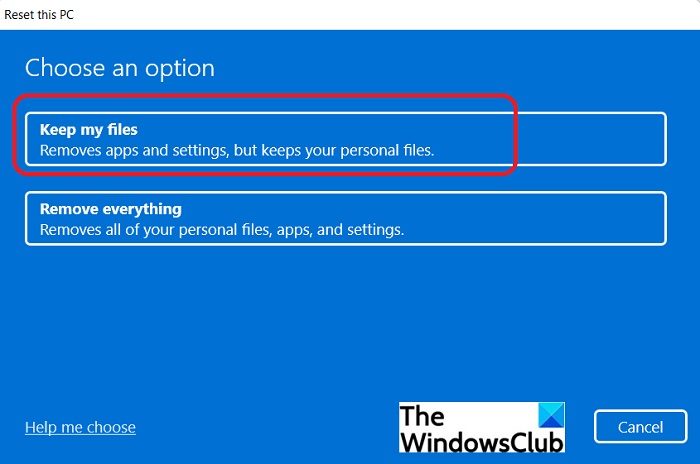
If no restore points exist on your system, reset your PC to factory default settings. This action reinstalls Windows without uninstalling the currently installed Windows. Hence, this action repairs the corrupted Windows files. The Keep my files option does not wipe out your data. However, it is suggested to back up all your important files before proceeding.
That’s it. I hope this helps.
Microsoft Visual C++ Additional Runtime error
The Microsoft Visual C++ Additional Runtime also occurs during installation, execution, or updating of a program. Windows displays this error when the installer file or Microsoft Visual C++ Redistributable is corrupted. Repairing or reinstalling the Microsoft Visual C++ Redistributables can fix this error.
How to fix the Microsoft Visual C++ Runtime error on Steam
If you encounter the Microsoft Visual C++ Runtime error in Steam games, you can try installing the latest Windows Update, updating Steam to the latest version, and repairing or reinstalling the Microsoft Visual C++ Redistributables.
