
It may so happen that when you try to install an app from the Microsoft Store, it doesn’t. You can’t push, install, or sometimes can’t find the app you saw on the online version of the Store. In this post, we will answer all these queries and help you figure out why you cannot install apps from the Microsoft Store.
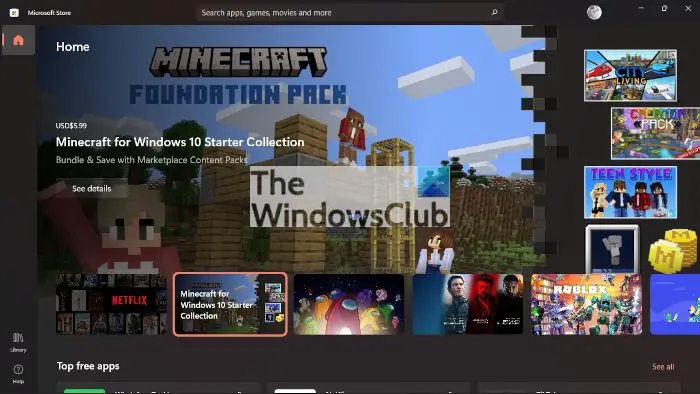
It may happen that you are unable to find an app in the Microsoft Store. And even if you do, you may be unable to install it. If you are managing devices through Windows Autopilot or Intune, you may face difficulties in pushing apps to user devices.
Cannot find, push or install a Microsoft Store app
There are many reasons why you might not be able to locate or install an application from the Microsoft Store. I have listed some of the top reasons below, along with explanations and troubleshooting steps.
- Device Limit
- Windows OS version
- Installing games on your Home Xbox
- Device compatibility issue
- Unhide Apps in the Microsoft Store
- App not available in your country or region
- Microsoft Family settings hiding an application
- The App or Game is no longer available
- Pending Restart after an update.
- Reset the Microsoft Store cache
- Microsoft Store not launching at all.
Before we proceed, we suggest a brief check that you conduct, which may save you a lot of trouble. Click on the Store menu, and then go to My Library > All owned and scroll through the results to find the game or app you moved. If you still can’t see it, let’s proceed.
1] Device Limit on applications from Microsoft Store
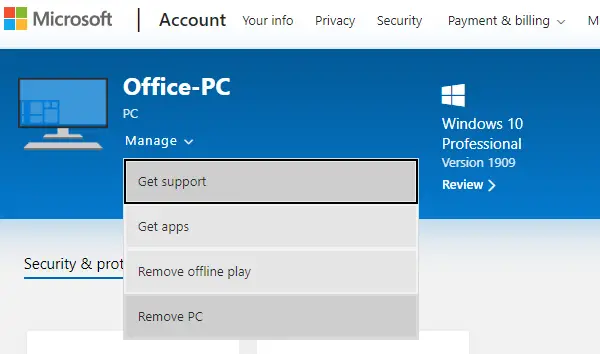
Microsoft allows the app to be installed on computers under one account. It includes Xbox and Windows computers. If this is the case, you will get a clear message saying:
It looks like you’ve reached your device limit for installing apps and games from the Store on your Windows device. If you want to install apps and games from the Store on another Windows device, remove a device from the device list.
You have two choices here. Either remove the device from your account list or uninstall the application from the device. I prefer the latter because you may not need it on all the devices.
2] Windows OS version compatibility
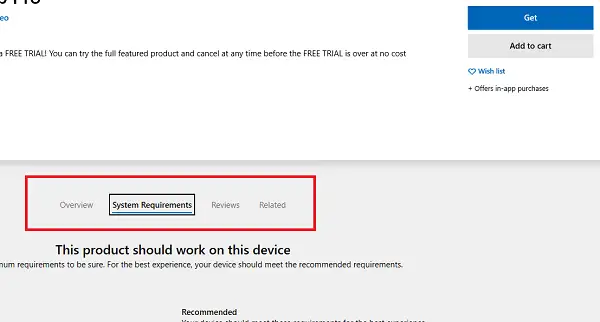
If you can find the app listed in the Store but cannot install it, one reason could be the OS version. If the app is still not compatible with your version of the OS, it will not install. You should have a clear warning about it, but here is to check version incompatibility.
- Find the app in the Microsoft Store and open it.
- Then click on the System Requirements section, which is next to the Overview. If you open it on the web, you should see a “See system requirement” link under the “GET” button.
- Note the Minimum and Recommended OS version and then compare it with your version of the OS.
Depending on what you find, you will have two choices. Either install an older version of Windows or wait for the app to update to support your current version.
3] Installing games on your Home Xbox
Installing games and apps on Xbox through the web interface is possible. It is also called Push Install, which Microsoft does from its end. There are two things here. First, it will always push it to your Home Xbox One; second, the Xbox One settings should allow it to do so. So if you have been pushing the Xbox game to your Xbox but cannot see it, here is how to fix the problem.
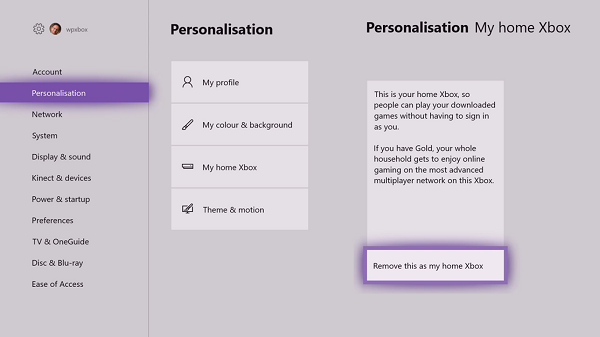
Change home Xbox One.
Make sure it’s the home Xbox One you are checking on. It is usually the Xbox One, where you signed in first. If it’s not, you can choose to change it.
- Press the Xbox button to open the Guide.
- Navigate to System > Settings > General > Personalization and select My home Xbox.
- Here you can choose to either.
- Please make this my home Xbox to designate the console as your home Xbox.
- Or Remove this as my home Xbox to remove the designation.
Enable Auto-Update
If you are sure this is your home Xbox One or have changed it, here is how to enable auto-update.
- Open the Xbox guide, and navigate to the extreme right to find Settings
- Navigate to System > Updates
- Enable the option “Keep my games & apps up to date.”
4] Device compatibility issue
Rare, but check if there is any hardware compatibility issue between the application or game and the computer. I have a regular PC where gaming is prolonged, and some games won’t work. System requirements might give you a glimpse of it too.
If you cannot see it, regardless of the situation, then know that the Microsoft Store automatically hides or blocks the Buy button for apps incompatible with your device. You might see an app from the Microsoft Store available on another PC but not on yours.
5] Unhide Apps in the Microsoft Store
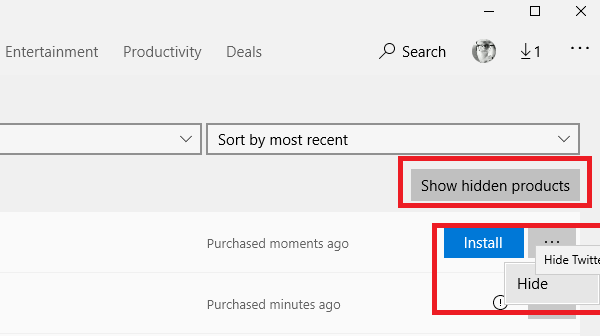
Microsoft Store allows you to hide apps that are not installed on the Windows computer. If you have done so and don’t remember, you will not be able to find the app in the Microsoft Store.
- Click on the Store menu,
- Go to My Library > All owned
- Click on Show hidden products
- Scroll through the results to find the game or app you moved.
- Now find the app through the list and install it
6] App not available in your country or region
Some developers or companies roll out apps only for a few regions. Possibly an app recommended by a friend of yours who lives in a different country is only available for his region, but not yours. Similarly, if you bought an app in one country or region and then moved to another, the apps you had might disappear.
7] Microsoft Family settings hiding an application
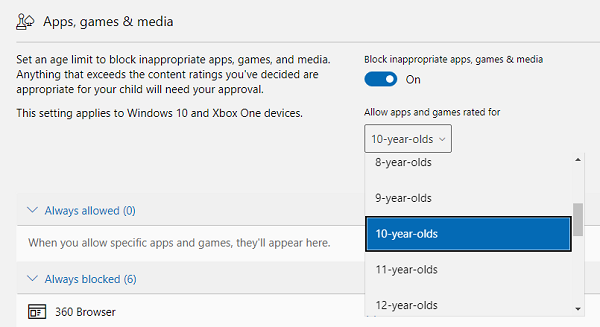
If your account is managed by your parents, using Family Settings, then it’s possible that you are not allowed to install the app. It can also be because of age restrictions. Some apps and games are rated for a particular age group; if you don’t fall into that age group, you cannot install them.
8] Pending Restart after an update
If you encounter a specific error or the app fails to install, check if there is a pending restart after a recent update. You may need to restart your PC before installing apps from the Microsoft Store.
9] Reset the Microsoft Store cache
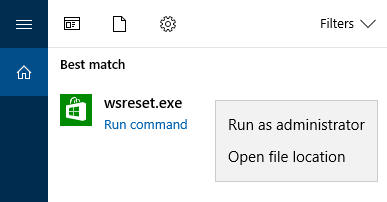
If nothing works, it is a good idea to reset the Microsoft Store cache. Sometimes, like the browser cache, it continues to load outdated content.
- Open Run prompt
- Type wsreset.exe, and click ok
- A blank Command Prompt window will open, and after about ten seconds, the window will close.
- Microsoft Store will open automatically once the operation is complete.
Check if the issue persists.
Apart from these, follow our guide if you are facing issues like Microsoft Store not launching, get in touch with your IT admin and find if they have posed a restriction on your account, or try running the Microsoft Store Troubleshooter.
We hope the tutorial helped you if you cannot find, push, or install an app from Microsoft Store on your Windows 11/10 PC.
How do I download the Microsoft Store?
You don’t have to because it comes installed by default. All you have to do is open it, sign in with your Microsoft account if prompted to do so, then from there, you can download as many apps as you want.
Are games available in the Microsoft Store?
Yes, thousands of video games are available right now in the Microsoft Store, including the many first-party titles from Microsoft.
How do I remove the restrictions on my Microsoft account?
If it’s your device and you’re the Admin, you can also change to a Local Account to eliminate the Restriction. Go to Settings > Accounts > Your Info > Sign in with Local Account Instead. Your account may be part of an organization, or your laptop is part of the organization, hence the restrictions. You can ask your IT admin to remove it or use another Microsoft or local account.
Can I use the Microsoft Store without a Microsoft account?
No, you cannot use the Microsoft Store with a Microsoft account. Any item downloaded or purchased is tied to your Microsoft account. However, you can choose to use a different Microsoft account than the one you have on your PC. That said, if you choose a local account and sign in to the Microsoft Store with a Microsoft account, that latter will be tied to your PC and used anywhere.
