
Some users encountered the “Cannot copy this folder because it may contain private items” error in Outlook while copying or moving a folder. This issue is usually associated with a shared mailbox. When you try to copy or move a folder from a shared mailbox to your own mailbox, you get this error. This behavior of MS Outlook is by design. This article lists workarounds to help you fix this problem.
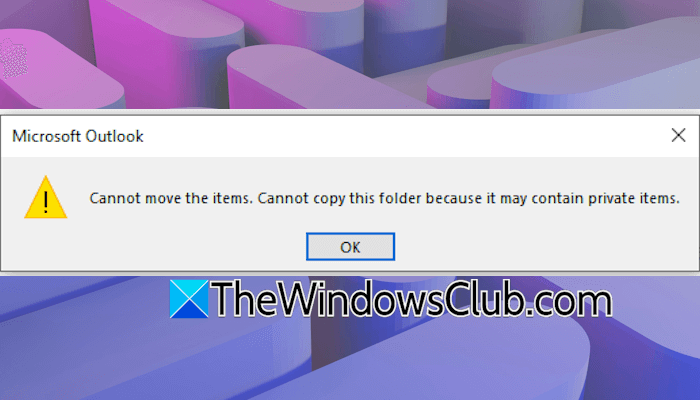
The complete error message is:
Cannot move the items. Cannot copy this folder because it may contain private items.
Cannot copy this folder because it may contain private items
Use the following suggestions to fix the “Cannot copy this folder because it may contain private items” error in MS Outlook.
- Create an identical folder structure in your mailbox
- Export the folder to a .pst file
- Set yourself as a delegate of the shared mailbox
All these fixes are explained in detail below:
1] Create an identical folder in your mailbox
This is the easiest fix. However, it may take time because it requires you to create the same folder structure in your mailbox as in the shared mailbox.
Follow these steps:
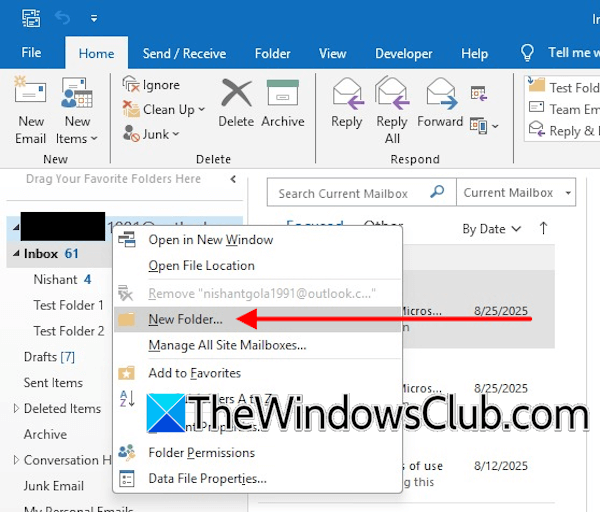
- Select the folder in your mailbox in which you want to create the same folder structure as the targeted folder in the shared mailbox.
- Right-click on the selected folder and select New folder. If you want to create a new folder under your main mailbox, right-click on your username in MS Outlook and select New folder.
- Type the preferred name for the new folder. You can use the same name as the original folder in the shared mailbox or a different name, as per your choice.
- After creating the new folder, right-click on it and select New folder again to create subfolders (if required).
Repeat the steps above to create an identical folder structure in your mailbox to the shared mailbox.
Now, move the emails from the folders in the shared mailbox to the new folders you created in your personal mailbox. Follow these steps:
- In the shared mailbox, select the folder you want to move to your personal mailbox.
- Press Ctrl + A to select all the items in that folder.
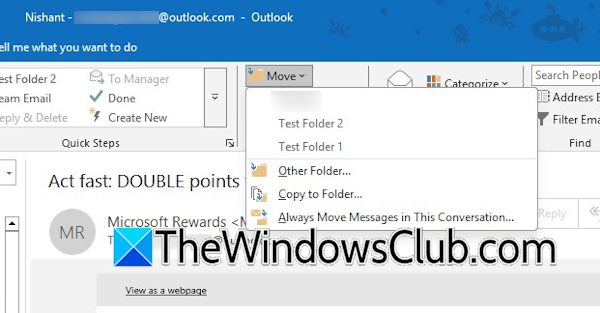
- Under the Home tab, click Move > Other Folder. This will move the selected items to the targeted folder. However, if you want to copy items to the selected folder, click Move > Copy to Folder. A new window will appear on your screen. Select the targeted folder that you created above and click OK.
Repeat these steps until you have copied or moved all items from the shared mailbox to your personal mailbox.
2] Export the folder to a .pst file
The next fix you can try is to export the required folder in the shared mailbox to a .pst file. Then, you can import this .pst file to any folder in your personal mailbox.
Follow these steps:
- Select the folder in the shared mailbox that you want to move or copy to your personal mailbox.
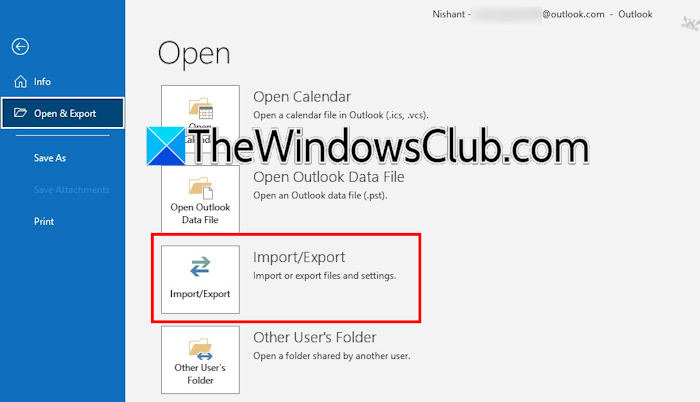
- Click File > Open & Export.
- Select Import/Export.
- A new wizard will appear on your screen. Select Export to a file and click Next.
- Now, select the Outlook data file (.pst) option and then click Next.
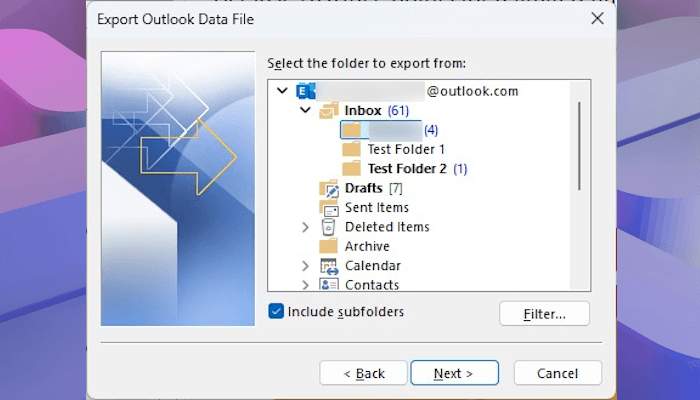
The Export Outlook Data File wizard will appear. Here, verify that the right folder is selected. Also, select the checkbox that says Include subfolders. Now, click Next.
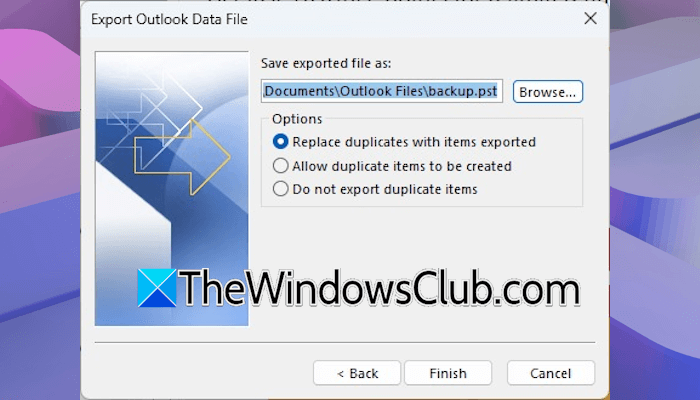
Click Browse and select a location on your PC to save the Outlook data (.pst) file. Now, click Finish. You will be prompted to create a password for the exported file. If you want to protect the file with a password, create a new password; otherwise, skip this step and click OK.
Now, go to the location in File Explorer where you have exported the file and import the .pst file to your personal mailbox. Follow these instructions:

- In MS Outlook, create a new empty folder.
- Select the newly created folder and click File > Open & Export.
- Now, click Import/Export.
- A new wizard will appear. Select Import from another program or file and click Next.
- Select the Outlook data file (.pst) and click Next.
- Click Browse and select the .pst file. Click Open.
You will see the following three options here:
- Replace duplicates with items imported: This option replaces duplicate items while importing the .pst file.
- Allow duplicates to be created: This option creates duplicate items in the selected folder while importing the .pst file.
- Do not import duplicates: This option does not import duplicate items.
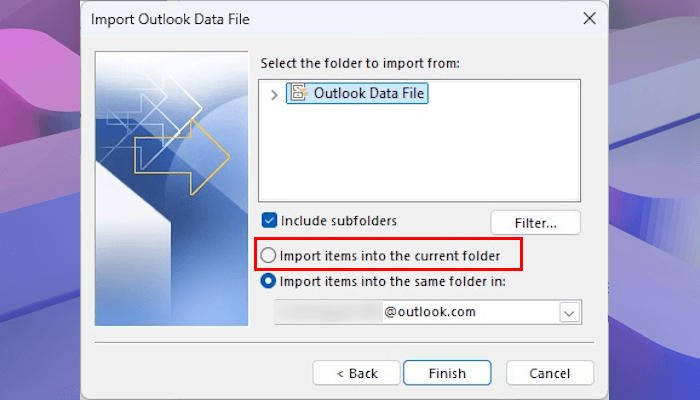
Select any one of the above-mentioned options and click Next. On the next screen, select the “Import items into the current folder” option and click Finish. All the folders and subfolders will be copied to the newly created folder in MS Outlook.
3] Set yourself as a delegate of the shared mailbox
The last method is to set yourself as a Delegate of the shared mailbox and assign owner permissions to the folders.
Sign in to the shared mailbox in MS Outlook and follow these steps:
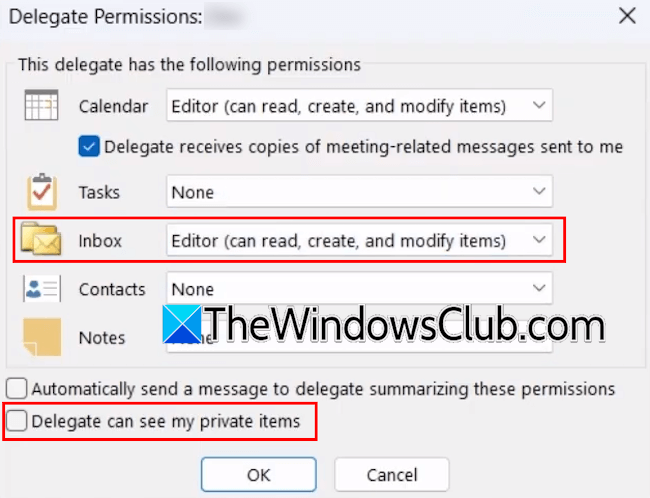
- Select File > Account Settings > Delegate Access.
- Select Add.
- Search for your name or type it manually and select it in the search results list.
- Select Add and click OK.
- The Delegate Permissions box will appear. Select the Editor permissions for the Inbox, and then select any custom access levels as per your preference.
- Select the Delegate can see my private items checkbox and click OK.
- Now, click on the top-level folder (main folder that contains all the required subfolders) and select Folder Permissions.
- Select the Permissions tab and then select your name from the list. If your name is not available in the list, click Add, search for your name, select it, and add it.
- Now, select your name from the list, then select Owner for the Permission level.
- Click OK.
That’s it. I hope this helps.
How do I move an Outlook folder that may contain private items?
You can move an Outlook folder that contains private items in three ways: by creating a new folder and copying items to it, by exporting the folder to a .pst file and importing that file to the targeted folder, or by providing yourself with Delegate access to the folder.
What are private items in Outlook?
In MS Outlook, users can mark emails as normal, personal, private, or confidential. Private items are Outlook email messages marked as private by a user. When a sender marks an email as Private, the recipient sees the “Please treat this as Private” message in the infobar.
Read next: Outlook disappears after importing a PST file.
