
Selecting a web browser is a matter of personal choice and use case, but every browser has its own advantages and disadvantages. One of the little quirks that every browser shares is that sometimes the buttons in the toolbar do not work as expected. Find out what to do when the browser’s Back button isn’t working.
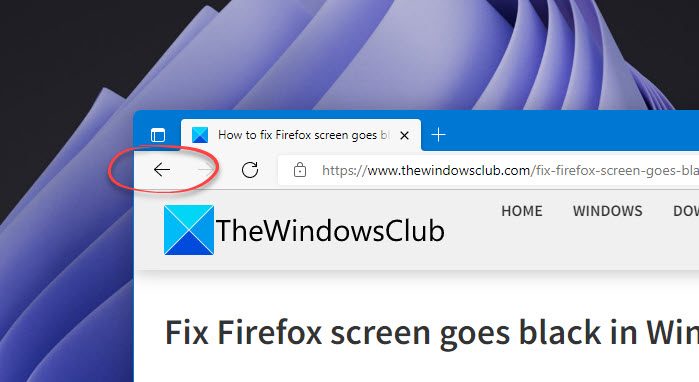
Browser Back Button not working on Windows PC
When the browser Back button is not working properly, you may find the browser simply reloading the current page or worse, freezing indefinitely. It may also happen when you try to visit any website in the browser. Closing and restarting the browser might work as a temporary fix, but not a permanent solution.
If the Back button in your Chrome, Firefox, Edge, etc. browser is not working on your Windows 11/10 PC, here’s what you can do to fix the issue:
- Clear the browser cache
- Skip the redirecting addresses
- Disable conflicting add-ons or extensions
- Reset Your Web Browser
- Open in Internet Explorer Mode View.
So, if you don’t want to end up visiting the same site or webpage over and over, try any of the above methods and see if it works.
1] Clear the browser cache
Sometimes, the leftover cache or the residue cache, along with cookies, can create a compatibility issue that might stop the back button from working, as intended. The best suggestion in such a scenario would be to clear the browser cache and cookies and then, restart the browser and check
2] Skip the redirecting addresses
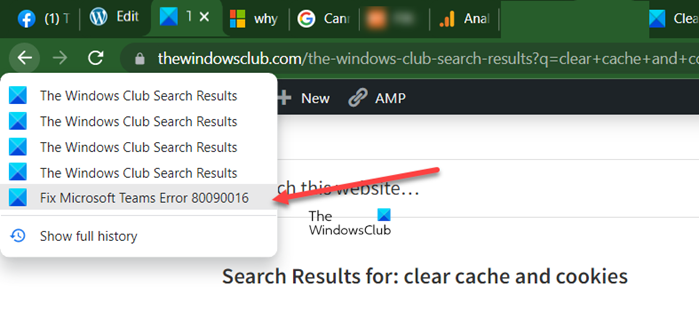
This trick lets you bypass the redirecting address that keeps bringing you back to the same page. The trick is to click the Back button multiple times in quick succession. This helps prevent earlier redirects from loading in the current tab, as the browser skips the addresses and directs you to the chosen webpage. Alternatively, long-click the Back button. This action prompts the browser (Chrome) to open the tab’s history. From the list provided, choose a page you would like to open. The browser should skip the redirecting addresses and direct you to the chosen webpage.
3] Disable add-ons or extensions.
Like other unwanted things, a recently installed add-on or extension can create compatibility issues. It may thus prevent the back button or other items in the browser toolbar from working efficiently. To fix things, remove the extension/add-on or at least disable it temporarily. Here’s how to disable extensions in Chrome, Edge or Firefox browsers.
4] Reset your web browser
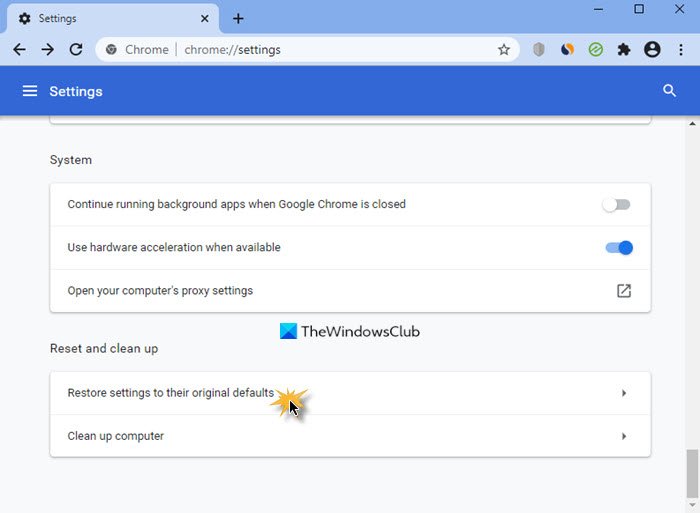
Before proceeding with the steps related to this method, back up your browsing data by syncing it to your Microsoft, Google or Firefox Account, then follow the guide related to Edge, Firefox or Chrome browser.
5] Switch to the Internet Explorer Mode view
If the issue persists and is limited to a single website in Microsoft Edge, try opening it in compatibility view and see if it helps. The Internet Explorer Mode View allows users to view older sites, that may be using older technologies, correctly – as some websites that were designed for earlier versions of a browser might not display correctly in the newer versions.
Can we disable the Back button of the browser?
Although it’s possible to disable the back button in a browser by placing a JavaScript code snippet in the HEAD section of the Page, it’s not recommended if you are not a tech-savvy person. Only if you need to prevent the user from returning to the previous page for security should you consider this option.
What are the useful buttons in the browser toolbar?
A browser toolbar resides within a browser’s window. All major web browsers like Chrome, Firefox, Edge, etc, feature a browser toolbar that displays tools like, Arrow Buttons (Forward and Back), Refresh Button, New Tab Button, Resizing button, Menu and Closing button.
