
Some individuals have recently encountered an issue where their headphone appears on their system, but at the same time, it is listed as disconnected. When they make attempts to get sound from the device, nothing happens. This suggests that the Bluetooth headphone is indeed disconnected in some form, but why is it giving the impression that everything is fine? We do not have the answer for that, but we can help in getting the issue under control and back to normal. If your Bluetooth headphone is disconnected or if it is connected/paired but not showing in playback devices in Windows 11/10, then this post has the working fixes.
Owning a Bluetooth headset is important for many Windows 11/10 users because these audio devices tend to lack wires. You see, wires can get entangled and break, and no one likes it when their wired headphone is giving problems. With wireless headphones, things are much simpler, but one needs to bear in mind that they require charging. Failure to charge means no music or any other use for a Bluetooth headphone, these days.
Now, we should also point out that there will come a time when your wireless headphone will have problems connecting to your Windows 10 computer. These problems are nothing new when it comes to Bluetooth. It has been happening for years, so we’ve grown accustomed to it by now, although it’s still an annoyance.
Bluetooth Headset disconnected on Windows PC
A strange problem where Bluetooth headsets are disconnected, but still appear in sound devices is causing issues, but we have figured out how to fix it:
- Turn off and turn on the device
- Set the headphone as default
- Run the Bluetooth Troubleshooter
- Update the Bluetooth driver.
Let us take a look at these suggestions in detail.
1] Turn off and turn on the device
The first step before all else is to restart the product. Simply turn off the audio device, then turn it back on again. Usually, this simple solution is the fix for many issues when it comes down to Bluetooth headphones.
You can even try unpairing and pairing the audio device again to see if that resolves the issue. Additionally, restart the computer and attempt to reconnect the device.
2] Set the headphone as default
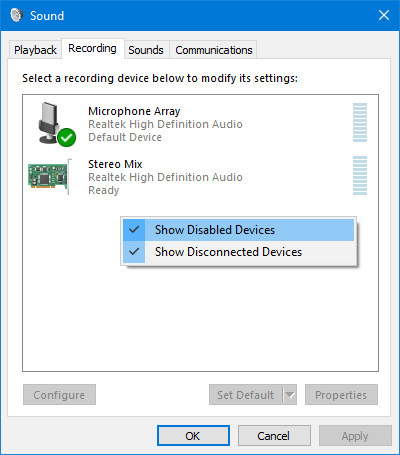
- Open Control Panel> Sound > Recording tab.
- Right-click in the window and click on Show Disabled devices.
- Check if the Headphone is listed there, right-click on it and select Enable.
- Finally, select the headphone and click on Set as Default.
3] Run the Bluetooth Troubleshooter
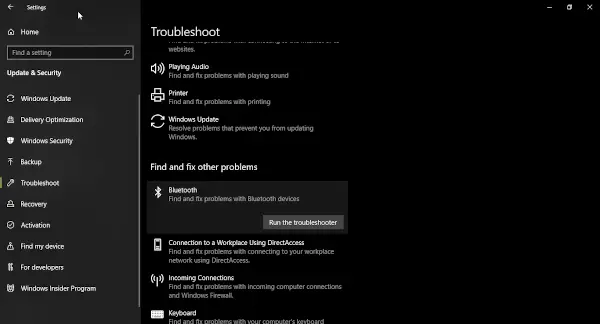
The next step, then, is to run the Bluetooth Troubleshooter from within the Windows 10 operating system. We do this by firing up the Settings menu, and from there, click on Updates & Security. After that, be sure to select Troubleshoot, and navigate directly to the Bluetooth section.
Click on it and select the option that says Run the troubleshooter. The troubleshooter should now appear on-screen. Follow the instructions, and you should be good to go.
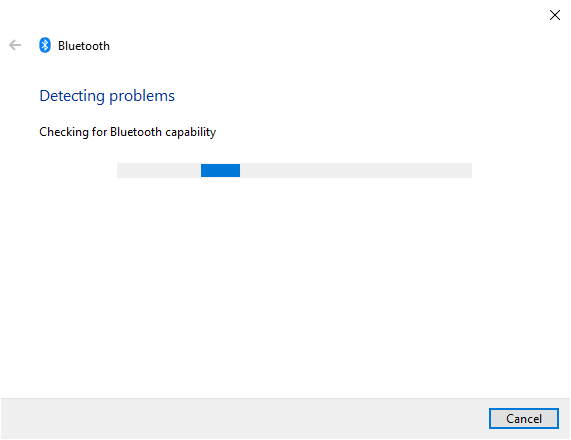
We should point out that it doesn’t take a long time to fix any issues, so please keep that in mind as you attempt to correct all problems.
4] Update the Bluetooth driver
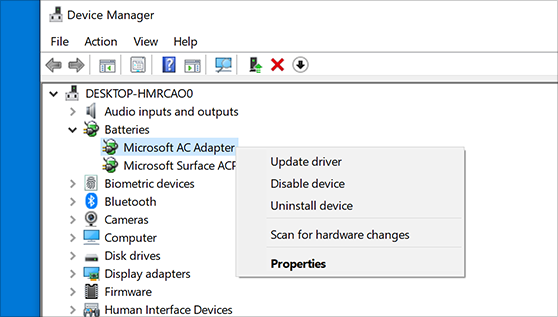
We recommend updating the Bluetooth driver before proceeding. This is a straightforward task, so simply follow the instructions, and you’ll be fine.
To update the driver, search for Device Manager via the search box in Windows. When the result comes up, click on Device Manager to open the window. Click the category that says Bluetooth, and from there, right-click on the preferred option, then select Search automatically for updated driver software.
Finally, click Update Driver to gain access to the latest driver update. Now, if that fails, then we suggest visiting the manufacturer website to locate the latest version of the driver if any is available.
Why does it say I’m connected to headphones when my Bluetooth is off?
If your device indicates a headphone connection while Bluetooth is off, it could be due to a software glitch or a dirty headphone jack. This false signal often occurs if debris is lodged in the port. To resolve it, clean the headphone jack or restart your device to reset the connection settings.
How to fix Headphones connected but no sound on Windows 11?
If your headphones are connected but there’s no sound on Windows 11, first check the audio output device settings by right-clicking the sound icon and selecting “Open Sound settings.” Ensure headphones are selected as the output device. Additionally, update audio drivers via Device Manager and check for any muted volume settings in your audio mixer.
