
Here is a list of the best Free Video Joiner Software for Windows 11/10. If you want to merge two or more videos into a single video file, you can use dedicated software. There are multiple software programs that let you join videos. However, if you want a free one, you might need to look around. To help you find a good free video joiner, we have curated this list. In this article, you can check out some of the best free video joiner software that lets you merge videos. So, without much ado, let’s get straight to the list.
How can I merge videos together for free?
You can easily merge videos for free using a video joiner available for Windows 11. There are many free video joiner tools online. You can find some good ones listed in this post as well. Let’s check out the details below.
Best Free Video Joiner Software for Windows 11/10
Here are the best free video joiner software available for Windows 11/10:
- MediaMux
- LosslessCut
- FFmpeg
- AoA Video Joiner
- Free Video Joiner
- EArt Video Joiner
- JoinerSplitter
- Video Combiner.
1] MediaMux
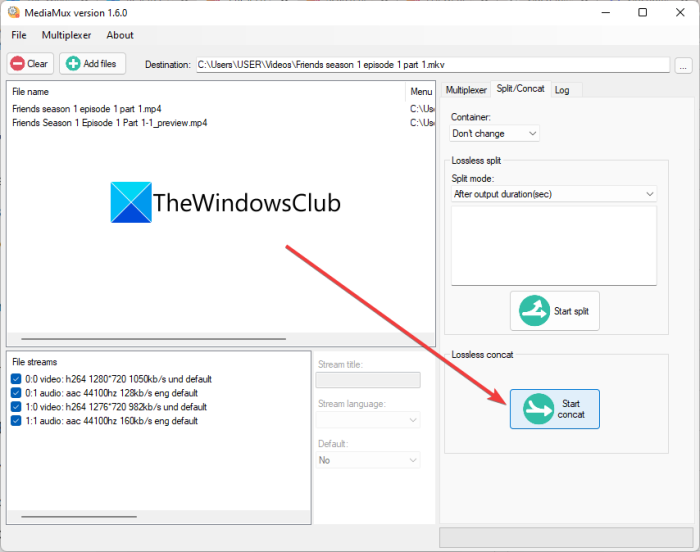
MediaMux is a free and open-source video joiner software for Windows 11 and Windows 10. It is basically software that lets you convert, mux, split, and merge videos on your PC. This one comes in both portable and installer versions. So, download whichever one you want to use from its from github.com.
You can merge, join or combine multiple videos in formats such as MP4, MOV, AVI, FLV, and MPEG. However, the resulting video can be saved in MP4 or MKV format. Let us discuss the detailed procedure to join multiple videos into one.
Here are the main steps to join videos using MediaMux:
- Download and install MediaMux.
- Launch MediaMux.
- Add video files.
- Go to the Split/Concat tab and select container format.
- Press the Start Concat button.
Let us discuss the above steps in elaboration.
Firstly, download and install this video joiner on your PC, and then start this software. You can also use its portable edition and directly launch it without installation.
Now, click on its Add files button and import all the video files that you want to merge.
Next, simply go to its Split/Concat tab and choose output container format. You can select one of these options; Don’t Change, MP4, or MKV.
After that, from the top, select the output video location and finally tap on the Start concat button. This will start the video joining process.
You can also use it to split videos into multiple parts and convert videos between formats.
See: Split & Join Files with Split Byte, a Free File Splitter & Joiner software
2] LosslessCut
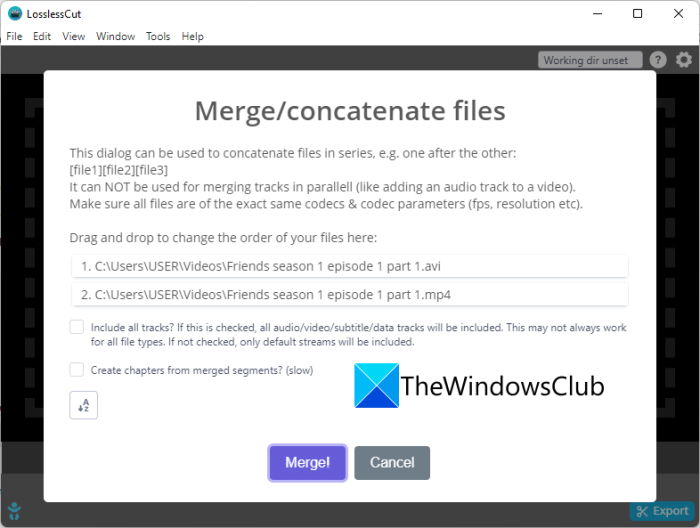
LosslessCut is a free and open-source video joiner and video splitter software for Windows 11. As its name suggests, it can split or merge videos without losing the actual quality of videos. It supports multiple video formats as both input and output, including MP4, MOV, OGV, FLV, and DV. Let’s see how you can join videos through it.
Try the below steps below to merge two or more videos using LosslessCut:
- Download LosslessCut and unzip the downloaded folder.
- Launch the LosslessCut application.
- Go to Tools > Merge files.
- Set up the output settings.
- Click on the Merge! button.
Firstly, download LosslessCut and then unzip the downloaded folder. Then start the main executable from the extracted folder.
Next, go to the Tools menu and press on the Merge files option. You will then be prompted to provide the input video files. Select the input video file and press Open.
After that, set up some output settings and then tap on the Merge! button to start the video joining process.
Liked this software? Get it here.
Read: How to combine Videos in Windows using Photos app or VLC
3] FFmpeg
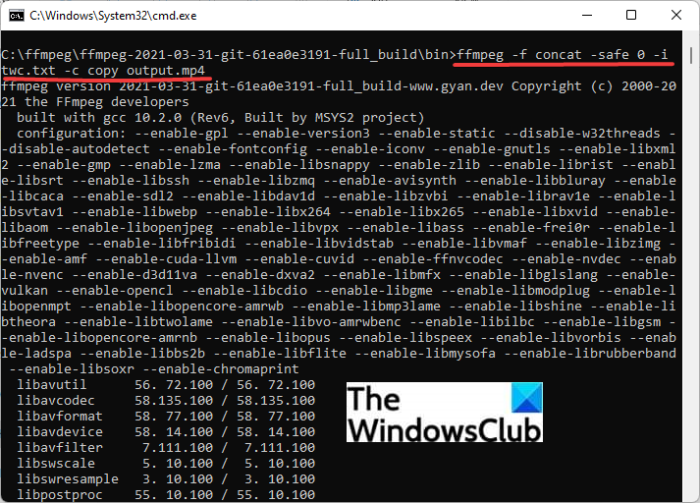
FFmpeg is a popular free, open-source, and portable video processing software using which you can join multiple videos. It is a command-based software that requires specific commands to execute particular tasks. For example, it can be used to resize a video, bulk rotate videos, edit video metadata, create a video from an image sequence, and do more. Similarly, you can also join two or more videos using it. Let us check out how.
How to join videos using command through FFmpeg
Here are the main steps to join videos using commands through FFmpeg:
- Download and Unzip FFmpeg.
- Create a text file with the path of input video files.
- Put this text file in the extracted FFmpeg folder.
- Open CMD in the FFmpeg folder.
- Enter video merging/ joining command.
First, download FFmpeg and extract the ZIP file to the desired location.
Now, create a text file containing the video files you want to merge. The file will basically consist of the path to all the videos. You need to write the path of video files in the below syntax:
file 'path_to_video-file1'
file 'path_to_video-file2'
file 'path_to_video-file3'
You can add as many video files as you want to join into one video. Then, save this text file to the extracted FFmpeg folder.
After that, open the Command Prompt in the FFmpeg folder and then write the below command:
ffmpeg -f concat -safe 0 -i videolist.txt -c copy output.mp4
In the above command, replace videolist.txt with the name of the text file you just created earlier. And, replace output.mp4 with the video filename and file extension.
Finally, press the Enter button and it will start executing the video merging command. The output video will be saved in the same FFmpeg folder.
Here’s how to merge videos with a single command using FFmpeg.
Read: Top 5 free GoPro editing software for Windows
4] AoA Video Joiner
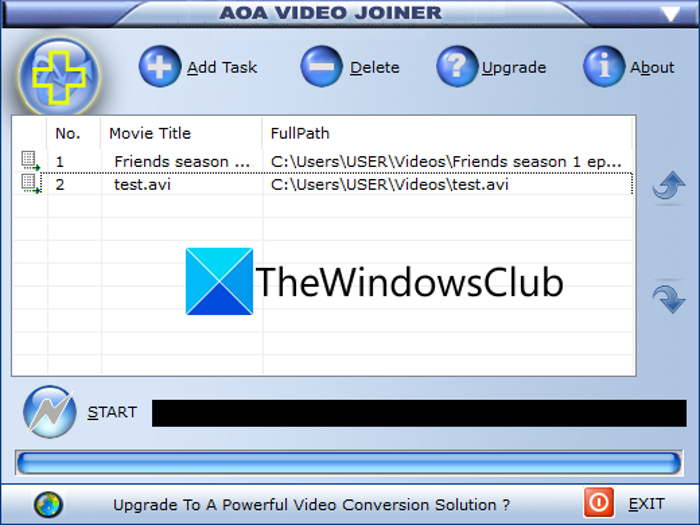
AoA Video Joiner is a dedicated free video joiner software for Windows 11/10. It is dedicated to merging multiple videos into a single video. It supports video formats such as MP4, AVI, FLV, MOV, ASF, and WMV. The resulting video is saved in only AVI format.
To use it, click the Add Task button, then add two or more video files to merge. After that, click the Start button and select the output video file location. As you do that, the video-merging task will start. That’s it. As simple as that. You can download it from this link.
Read: How to merge Audio and Video in Windows 11
5] Free Video Joiner
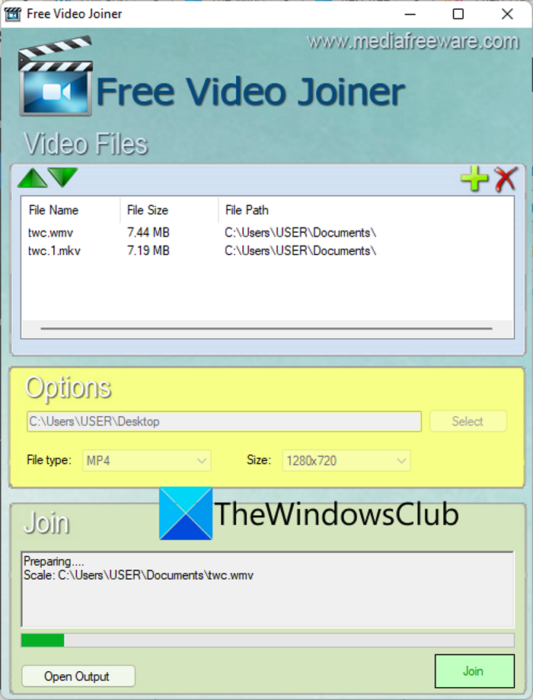
As the name suggests, Free Video Joiner is another software on this list. It is good software that lets you merge multiple videos into a single file. The output video file can be saved in formats such as AVI, MP4, MOV, WMV, and VOB. Also, you can select the output video size from the available ones like 320×240, 640×480, 1280×720, and 1920×1080.
Firstly, download and install this software from mediafreeware.com. Then start the software’s GUI. Now, click the plus button to add one or more video files. Next, select the output video format and size. Finally, click the Join button to start the video-merging process.
Read: Change Video Aspect Ratio using free online tools and software
6] EArt Video Joiner
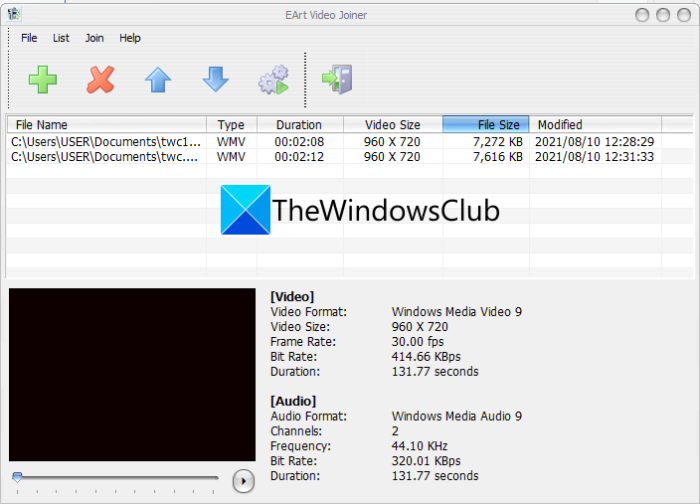
EArt Video Joiner is another free video joiner for Windows 11/10. It is a nice, easy-to-use software for merging videos on a Windows PC. As input, it supports multiple popular video formats. However, it supports AVI and MPEG as output formats.
To use it, you can download and install it from its official website. After that, launch the software and then add multiple video files to it. You can also play the videos before merging them. It also lets you reorder videos. Now, click on the Join Files button to let it merge your videos into one.
7] JoinerSplitter
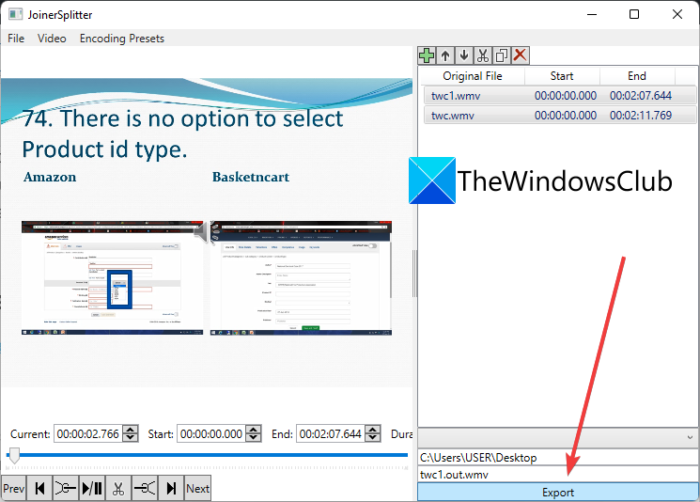
JoinerSplitter is another free video joiner for Windows 11/10. You can use it to split and merge videos on your PC. It is completely free and open source.
The video merging process is quite simple. Just download and install this software from github.com. After that, launch this software. Then click the Add button to browse and select the input video files you want to merge into a single video. After that, from the bottom right, select the output video folder and enter the output video filename. At last, click on the Export button and it will start merging your videos into one.
8] Video Combiner
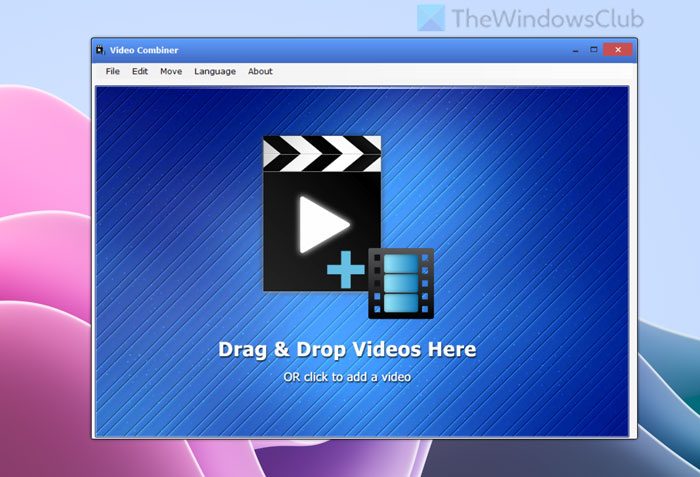
Video Combiner for Windows 11/10 lets you easily join multiple videos into one.
Add Videos
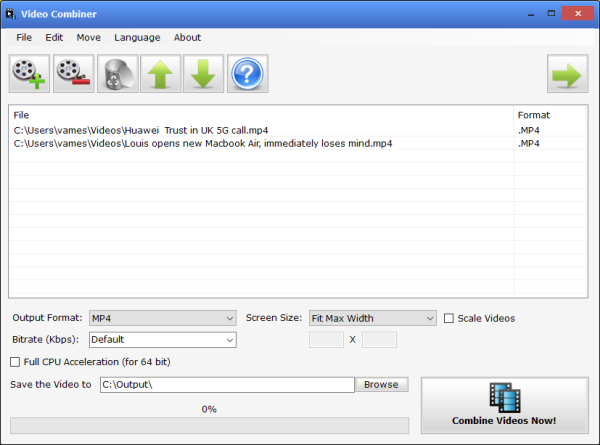
First, add your videos. As noted above, the best option is to drag and drop the content into the open area. If that’s not your preference, click File > Add Files, press CTRL + O, or click in the open space.
When the new window opens, navigate to the directory where the videos are stored, then add them immediately. It shouldn’t take any time at all for the videos to show up on screen, and from there, it’s time to combine them all.
Combine your videos
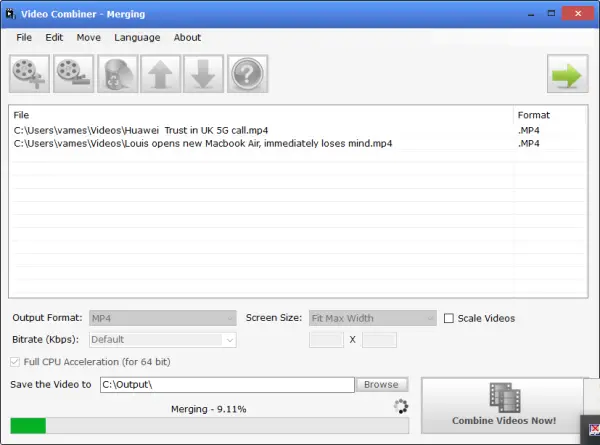
OK, when it comes down to merging your videos into a single entity, the task is super easy, surprisingly. First, you will need to select the output format of the finished product, along with the screen size, and bitrate speed.
To complete the merge process promptly, we recommend selecting Full CPU Acceleration. Note that this only works on 64-bit CPUs, not on typical x86 processors.
Finally, choose where you want to save the finished product, then click Combine Videos Now to start the process. Merging and conversion will take some time to complete, and the speed at which they occur depends largely on your computer’s performance.
We should point out that the supported output formats are MP4, AVI, MOV, MPG, MKV, TS, RM, VOB, and FLV. We hope the creators will add more formats in the future, but for now, these are the only options available.
Download the Video Combiner tool directly from the official website. The free version adds a bold watermark to the combined video, and that’s a disappointment.
Hope this list helps you find a suitable free video joiner.
What is the free software to join videos together?
Choosing the best software to join videos depends on several factors, including your video size, length, and quality. However, you can try some of the apps above to get the job done. You can use FFmpeg, JoinerSplitter, Free Video Joiner, EArt Video Joiner, etc.
How do I combine videos in Windows 11?
To combine videos in Windows 11 or Windows 10, you need to download a third-party application. There are many free Video Joiner Software. You can use Video Combiner, which is very easy to use. It has a clean, intuitive user interface and essential features, so you can merge multiple videos in moments. But it adds a watermark.
How do I combine multiple videos into one long video?
To combine multiple videos into a single long video, you can use Clipchamp or Video Combiner. However, you can also use VLC Media Player to merge videos on Windows 11/10 computers. All of them can combine and process MP4 videos. These tools will help you merge Audio and Video in Windows.
Now read:
