
At times, you might need to combine multiple videos for various reasons. If you do not want to install heavy video editing software, you can merge videos using the Photos app or VLC media player. The Photos app is an in-built image viewer for Windows 11/10. VLC is a standard media player for video, audio, etc.
Creating a video using the Photos app is not very time-consuming as it requires no installation. As the Photos app has evolved over the years, it now offers many features to help you get things done. From resizing images to adding effects, you can do almost every essential thing in the Photos app.
On the other hand, VLC does more than just play a media file, even though it is a media player. For instance, it records desktop screens, converts videos, and much more. In addition, both apps can help you combine multiple videos in Windows 11/10.
Whether you use the Photos app or VLC Media Player, ensure your files are in the same location. Although it doesn’t matter much, it makes things easier and less time-consuming.
How to combine videos using Photos app in Windows 11/10
To combine multiple videos in Windows 11/10 using the Photos app, follow these steps-
- Open the Photos app on your PC.
- Click the New video > New video project.
- Enter a name for your video project.
- Click the Add button.
- Choose the location of your files and select them.
- Drag them to the Storyboard.
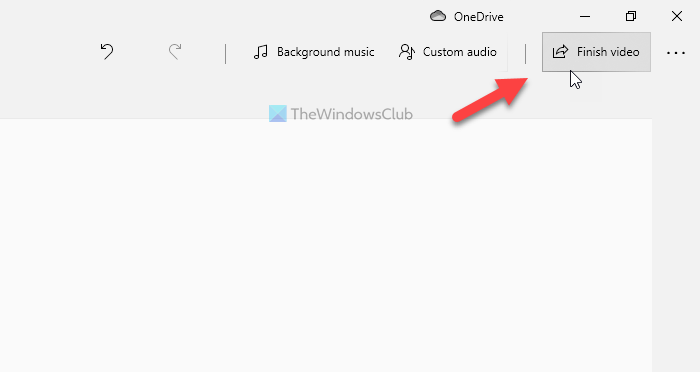
- Click the Finish video option.
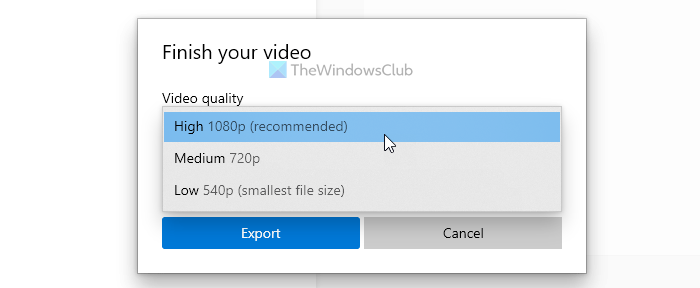
- Choose a Video quality.
- Click the Export button.
- Choose a location, enter a name, and click the Export button.
Let’s check out these steps in detail to learn more.
First, open the Photos app on your computer. If it is already opened, click the New video button and choose the New video project option from the list.
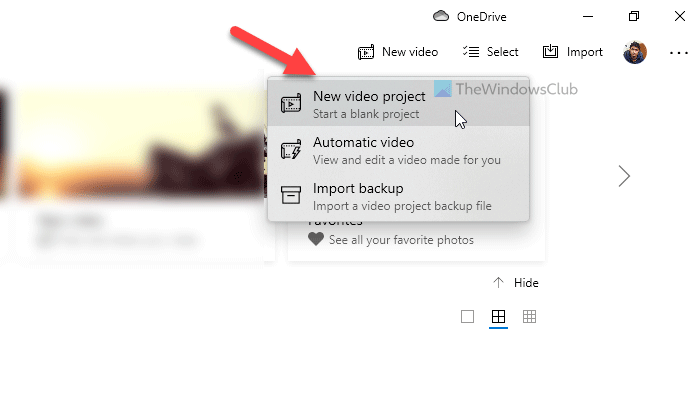
Next, enter a name for your video project to recognize it later. Following that, click the Add button under Project library, and choose the location of your files.
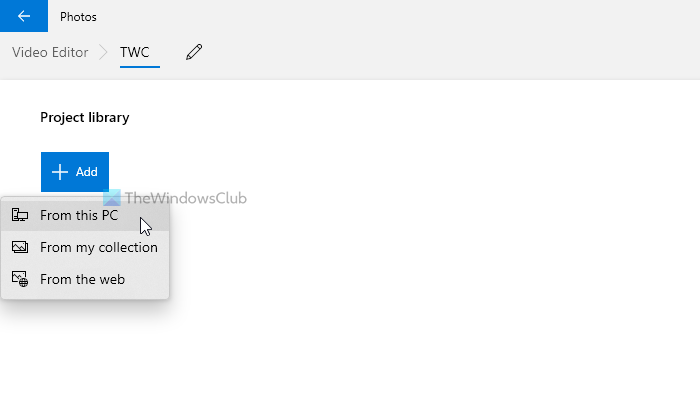
If they are on your hard drive, choose From this PC. Otherwise, select an option based on your requirements. After importing your video files, select them, and drag them to the Storyboard.

For your information, you can place them one after one as well. Now, you can add effects, text, motion, change speed, and do all the things you wish to apply. Once done, click on the Finish video button visible in the top-right corner.
Then, choose a video quality from the drop-down list, and click the Export button.
Next, select a location to save the file, enter a name, and click the Export button.
Before using VLC Media Player, ensure all source video files are in the same format and have the same frame rate. Otherwise, you will encounter errors. To confirm this, you can convert all your videos to the same format using VLC Media Player.
This post discusses some more free Video Joiner Software for Windows.
Read: How to merge Audio and Video in Windows 11
How to merge videos using VLC
To merge videos in Windows using VLC, follow these steps-
- Open VLC media player on your PC.
- Click on Media > Open Multiple Files.
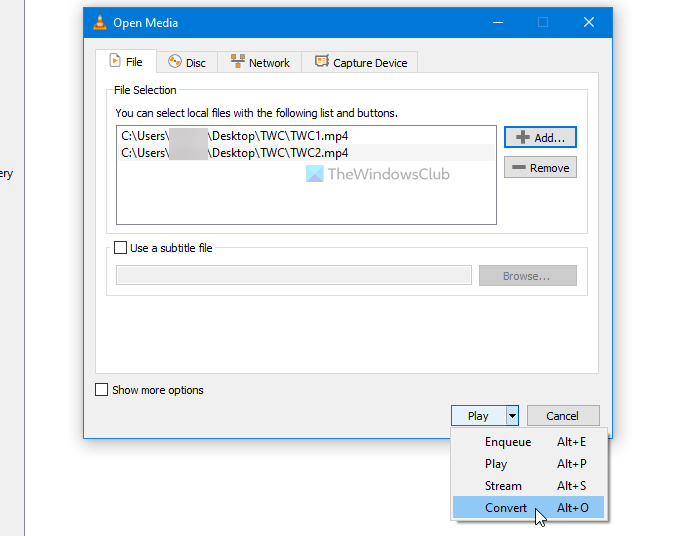
- Click the Add button and choose your files.
- Expand the drop-down list and choose the Convert option.
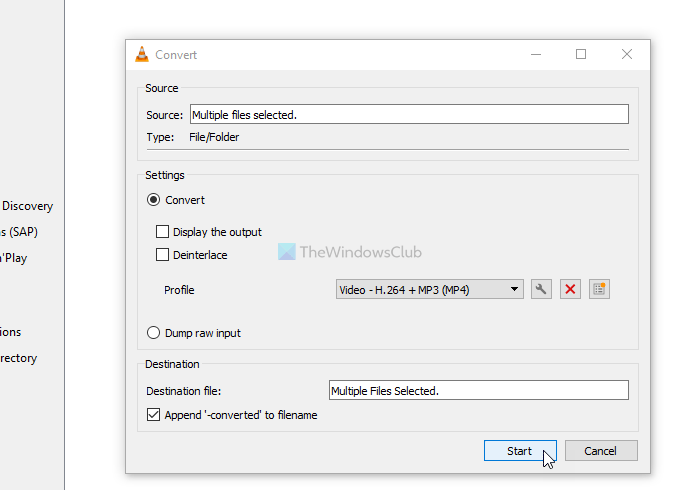
- Select MP4 as the video profile, and tick the Append ‘-convert’ to filename checkbox.
- Click the Start button.
- Open Command Prompt in the video folder and enter the command.
To learn more about these steps, read on.
First, open VLC on your computer and select Media > Open Multiple Files.
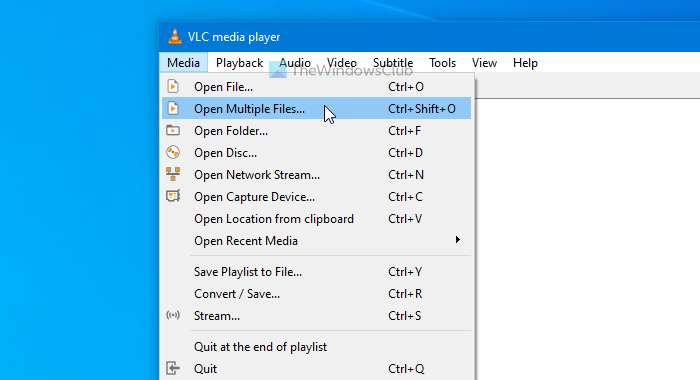
It opens a pop-up window where you can click the Add button and choose your video files. Now, expand the Play drop-down list, and choose the Convert option. Alternatively, you can press Alt+O.
Make sure you have selected MP4 as the Profile and checked the Append ‘-converted’ to filename box. If so, click the Start button.
You can see the converted video files with -converted text in the name. Now, you have to open the Command Prompt in the video folder. To do that, open the folder where you saved your converted videos, type cmd in the address bar, and open Command Prompt.
Enter the following command-
"vlc-path" video1.mp4 video2.mp4 --sout "#gather:std{access=file,mux=ts,dst=mergevideo.mp4}" --no-sout-all --sout-keep
Before pressing the Enter button, you need to make a few changes to the command.
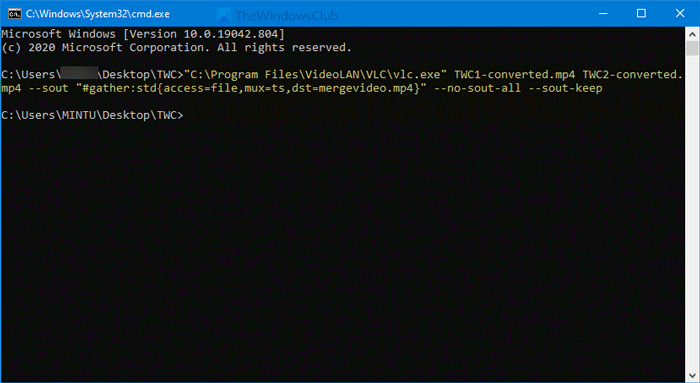
Vlc-path: Enter the original VLC media player path. To find it, search for VLC in the Taskbar’s search box, right-click on the result, and choose the Open file location option.
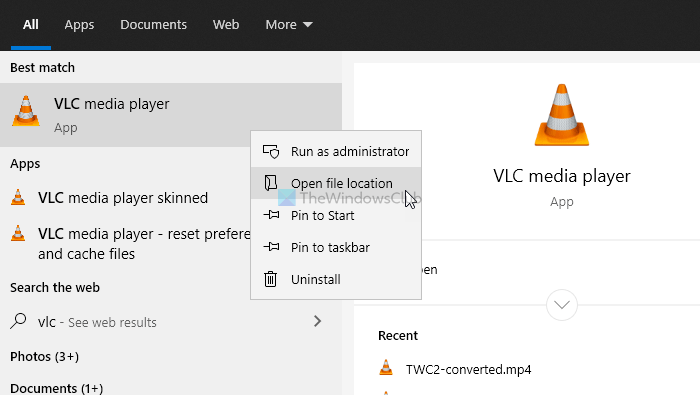
Right-click on the VLC media player and select the Properties option from the context menu. Then, copy the file path.
Video1.mp4/video2.mp4: You need to replace these file names with the original names of converted files.
mergevideo.mp4: It is the name of the output file or the merge video file.
Once done, you can see the merged video in the same folder where you opened the Command Prompt.
Read next: How to trim videos using Windows Photos app Video Editor.
