
Looking for a free image optimizer that can process images in a bulk? Here is a list of free batch image optimizer software for Windows. These software let you optimize multiple images at once to save your effort and time.
You can quickly compress or optimize multiple images simultaneously using the listed bulk image optimizers. Most of these support a variety of image formats to optimize images. These formats include PNG, JPG, GIF, BMP, TIFF, ICO and WebP. Before starting image optimization, you can configure various output options, including image quality and the number of image colors. All in all, these are nice batch image optimizers that work without any hassle. Check out the full list to learn more about these freeware tools.
Best Free Batch Image Optimizer software for Windows PC
Here is a list of the best free batch image optimizer software for Windows 11/10:
- Mass Image Compressor
- Imagine
- Caesium – Image Compressor
- One Simple Image Compressor
- Pngyu
- OptiPNG
- PngOptimizer
- imagecompressor.com
1] Mass Image Compressor
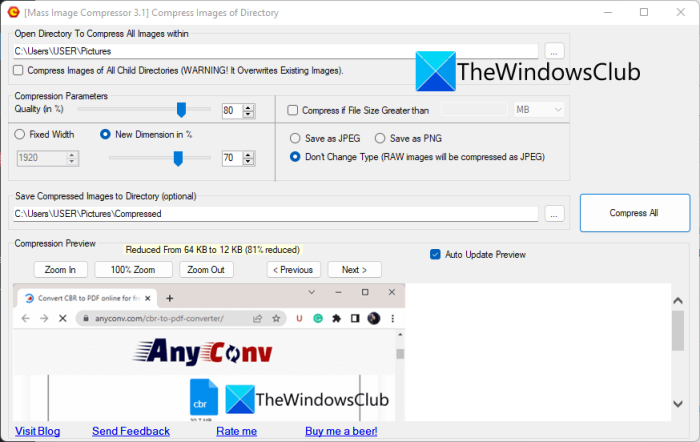
Mass Image Compressor is a free open source batch image optimizer software for Windows 11/10. It allows you to reduce the size of multiple images without significant loss of quality. It works well with standard image formats including PNG, JPEG, BMP, GIF, JFIF, etc. You can save the optimized images in their native format or convert them to a different format, as needed.
It provides a handy feature called Compress if file size greater than. This function lets you enter a threshold image size, and the software will automatically compress images larger than that size.
Before you start the batch image optimization process, you can configure output properties such as image quality, output format and dimensions. It also offers a Compression Preview feature that lets you view the output images before starting optimization.
How to batch optimize images using Mass Image Compressor?
Here are the main steps to batch optimize images using Mass Image Compressor:
- Firstly, download and install this free batch image optimizer.
- Now, start the software and provide the location of the source images.
- Next, configure output options such as image quality, dimensions and output format.
- After that, enter the output location.
- Finally, press the Compress All button to start the process.
It is an easy-to-use yet effective batch photo optimizer software. You can download it from sourceforge.net.
Read: How to Bulk Rotate Images in Windows?
2] Imagine
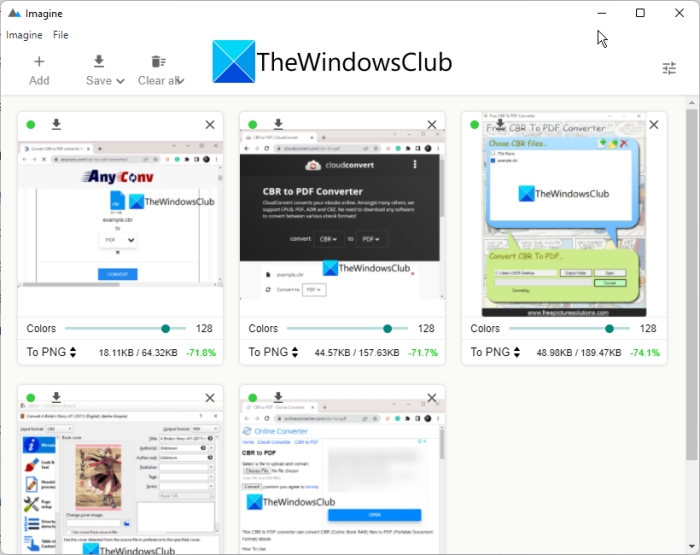
Imagine is a nice free and open-source batch image optimizer for Windows and other operating systems. With this freeware, you can batch-optimize JPG, PNG, and WebP images. For JPG images, you can adjust the output image quality as per your requirements. For PNG images, it lets you set the number of colors in the resulting images. It also shows the image compression percentage for each photo.
To start, download and install it, then launch the software. Next, click on the Add button and import multiple source images. Now, you can adjust the output image format, image quality/ image colors for each image separately. After that, use the Save option to start the batch image optimization process.
Get it on github.com.
3] Caesium – Image Compressor
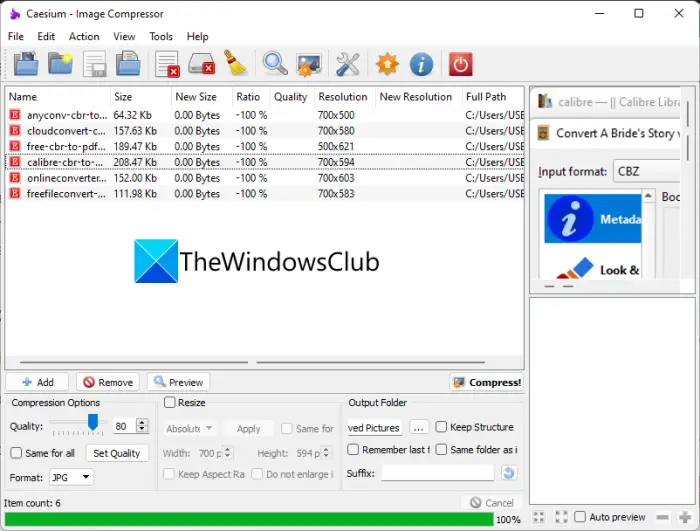
The next batch image optimizer on this list is Caesium – Image Compressor. This software lets you batch-optimize images in multiple formats. These supported input formats are PNG, JPEG, BMP, TIFF, PPM, XBM, and XPM. But, you can save the resulting optimized images in JPEG, BMP, and PNG image formats only. In addition to compressing images, it lets you resize the dimensions of the source images.
How to batch optimize image using Caesium – Image Compressor?
Follow the below steps to optimize multiple images at once using Caesium – Image Compressor:
- Firstly, download and install this software. It also comes in a portable package that you can use without installation.
- Now, launch the software and import multiple images to it.
- Next, set parameters such as quality, output image format and resizing.
- After that, enter the output location to save the optimized images.
- Finally, press the Compress button to start the optimization process.
When the batch image optimization process is complete, it displays the new size, resolutions, compression ratio, and other information on its interface.
It is a nice batch photo optimization software that you can use for free. Download it from here.
See: Best Free Batch Photo Date Stamper software for Windows.
4] One Simple Image Compressor
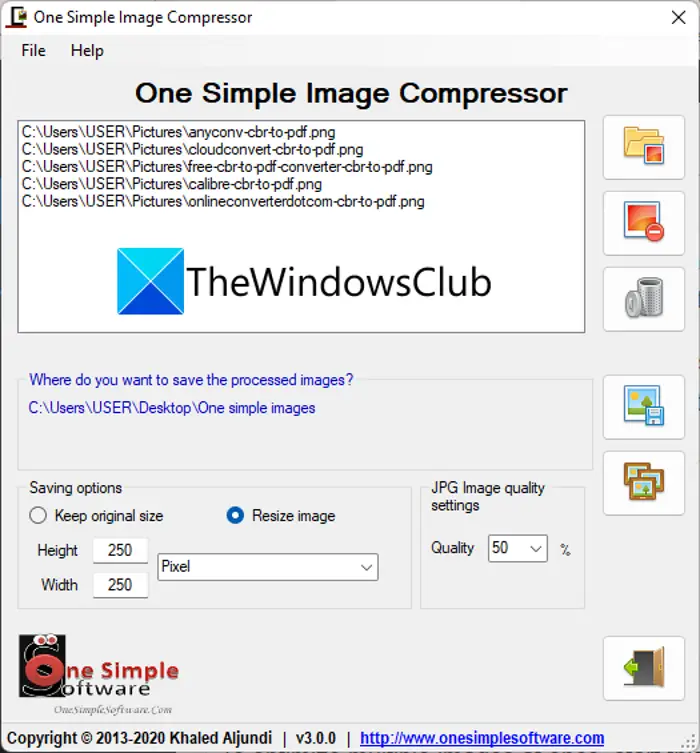
You can also try One Simple Image Compressor to easily compress and optimize images in bulk. It works well with image formats like JPG, PNG, BMP, TIFF, ICO, and more. You can also resize your images using this free software.
To optimize multiple images at once, start this software and load multiple images to it. After that, select the output JPEG image size. And if you want to resize output images, select the Resize images option and enter the new dimensions. Finally, press the Process Batch button to start the bulk image optimization process.
Get it here.
Read: Best free Batch Video Converter software for Windows
5] Pngyu
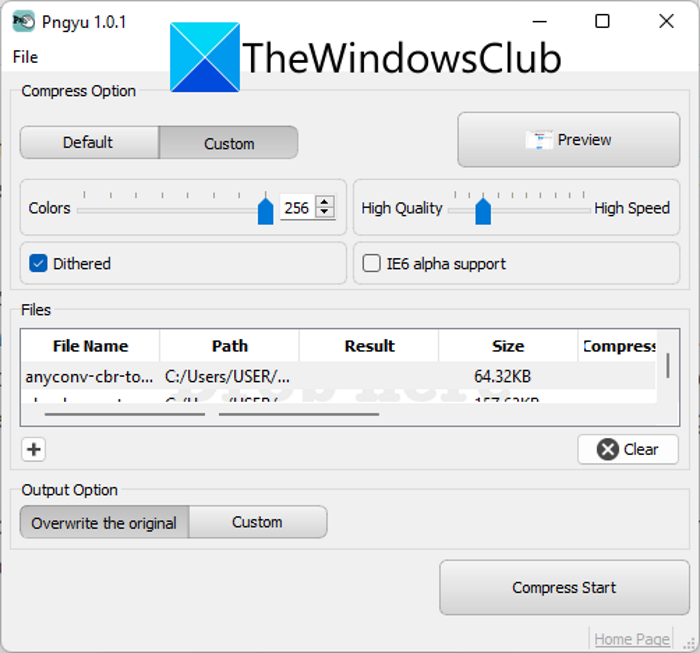
Pngyu is a free bulk image optimizer for Windows 11/10. It comes in a lightweight portable package, so you don’t have to install it to use this software. Just extract the ZIP folder and run the exe file to start using it.
This software can only optimize PNG images. It offers two compression modes: Default and Custom. The Default mode has preset values that determine how images are optimized. In Custom mode, you can specify the number of image colors, image quality, and other parameters before starting the process. It also lets you preview the input images prior to image optimization.
You can simply use the + button to import the source images. After that, select the compression mode and set up options accordingly. Then, choose the output directory and press the Compress start button. That’s it!
See: Best ways to compress Images on Windows
6] OptiPNG
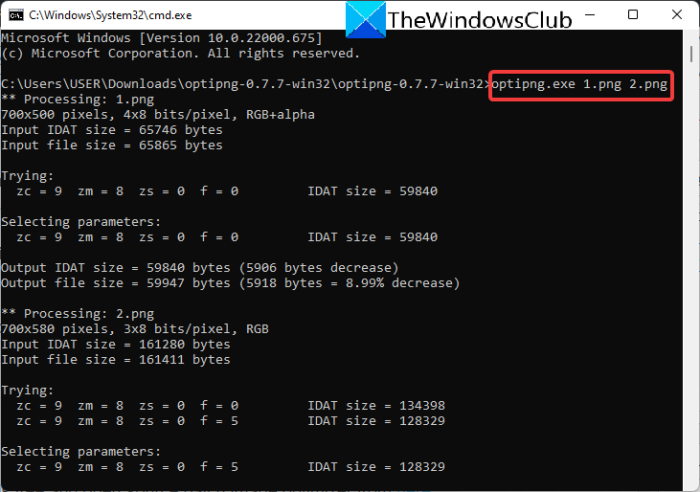
Try OptiPNG to batch optimize your images using Command Prompt. You need to enter a command to batch-optimize images using this software. Let us check out what the command is.
How to batch optimize images using OptiPNG through Command Prompt?
First of all, download this free software and extract the downloaded ZIP folder. Now, open the extracted folder and paste all your source images to this OptiPNG folder. Next, launch Command Prompt in this folder and then enter a command similar to the one below:
optipng.exe image1.png image2.png image3.png
In the above command, replace image1.png, image2.png, and image3.png with the filenames of your source images.
As you enter the command, it will start optimizing your images and overwrite the input images.
You can download this free and open-source batch image optimizer from here.
Read: Safe software download sites to download Windows software free
7] PngOptimizer
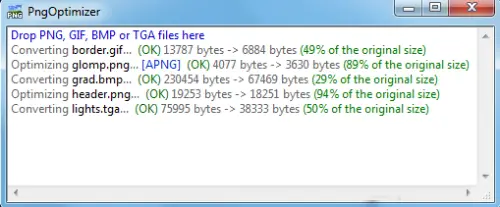
PngOptimizer is a free portable batch image optimizer. It supports PNG, GIF, BMP, and TGA image formats for image optimization. You can simply run its application files and then drag and drop the source images onto its interface. It will start optimizing your images. As simple as that!
Liked it? You can download it from here.
Read: Best free tools to compress images online without losing quality.
8] imagecompressor.com
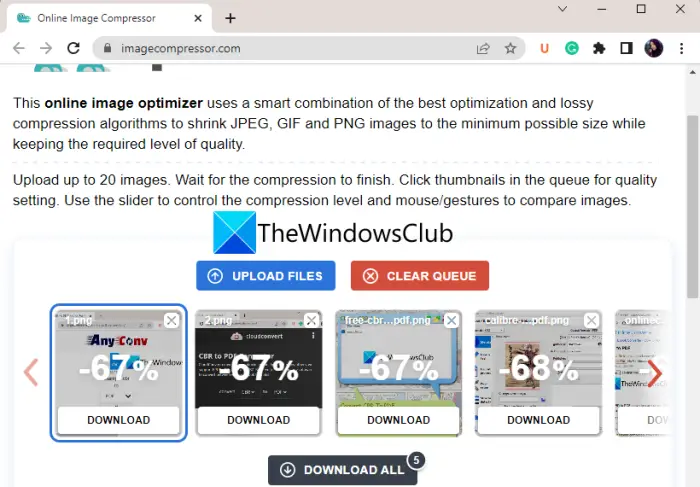
imagecompressor.com is a free online batch image optimizer tool. You can easily optimize a set of multiple images through this online tool. It supports JPG, GIF, and PNG images for optimization. Using it is very easy. Let us check it out now.
How to batch optimize images online using imagecompressor.com?
Here are the steps to optimize multiple images at once online using imagecompressor.com:
- Firstly, open imagecompressor.com in a web browser.
- Now, browse and import the source images to it or simply drag and drop input images to its interface.
- It will start compressing images and once done, you can download the resulting images.
Hopefully, this post helps you find a good free batch image optimizer.
How do I optimize multiple photos at once?
To optimize multiple photos at once, you can use free bulk image optimizer software. There are several free desktop applications that let you do so. You can try Mass Image Compressor, Caesium – Image Compressor, or One Simple Image Compressor. If you want to optimize images in bulk using Command Prompt, use OptiPNG. We have discussed these tools in detail, so check out below!
What is the best image optimizer?
In my opinion, Mass Image Compressor is one of the best image optimizer software that lets you compress images in a batch. It also supports multiple image formats that you can optimize such as PNG, JPEG, JFIF, BMP, GIF, etc. Imagine is also a good one as it is simple but does its work quite well. You can find out more software that let you batch optimize images in this article below.
Now read:
- Best free Batch Photo Editor software for Windows
- Batch Edit EXIF Data of Images with Batch EXIF Editor software for PC.
- How to Batch Resize Images with GIMP in Windows?
