
Eye strain is a common problem for those who are constantly hooked to desktop screens, smartphones, and other digital devices. A poorly adjusted screen brightness on a desktop can cause eye strain and mental fatigue. This article rounds up some of the best brightness control software for Windows 11 and Windows 10.
Why do you need to control the brightness?
Researchers have proven that prolonged screen use can adversely affect one’s health. This worsens if you are staring at bright screens at night or in low-light conditions. The screens emit blue light that aids viewing in bright sunlight, but it is a proven fact that spending a lot of time looking at screens in low-light conditions exposes one to blue light, which can confuse your brain cells, cause mental fatigue, and disrupt your sleep cycles.
That being said, a well-configured desktop with proper screen brightness can help you create a conducive atmosphere for using desktop monitors for prolonged periods. While you can customize the computer’s brightness via a slider in the Windows power plan settings, many computers don’t provide external brightness control.
Some computers do not have shortcut keys, such as a dedicated Fn key, that allow adjusting the screen brightness easily. Thankfully, many brightness-control software programs let users easily adjust screen brightness and contrast to match lighting conditions, creating an ambient setting for long periods of computer use.
Brightness control software for Windows PC
1] RedShiftGUI
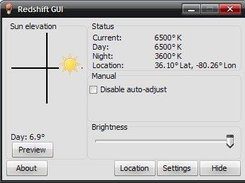
RedShiftGUI is a free program that lets you easily control brightness and color temperature. In addition to manual settings, it automatically adjusts the brightness and color temperature based on the lighting conditions. The program is much more efficient for managing screen brightness, and it works on both Windows and Linux. Download this software github.com.
2] Desktop Lighter
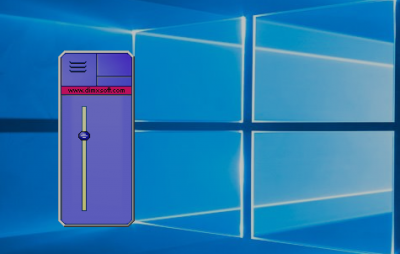
Desktop Lighter is a straightforward application that lets you quickly adjust your screen’s brightness. Upon installation, the application is added to your system tray. You can adjust the brightness settings by moving the slider or using keyboard shortcut keys like Ctrl +> and Ctrl +<. You can quickly increase the screen brightness using the Ctrl+> key combination and decrease it using Ctrl+<. The program is lightweight and doesn’t drain your system’s memory. Download this program here.
3] CareUEyes
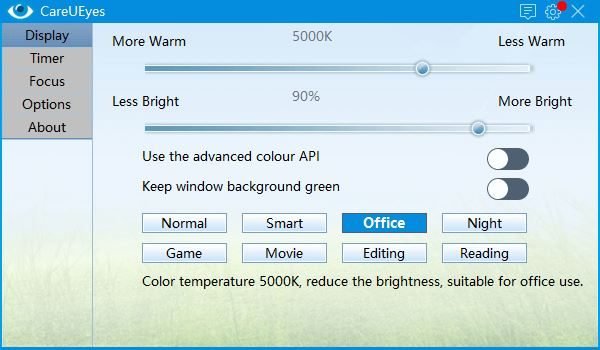
CareUEyes is a simple, lightweight software that lets you easily control the brightness of the computer screen. It has some great features that protect your eyes while you’re on a computer for long periods. The software automatically filters blue light to create a relaxed setting for long periods of computer use in a low-light setup. It allows you to adjust the color temperature and brightness according to the lighting conditions.
The software screen dimmer automatically adjusts the computer screen’s brightness to best suit your environment. It also notifies you to take regular breaks when you are hooked to the screen for too long. The software is designed to consider the need to protect your eyes while using a computer and create warmer screens that will eventually increase your productivity.
4] iBrightness Tray
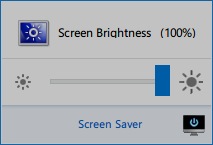
iBrightness is a brightness control utility that allows you to adjust the brightness quickly. The application is added to your task menu upon download, where you can adjust the slider to control the brightness. The software is lightweight and doesn’t consume much of your resources. Additionally, the program lets you turn off the screen completely and change the default screensaver with a single click. Download this software here.
Read: How to enable and change RGB Control in Windows 11
5] Gamma Panel
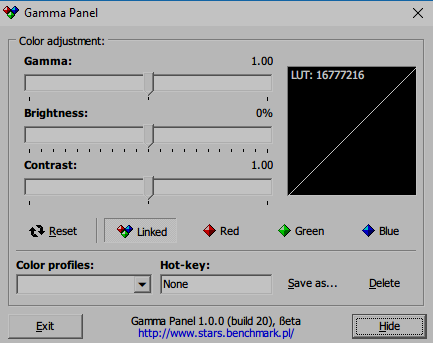
Gamma Panel is a simple application that lets you customize the screen brightness, contrast, and gamma settings in a single click. It is ideal if you are looking out for some real-time advanced settings in screen brightness and display. It also allows you to adjust the RGB combination. One feature that distinguishes this software from others is that it lets you create your color profiles with appropriate Gamma, brightness, and contrast settings and allows you to assign a combination of Hot-keys or shortcut keys to activate them. To apply the color profile, you can press the assigned hot-key combination. The application is free to download. Get this software here.
TIP: Eyes Relax, DimScreen, f.lux, ClearMonitorDDC, Le Dimmer, BrightnessTray brightness slider and Pause4Relax are similar tools you may want to take a look at.
6] PangoBright
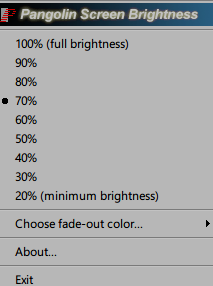
PangoBright is a free brightness control utility for Windows that requires no installation. Once the download is complete, it gets added to the system tray at the bottom of your Windows screen. It lets you quickly adjust the brightness according to your lighting conditions. This software is recommended if you mostly work in a dark setup. If you are using multiple desktops, the utility allows you to set brightness for each monitor. Download the software here.
You might want to also take a look at these Multi-Monitor Brightness Control software.
What is the shortcut key for brightness on PC?
There is no direct shortcut to adjust brightness unless the OEM offers it on the laptop or keyboard. Look at the keys and see if you can identify them. For example, on Dell, it could be Fn+F11 or F12. If you don’t have either, you can Win + A to open the Action Center, and then use the brightness slider to control it.
What screen brightness is best for the eyes?
If you are working in a dark environment, it’s best to reduce the brightness so it doesn’t hurt your eyes or strain them. If that doesn’t work, then we suggest putting a light with medium brightness at the back of the monitor or laptop. This will reduce the strain by a great margin.
How do I make two screens the same brightness?
While the best way to do it is when you have the same monitor, but if you have two different monitors, then you need to use the Calibrate display feature to bring it as close as possible.
Open the Start menu, type Calibrate display, and click on it the link as it appears. It will then start the Display Color Calibration wizard. You will have to repeat this for each monitor.
We hope you find the post useful.
