
Microsoft Word macros are powerful tools that automate repetitive tasks, saving you hours of work. Whether you’ve recorded simple formatting sequences or written complex Visual Basic for Applications (VBA) scripts, losing these macros to a system crash, upgrade, or hardware failure can be a major setback. In this post, we will see how to back up and export Macros in Microsoft Word.
How to backup or export Macros in Word
Macros are usually saved in your Word template files, especially in the Normal.dotm template, which also includes styles, keyboard shortcuts, and AutoCorrect entries. If this file becomes corrupted or lost during a system migration, you could lose all your automation tools. Regular backups can protect your efforts, and exporting macros makes it easy to share with colleagues or transfer to a new computer.
If you want to back up and export Macros in MS Word, follow the methods below.
- Export Macros as .BAS Files (Best for Sharing and Selective Backup)
- Back Up the Entire Normal.dotm Template
- Using Word’s Organizer Tool
- Create a Manual Macro Repository
1] Export Macros as .BAS Files (Best for Sharing and Selective Backup)
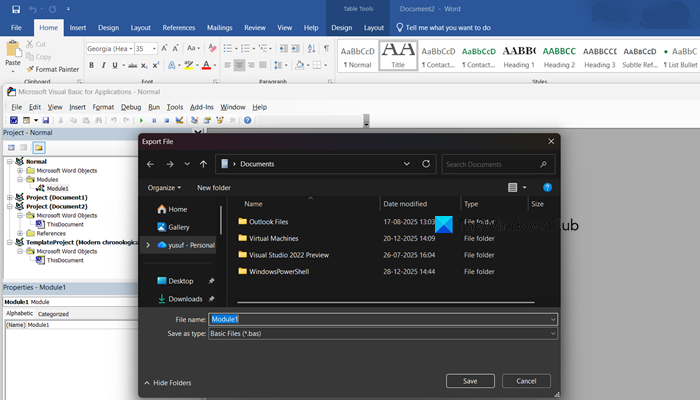
The best way to back up individual macros is to export them as .bas files from the VBA Editor. This method allows for easy sharing or transferring between templates without other customizations.
Follow the steps mentioned below to do the same.
- Open the Word document or template containing your macros.
- Press Alt + F11 to launch the VBA Editor.
- In the Project Explorer pane (usually on the left), expand the project (e.g., Normal or VBAProject), then expand the Modules folder.
- Right-click the module containing your macros and select Export File.
- Choose a backup location (e.g., an external drive or cloud folder) and save the file with a .bas extension. You can open this file in any text editor to view or edit the VBA code.
To import it, follow the steps below.
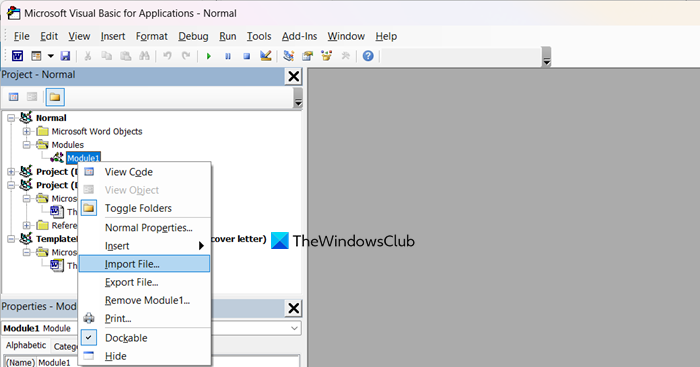
- Open the target Word document or template.
- Press Alt + F11 to open the VBA Editor.
- Right-click the Modules folder (or a specific project) and select Import File.
- Navigate to your saved .bas file and click Open. The macro will now be available in the target file.
There are other methods for exporting or saving Macros; let us explore them too.
2] Back Up the Entire Normal.dotm Template
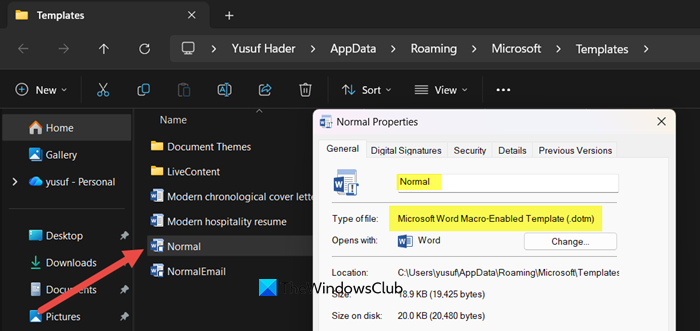
If you want to take a full backup of all Word customizations, including macros, styles, keyboard shortcuts, and AutoText, we need to copy the Normal.dotm file, which is the master template that Word uses for a new document.
To take the backup, first close all Word applications completely. Go to %appdata%\Microsoft\Templates in File Explorer.
Now, look for Normal.dotm file and copy it to a secure backup location such as an external drive or cloud storage.
Now, to restore, close all Word applications completely. Go to File Explorer and paste this path into the address bar – %appdata%\Microsoft\Templates.
Replace the existing Normal.dotm with your backup copy. Word will use your restored settings upon reopening.
Do keep in mind that restoring Normal.dotm will overwrite any customizations made since the backup. If you only need to recover macros, consider using the .bas export method instead.
3] Using Word’s Organizer Tool
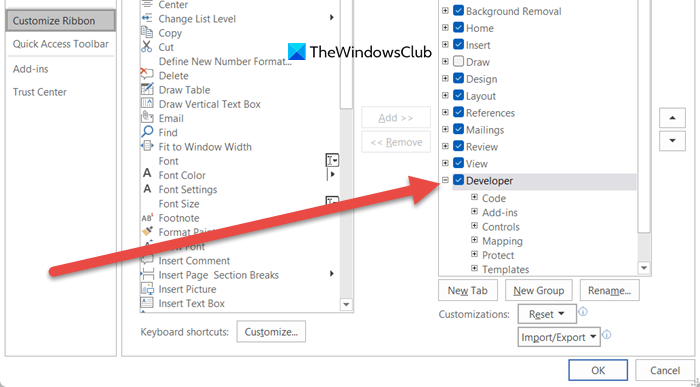
Word’s built-in Organizer tool (available in the Developer tab) lets you copy specific macros between documents or templates without handling VBA code directly. Follow the steps mentioned below to use the Organizer tool.
- First, we need to enable the Developer Tab. For that, go to File > Options > Customize Ribbon and check Developer in the right pane.
- Now, go back to your document, click on the Developer tab > Document Template.
- Click on Organizer.
- On one side, click Close File, then Open File to browse and select the source document/template.
- On the other side, open the target file.
- Select macros from the list and click Copy to transfer them.
This method is user-friendly but less efficient for backing up large numbers of macros compared to .bas exports.
4] Create a Manual Macro Repository
As a safety measure, save all your macro code in plain text in a Word document. This will create a readable backup you can rely on if other backups fail.
First, open a new Word document to use as your backup file. Then, press Alt + F11 on your keyboard to open the VBA Editor, where your macro code is stored. Inside the editor, find and open your macro modules, copy all the code from them, and paste that code into your new Word document.
Save this Word document with a clear name like “Macro Backup” in a safe place, such as an external drive or cloud storage. Later, if you need to restore your macros, you can open this backup document, copy the saved code, go back into the VBA Editor on any computer, create a new module, and paste the code back in.
That’s it!
Read: Prevent or Block Macros from running in Office files
How to permanently save a macro?
To make a macro always available in Word, save it in your Normal.dotm template file. This file loads automatically each time you open Word, allowing you to use the macro in all your documents. When you start Word, you might see a security warning about active content. Click Enable Content to run your saved macros.
Read: How to remove Macro Virus from Word or Excel
What is Ctrl+F12 in Word?
In Microsoft Word, pressing Ctrl+F12 opens the Open dialog box. This command lets you quickly browse your files to find and open an existing Word document without using your mouse or navigating the File menu.
Also Read: Record a Macro: Create Shortcut Button for Multiple Formats Word, Excel.
