
AppControl is a modern Task Manager alternative designed to give users deeper visibility and control over system activity. In this post, we will show you how to track, control, and monitor a Windows 11 PC using AppControl Task Manager.
The built-in Windows Task Manager helps you view running processes, check real-time resource usage, manage startup apps, and end unresponsive tasks. It is useful for quick troubleshooting, but it only shows live data and does not keep a detailed history of what happened earlier. If your system slows down and later returns to normal, Task Manager cannot tell you what caused the spike. It also provides limited insights into app behavior and privacy-related activity.
This is where AppControl Task Manager steps in. It not only monitors system performance in real time but also records historical data, tracks app activity, and gives you deeper control and visibility over what is happening on your Windows PC.
Track, Control and Monitor Windows PC using AppControl Task Manager
To use AppControl Task Manager effectively, it’s important to first understand its interface and how the different sections work together. While the dashboard may look detailed at first glance, it is designed to present system information in a clear and organized way. Let’s begin by installing the app and then walk through its interface and features step by step.
Download and install AppControl
Visit the official AppControl website using this link and download the setup file to your computer. Once the download is complete, double-click the setup file to begin installation.
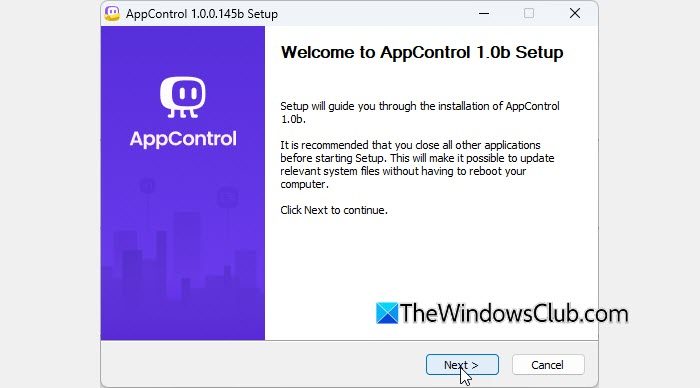
When the User Account Control (UAC) prompt appears, click Yes to allow the app to make changes to your device. The Setup Wizard will open. Click Next, accept the license terms, and then click Install to proceed with the installation.
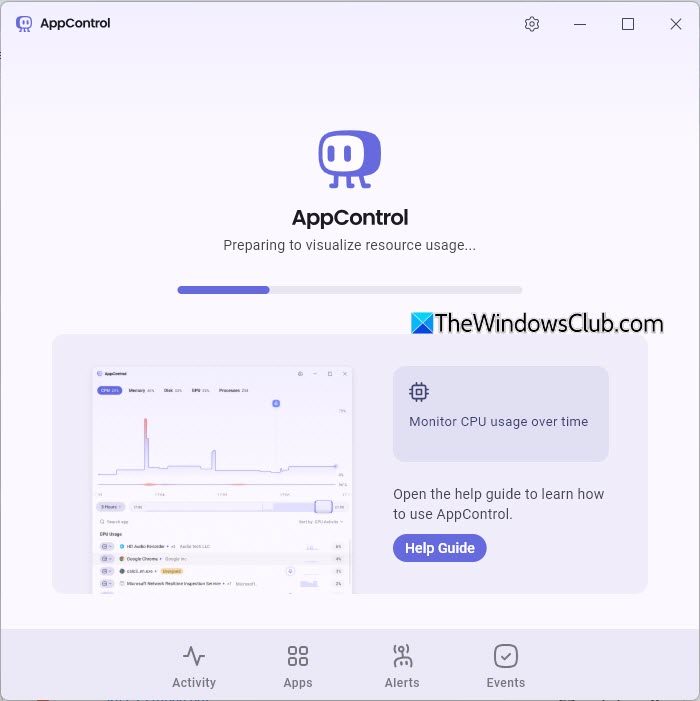
After the installation finishes, AppControl will launch automatically. You will briefly see a message, “Preparing to visualize resource usage,” while the app gathers initial system data. Once this process completes, the main AppControl interface will appear on your screen.
Understand the AppControl interface
AppControl features a clean interface with four main tabs at the bottom: Activity, Apps, Alerts, and Events. While the dashboard may look overwhelming at first, it is thoughtfully organized into various sections that focus on different aspects of system monitoring and control. Let’s understand each of them one by one.
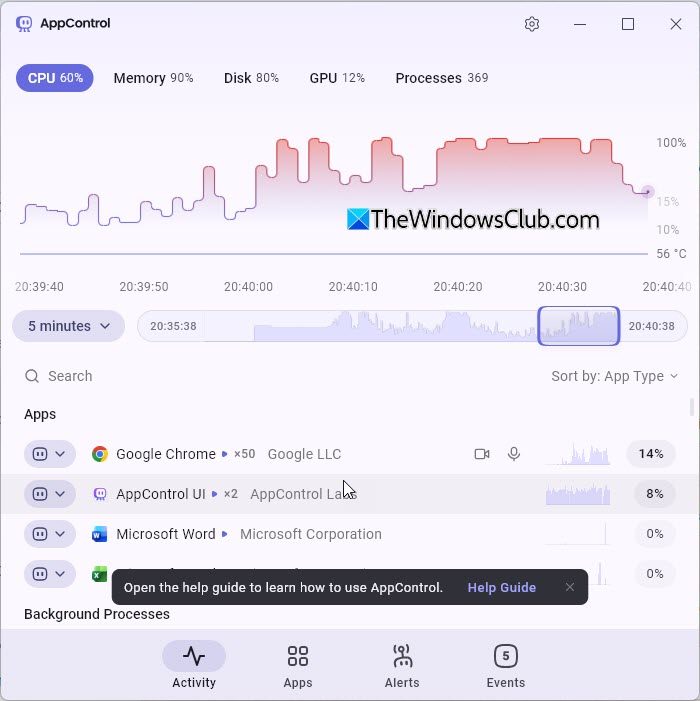
- Activity: The Activity tab is the main dashboard that displays real-time system performance along with historical graphs, allowing you to track CPU, memory, disk, and other resource usage over time. This is where you start if you want to analyze performance spikes or slowdowns.
- Apps: The Apps tab shows all the applications currently running on your PC. It also displays the rules you create in AppControl Task Manager.
- Alerts: The Alerts tab provides brief, disappearing notifications on your desktop whenever apps take certain actions. These instant alerts help you stay informed without constantly watching the dashboard.
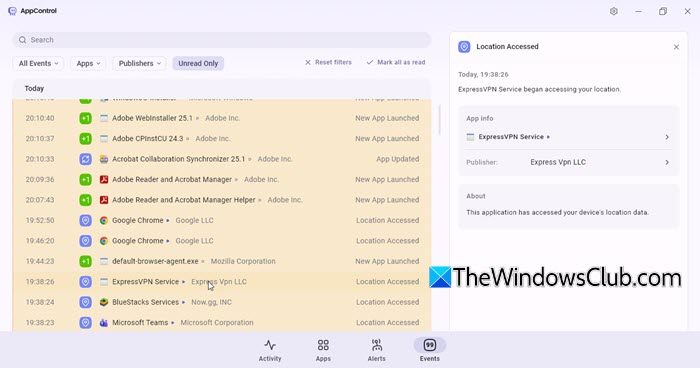
- Events: The Events tab keeps a detailed log of system activity. Here, you can see when apps launch or exit, and when they access sensitive components like your camera, microphone, or location, giving you better visibility and control over your PC.
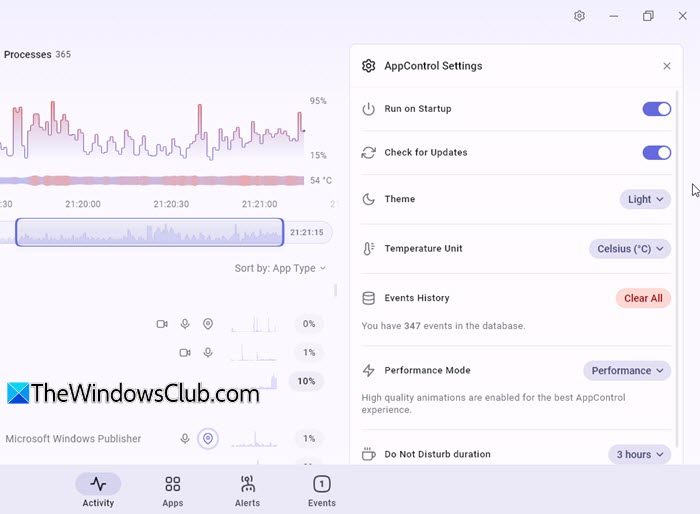
- Settings: The Settings panel appears when you click the Settings icon. It lets you customize how AppControl works on your system. It also allows you to manage event history and configure Do Not Disturb duration for alerts.
Track system performance and app activity
At the top, AppControl shows live system metrics, including CPU, memory, disk, and GPU usage, along with the total number of running processes. These real-time indicators give you an instant overview of how heavily your system is being used at any given moment.
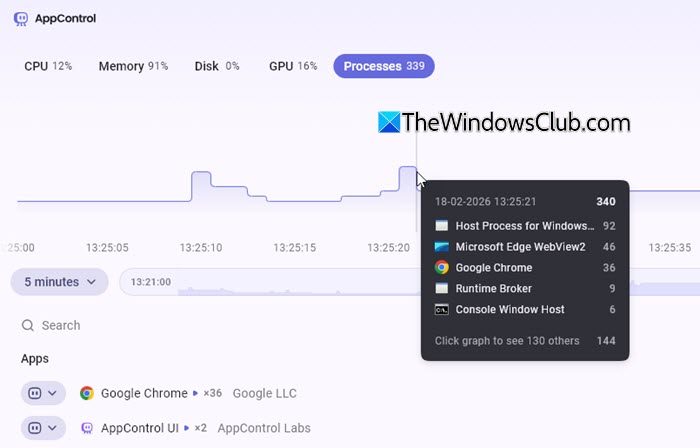
Below the metrics, the Activity graph displays performance trends over time. You can hover over specific points on the graph to see which apps were active at that time and how many processes were running. The graph also displays CPU/GPU temperature, giving you deeper insight into your system’s thermal behavior during performance spikes.
The Apps section further helps you monitor activity by listing running applications and background processes. Together, these features make it easier to understand not just what is happening now, but what happened earlier and which apps were responsible.
Monitor camera, microphone, and location access
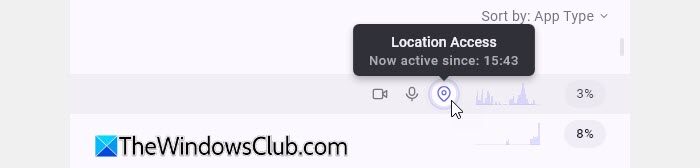
AppControl also displays privacy-related activity directly beside each app. You can see visual indicators next to each app showing what hardware it has accessed and when. In the Apps tab, you can filter applications based on hardware access.
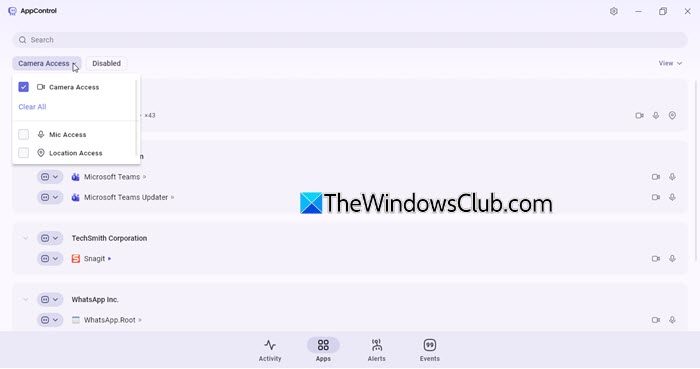
For example, selecting Camera Access instantly displays only the apps that have used your camera. Similar filters are available for microphone and location usage.
Control and manage applications
When you click on an app on the main dashboard, a side panel opens showing its live hardware usage, file details, and a clear explanation of what the .exe file does. From this panel, you can kill the app immediately or permanently disable it to prevent further activity.
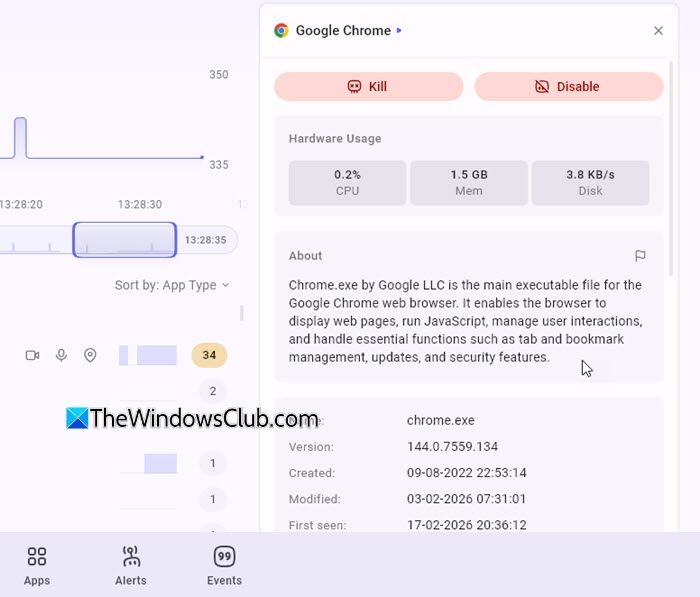
When you switch to the Apps tab, you will see all running applications and background processes neatly grouped by their publishers. This makes it easier to identify trusted software and third-party programs. Any apps that have been blocked or disabled through AppControl rules will also be listed there.
Configure and manage alerts
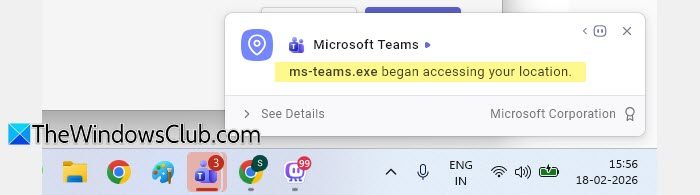
The Alerts tab allows you to control how and when AppControl notifies you about important system activity. One of the most convenient features here is the drag-and-drop functionality. You can drag specific alert types, such as Camera Access, Microphone Access, Location Tracking, etc., into the “Notify me” section to enable desktop notifications, or remove them to stop receiving alerts for that activity.
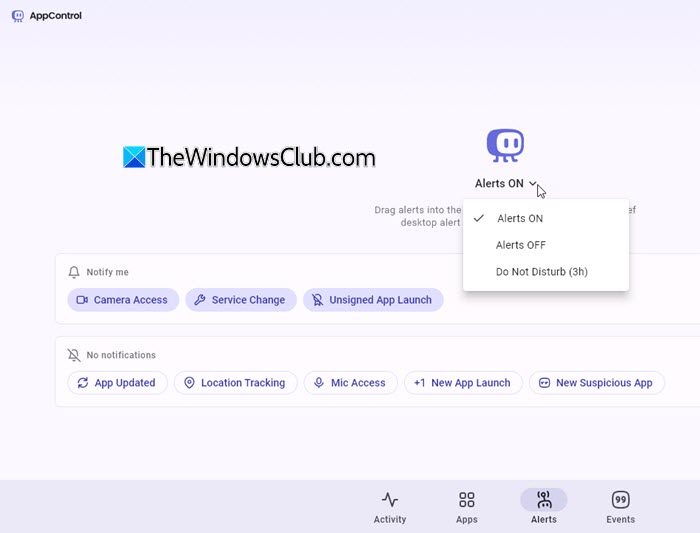
You can also turn alerts On, Off, or enable Do Not Disturb mode for a specific duration to manage interruptions based on your workflow.
Review detailed system events
The Events tab serves as a comprehensive activity log of everything happening on your PC. Here, you can see when applications launch or exit, when services are modified, and when apps access sensitive hardware such as your camera, microphone, or location. It also logs events like updates, unsigned applications, and other potentially suspicious activity.
Overall, AppControl gives you better visibility and control over what’s happening on your Windows PC than the standard Task Manager.
That’s all! I hope you find this useful
Read: Task Manager not updating in Windows 11
What is a Task Manager app used for?
A Task Manager app is used to monitor and manage the programs and processes running on your computer. It shows real-time information about CPU, memory, disk, and network usage. Advanced Task Manager tools may also provide historical data and app control features.
How do I stop running apps in the Task Manager?
To stop a running app, open Task Manager by pressing Ctrl + Shift + Esc. In the Processes tab, select the application you want to close. Click End Task to terminate it immediately. This is useful when an app becomes unresponsive or is consuming excessive system resources.
Read Next: Task Manager not responding, opening, or disabled by administrator.
