
Response problems from a graphics card can prevent an operating system from receiving a signal or an input within a certain amount of time. This issue is referred to as Timeout Detection and Recovery (TDR). What can be the possible causes of this issue and troubleshooting steps one should take to prevent the error from recurring, we’ll find out in this post.
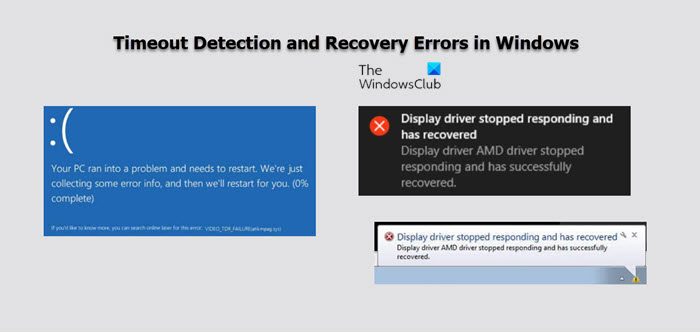
When a TDR error occurs, the system displays a message that may reference one of these files: ATIKMDAG.sys, ATI2DVAG.sys, ATI2CQAG.dll, ATIVPK.sys, AMD2DVAG.sys, AMDKMDAG.sys, AMDVPK.sys.
Fix AMD Driver Timeout Detection and Recovery errors
If you have recently installed a new operating system, 3D game, or application, chances are you must have come across AMD drivers. It’s a company, Advanced Micro Devices, that makes drivers that bear a good reputation, last long, and have an efficiency that matches industry-leading user satisfaction. On a few occasions, some unknown problems may lead to Timeout Detection and Recovery Errors. Read what troubleshooting steps you should take to fix it, permanently!
- Keep the operating system up to date.
- Use the System File Checker tool to repair missing or corrupted system files.
- Use AMD Cleanup utility.
- Replace any faulty hardware.
- Fix Unstable overclocking and overheating.
Normally, when the OS fails to respond from a graphics card within a certain amount of time (default is 2 seconds), the operating system resets the graphics card. This solves the problem but at times, the missing Windows application/game updates, corrupted Windows registry or system files, corrupted or known graphics driver issue, unstable overclocking and overheating and faulty hardware issues can spiral into Timeout Detection and Recovery Errors. Please follow these steps to resolve the issue.
1] Keep the operating system up to date
It is essential to keep your system updated, as software updates typically include fixes for known issues, as well as optimizations for supported hardware. Also, check if there are any available recommended and critical updates for your Windows operating system.
2] Use the System File Checker tool to repair missing or corrupted system files

As the time passes by, your operating system’s performance gets hampered by registry entries that are remnants from uninstalled 3rd party applications or system file version conflicts. To remove it use the System File Checker tool. The utility allows users to scan for and restore corrupt Windows system files.
3] Use AMD Cleanup utility
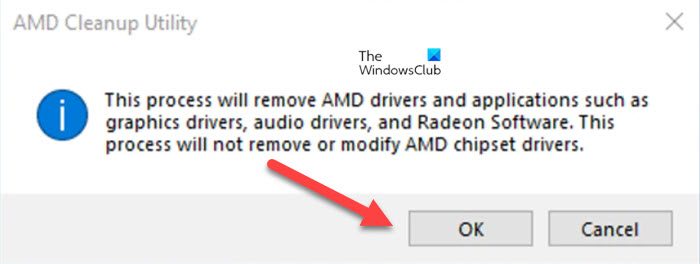
As an alternative to the above method, you can download and run the AMD Cleanup utility. It thoroughly scans to remove any previously installed AMD driver files, registries, and driver store from systems running Microsoft Windows. The AMD support site recommends using this method when the normal uninstall procedure, accessed through the Windows Control Panel’s Programs and Features option, fails or proves unsuccessful.
4] Replace any faulty hardware
Over time, due to wear and tear from normal use, hardware can start behaving erratically and become incompatible, especially when it was not designed to work with certain devices. Thus, it becomes a possible source for TDR errors. To keep it under check, make sure that the CPU, graphics card, memory, storage, power supply unit, and all components have been qualified for the motherboard and the BIOS version.
Refer to the motherboard hardware qualified vendor list (QVL). It can be found on the motherboard manufacturer’s website. Apart from it, check that the power supply unit (PSU) meets the requirements of the graphics card and that the PSU cables are properly connected to the graphics card (if required). Try reseating the graphics card into the PCIe slot, and if feasible, test it in a different PCIe slot or system.
5] Unstable overclocking and overheating
Lastly, it has been found, TDR errors can be triggered from unstable overclocking and overheating of the CPU, graphics card, and/or system memory. If these system components were manually overclocked, restore them to factory default settings and check if the TDR error persists. You may need to reset settings in the BIOS, through overclocking utilities, or within the graphics driver menu.
Related: Fix AMD Driver Timeout has occurred error.
What causes AMD driver timeout?
An AMD driver timeout occurs when your system fails to respond from a graphics card within the default time of 2 seconds. This problem may arise due to a corrupt system file, an outdated graphics driver, incorrect power settings, or other issues. That is why you should review these tips and tricks to resolve this problem.
How to fix AMD software detected that a driver timeout has occurred on your system?
To resolve this issue on a Windows 11/10 PC, it is essential to keep the OS updated regularly. As in most cases, users with the latest version of Windows 11 should use the SFC tool to scan for and rectify corrupt system files immediately. Additionally, you can use the AMD Cleanup Utility to replace the faulty hardware.
