
If you encounter the “Alert, Memory failure detected in DIMM, System halted” error when you turn on your Windows computer, the solutions provided in this article will help you. This error prevents your system from booting into Windows. Therefore, you cannot use your system until this error is fixed. The cause of this error is usually a hardware problem.
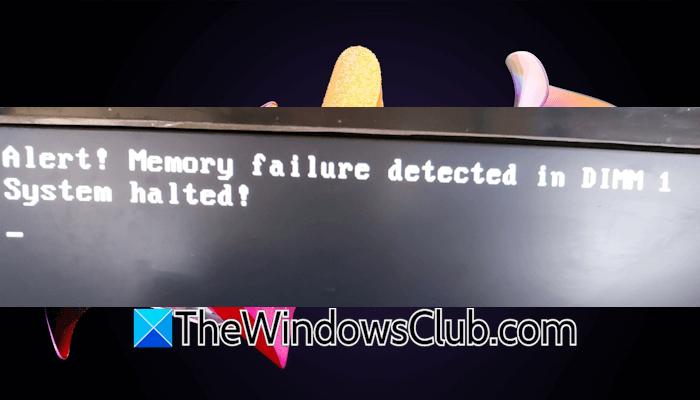
Alert! Memory failure detected in DIMM #
System halted!
# represents the DIMM slot number. This is different for different users.
Alert, Memory failure detected in DIMM, System halted
Use the following solutions to fix the “Alert, Memory failure detected in DIMM, System halted” error on your Windows system:
- Perform a hard reset
- Clear CMOS
- Run memory tests by pressing F5
- Clean the RAM stick
- Check for an LED pattern or a beep sound
- Did you upgrade your CPU?
- Hardware fault
All these fixes are explained in detail below:
1] Perform a hard reset
Perform a hard reset and see if this fixes the error. Go through the following instructions:
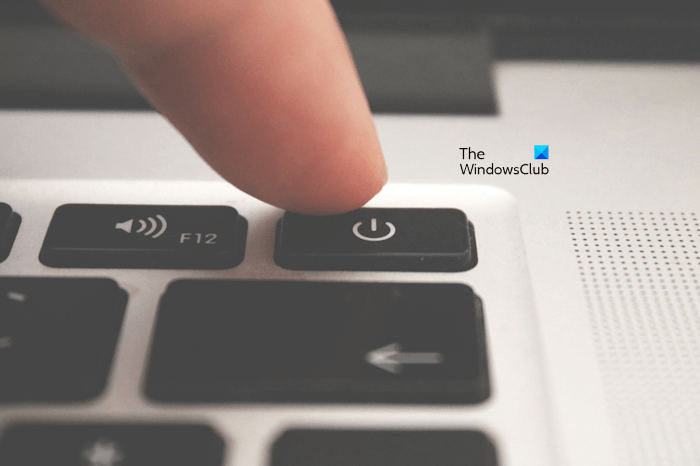
- Turn off your computer.
- Remove the power cord from the computer. If you are a laptop user, disconnect the charger.
- Also, disconnect all the peripherals.
- Press and hold the power button for 30 seconds.
- Connect the power cord and turn on your system.
2] Clear CMOS
CMOS is a small coin-shaped battery that provides continuous power to the BIOS when your computer is turned off. Clearing the CMOS fixes most booting problems. Try this and see if it works this time.
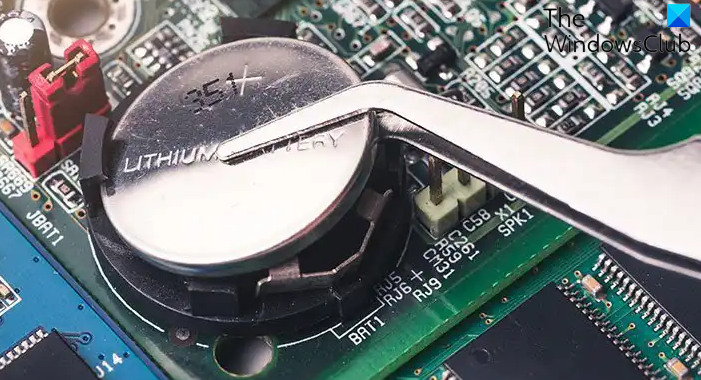
When your computer is turned off, open your computer case and gently pull out the CMOS battery from the socket. Wait for a few minutes and reinsert the battery into the socket with the right polarity.
3] Run memory tests by pressing F5
This fix does not apply to all users. If instead of the System halted message, your system shows the following options along with the memory error message, run the memory tests:
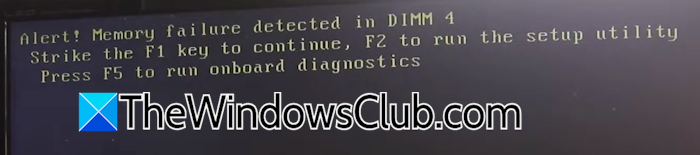
Alert! Memory failure detected in DIMM #
Strike the F1 key to continue, F2 to run the setup utility, and F5 to run the onboard diagnostics
In the above message, # represents the DIMM slot number. Press the F5 key to run memory tests. In your case, there can be another key instead of F5.
4] Clean the RAM stick
Dust build-up also causes several issues on a computer. The RAM stick inserted in the slot number mentioned in the error might not be making a proper connection with the motherboard due to dust buildup. Or, the RAM stick might not be seated properly.
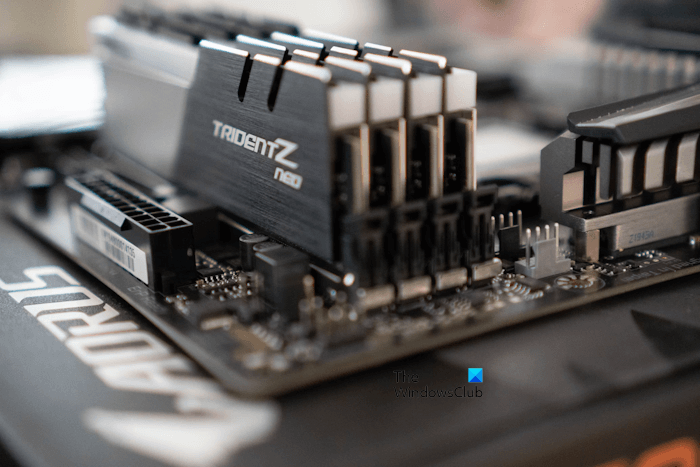
Open your computer case, remove the RAM stick carefully, and clean it. Also, clean the RAM slot. Now, install the RAM stick correctly. Turn on your computer and see if the error occurs. If yes, the problem may also be with the RAM slot. If your motherboard has multiple RAM slots, and other slots are empty, insert the RAM stick into another available slot. If the error does not occur, this means that the issue is with your RAM slot. However, if the error occurs, the problem is with the RAM. Purchase a new compatible RAM stick.
5] Check for an LED pattern or a beep sound
Turn on your computer and monitor carefully for an LED pattern or a beep sound. If your system displays a certain LED pattern on boot, refer to the user manual of your system to decode that LED pattern. In this case, there might be another hardware fault.
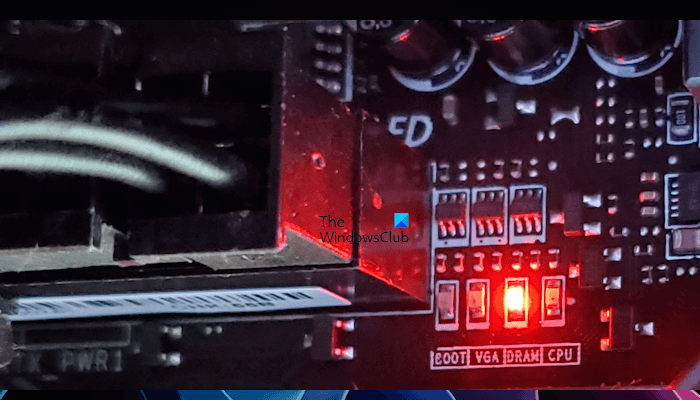
Similarly, if you hear a beep sound when you turn on your system, decode that beep sound to identify the faulty hardware. You can also open your computer case and check if any LED lights are continuously on. If an LED light on a motherboard remains on, it indicates a problem with the respective hardware.
6] Did you upgrade your CPU?
The error “Memory failure detected in DIMM” can also occur if there are bent pins on the CPU socket, as misaligned pins can prevent proper communication between the CPU, memory, and the motherboard. If you have recently upgraded your CPU, the chances of misalignment of the CPU are higher. Check this.
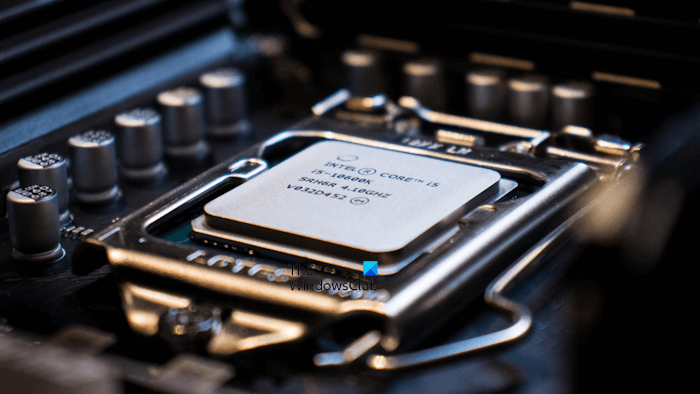
Another possible cause of this error is the CPU compatibility with the motherboard. If you have installed a CPU incompatible with your motherboard, you may encounter this error.
7] Hardware fault
If none of the above-mentioned fixes work, the chances of a hardware fault on your system are higher. Take your computer to a professional computer repair technician for further assistance.
That’s it. I hope this helps.
Read: Unsupported memory configuration. Please populate DIMM 1.
What causes DIMM failure?
A DIMM failure occurs when a RAM stick stops functioning correctly. This usually happens when the RAM stick is not installed correctly or is dirty. Dust accumulation blocks the connection between the RAM stick and the RAM slot. It is also possible that the RAM stick is faulty.
How to fix a RAM failure?
To fix a RAM failure, the first step is to identify the cause. It might be a temporary glitch, a physical connection issue, or a permanent hardware failure. A temporary glitch can be fixed simply by performing a hard reset or clearing the CMOS. If the error occurs due to connection issues, unplug the RAM and reinstall it correctly. If the RAM is faulty, replace it.
Read next: Windows stuck on Black Screen after running Memory Diagnostic.
