
In this post, we will show you how to add the strikethrough effect in MS Outlook, Outlook app and Outlook.com. Outlook has a single/double strikethrough feature just like every other Office 365 app. When we hear of strikethrough, one tends to think of Excel or Word. However, the feature is also available in Outlook as well. So, if you want to draw a line through text in your email text, this is the best way to do it.
How to add Strikethrough to Text in Outlook
Outlook includes a simple strikethrough feature, along with a double strikethrough option. However, Outlook on the web currently supports only simple strikethrough. In the mobile version of Outlook, the strikethrough feature isn’t supported. This may change in the future, but as of now, it hasn’t.
How to add single Strikethrough in MS Outlook
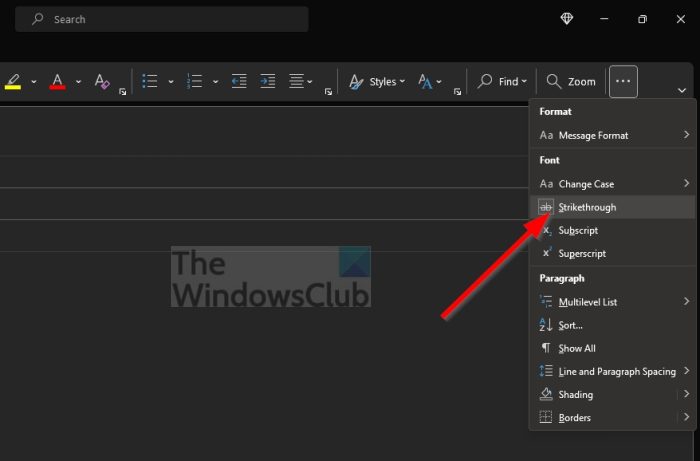
Adding a strikethrough on the Outlook desktop app is a simple thing, so let us talk about how to accomplish this.
- Open the Outlook app right away.
- Compose a new email or reply to an email.
- Type the text you’d like to add the single strikethrough.
- Highlight the added text.
- After highlighting, click on the Format Text tab.
- From the Font category on the Ribbon, select the strikethrough icon.
The strikethrough effect should now be added to your preferred text.
How to add double Strikethrough in MS Outlook
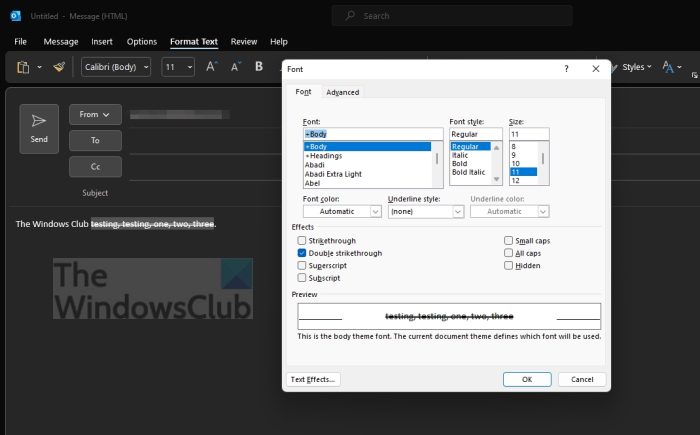
Adding a double strikethrough is mostly the same, so let us look at how to do it.
- If you haven’t already, open the Outlook app.
- Create a new email to send or reply to one.
- Type the text you want to add the double strikethrough effect to.
- Highlight the text
- Right-click on it
- Select the Font option via the Context menu.
- Look for the Effect section via the Font window.
- Tick the Double Strikethrough box.
- Hit the OK button.
Your text should now have the double strikethrough effect attached.
How to add Strikethrough in the new Outlook app
To add Strikethrough in the new Outlook app:
- Create a new email or reply to a message
- Select or highlight the text you want to cross out
- Click Format text on the ribbon
- Click Strikethrough (the crossed-out “ab” icon).
Read: Strikethrough Shortcut for Google Docs, PowerPoint, Sticky Notes, Teams
How to add single Strikethrough in the Outlook web app

As we have stated above, Outlook for the web makes it possible for users to add a strikethrough effect on text, but only a single. Support for double strikethrough has not been added as of the time of writing.
- Navigate to the official website for Outlook for the web.
- Compose a new email or reply to one sent to you.
- Type the text you want to add the effects to.
- Highlight the new text or an existing one.
- Look to the bottom of the window.
- Click on the three-dotted button at the bottom-right corner.
- A pop-up menu should appear.
- From that menu, click on the strikethrough icon.
The effect should now be visible on the text you’ve recently selected.
Read: Outlook Cannot send this meeting request
How can I get Microsoft Outlook for free?
From our understanding, the only way to get Microsoft Outlook for free is to use the web-based version. It won’t have all the bells and whistles, but it lets users send and receive emails with ease. Be sure to sign in with your Microsoft account to move forward.
Why can’t I access my Outlook email?
In most cases, you can’t access Outlook email because of incorrect settings. Therefore, confirm everything is in the right order before trying to use Outlook. Also, check whether your internet connection is acting up.
